
Your learning home
Home is the screen you land on after signing in. It exists to answer one question: what should I do now?
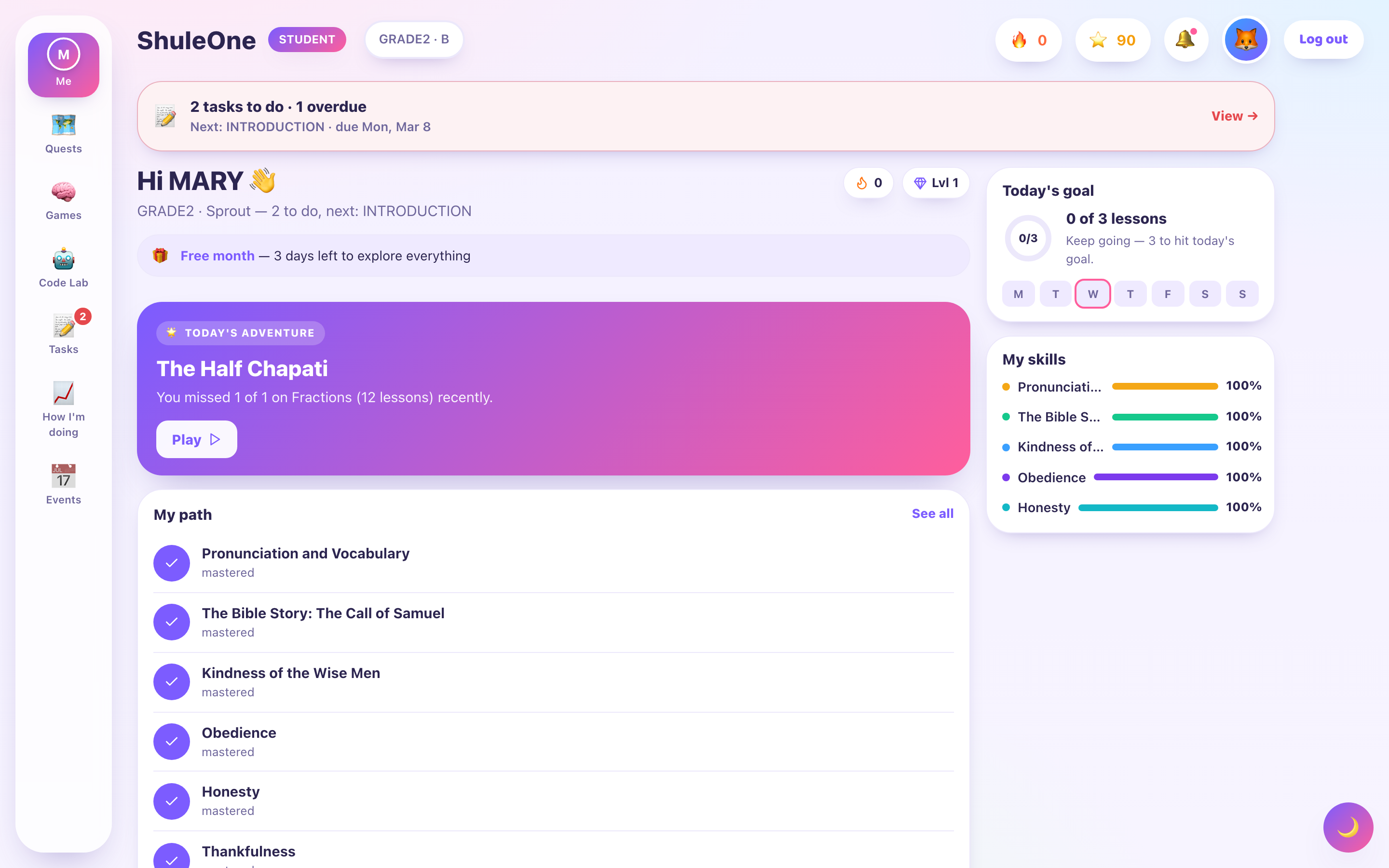
Home shows the current quest, today’s goal, skills and the learner’s recent path.
What is on it
Section titled “What is on it”Today keeps profile administration out of the learning area. Use the profile avatar to open My profile, where Switch learner appears for households with multiple learners. Learning preferences and guardian settings remain there; the old “Learning profile / Learning settings” strip is no longer shown on Today.
Personalise an independent learner’s home (web, awaiting deployment)
Section titled “Personalise an independent learner’s home (web, awaiting deployment)”New independent families enter a focused, full-page flow after sign-up, before Home. There is no learning sidebar during setup, including after refresh or a direct link to a learning page. Screens slide horizontally with Next and Back. Existing school families can use Personalise learning on Home without repeating registration or losing access to school information. The short flow has four steps: welcome, interests, a learning goal, and ready. Choose up to three interests; both interests and the goal are optional. Next and Back save your choices as you move. Skip this question advances to the next optional question without opening Home. Only Let’s learn on the final screen finishes setup and opens Home. Previously completed setup (including legacy skipped setup) does not appear again automatically.
Choices belong to the selected learner, not the whole household. Independent learners resume unfinished setup before entering Home. School parents can resume from their Home invitation. To edit later, independent learners open the profile avatar → My profile → Learning preferences → Edit learning interests. Parents use Settings → Learning preferences for their selected child. Editing begins with the saved interests and returns to Profile or Settings after Save preferences. Account, billing and learner-management settings still require guardian verification. If another device has changed the choices, reload before saving. If a save fails, retry before leaving.
The tutor can use interests in its examples. They do not change assessment scores, prove ability, or replace your curriculum and learning path. Grade and curriculum changes remain in Settings. This flow does not request microphone access or extra personal details. It is currently a web feature; native onboarding is not changed.
Continue where you left off. The lesson you were last working on, with a button to pick it up. If you do nothing else, this is the button to press.
What is next. The stage that has just unlocked on the quest you are working through.
Recommended. Suggestions based on what you have done and what you found difficult. These are worth taking seriously — the portal recommends revision of things you got wrong more often than it recommends new material. Choosing a recommendation opens the published lesson named on the card, including recommendations returned by the latest independent-learning service.
Your subjects. Cards for each subject you are enrolled in, as a way in when you want to choose rather than continue.
Progress. How far along your quests you are, and any streak you are on.
Anything due. Work your teacher has set with a date on it. This is the part to check first — a recommended lesson can wait, an assignment due tomorrow cannot.
The exact arrangement depends on your tier. Younger learners see fewer, bigger things; older learners see more at once.
KPSEA and KJSEA readiness
Section titled “KPSEA and KJSEA readiness”Grade 6 candidates see KPSEA readiness and Grade 9 candidates see KJSEA readiness. The three weakest subjects appear first so the card stays useful on a small screen. Choose Show all subjects to inspect every subject included in the overall score; use the same button with Enter or Space when navigating by keyboard.
Each row shows a score from 0% to 100%, the number of valid graded results behind it, whether those results came from school work or ShuleOne practice papers, and the current direction. The overall percentage uses every included subject, including subjects hidden by the initial three-row view.
Overall score unavailable does not mean 0%. ShuleOne excludes work whose marks are missing or invalid, and a subject needs at least two valid graded results before it contributes. The card explains this and continues to show any subject-level evidence that can be read safely.
Choosing a path
Section titled “Choosing a path”Independent learners have Games and League directly in the desktop sidebar, instead of a More menu. Small-screen navigation may still group extra destinations to keep the main controls usable.
Learners who are not following a class-set curriculum can choose a path — the area of learning to work through. You can change it later, and changing it does not lose the progress you have made.
Making it work
Section titled “Making it work”Little and often beats a marathon. Two stages a day, most days, gets further than one long session at the weekend, and the portal is built around that rhythm.
Finish the lesson you start. Progress is recorded per activity, so you can stop and come back — but a lesson left half-done is one you will have to re-read the beginning of.
Do not skip the “try” activities. They are the ones that make the difference. Watching a video and answering a question about it is not the same as doing the thing.
Use recommendations for revision. When you have a spare twenty minutes, the recommendations are a better use of them than starting something new.
Settings
Section titled “Settings”The settings screen holds your profile, your password, and how the portal behaves — sound on or off, and notification preferences.
Sound matters in the younger tiers, where instructions are spoken as well as written. If a learner seems stuck on activities that read out loud, check that sound is on and the device is not muted.
School materials and focused learning menus
Section titled “School materials and focused learning menus”Your school can provide its own notes, videos, audio and images. Open School materials on the student web portal or Materials in the student app. Only published materials for the learner’s current class appear. The school decides whether download controls are available or materials can only be viewed online.
A school-only learning space shows a shorter menu. ShuleOne tools appear when the school enables them and the learner’s curriculum supports them. Class and assessment labels follow the school’s setup. If a material is missing, ask the teacher to check its class audience and publication. See School materials.