
Finding your way around
Every module in the school management system is laid out the same way. Learning the pattern once means you can use a module you have never opened before.
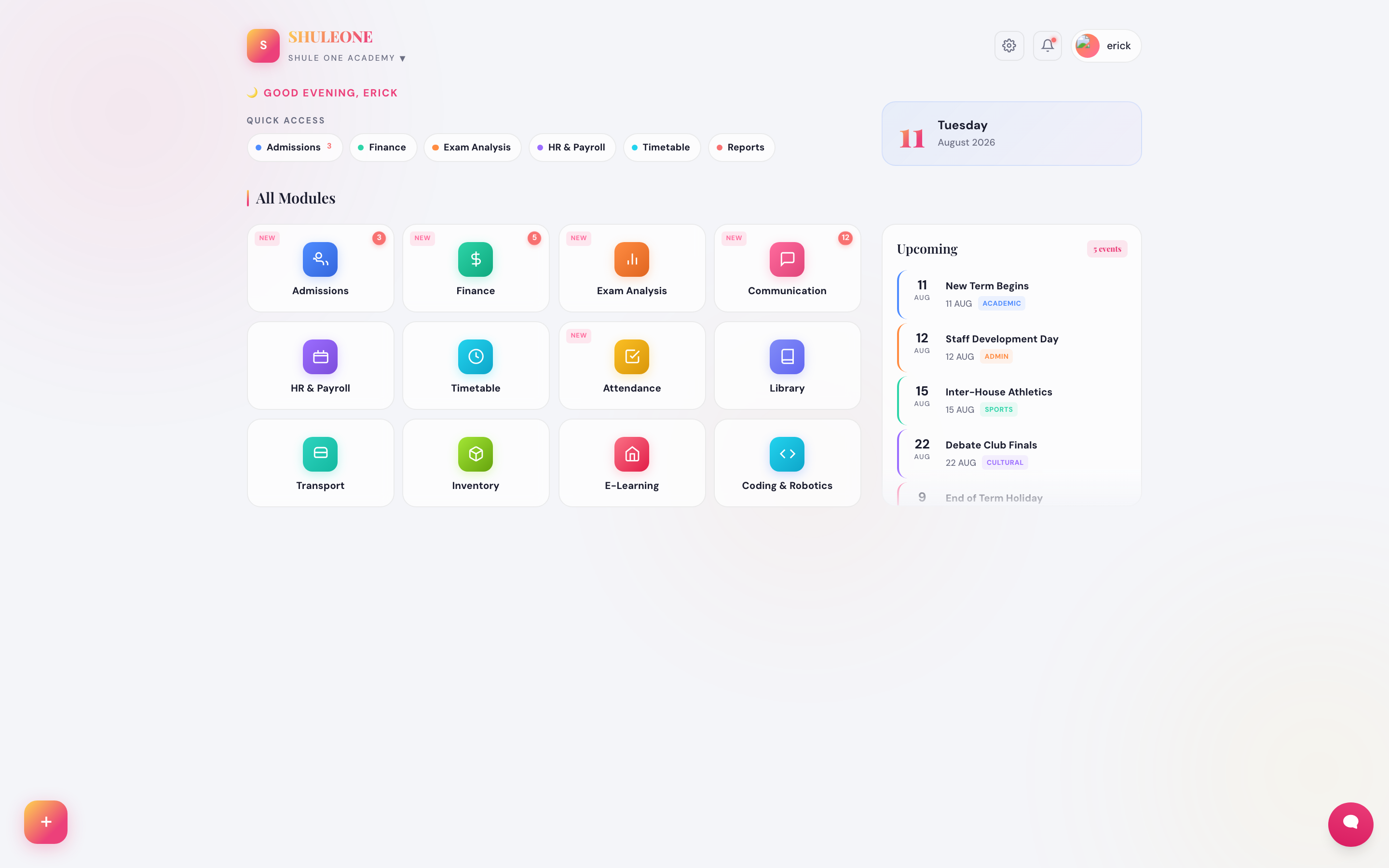
The dashboard: summary tiles across the top, the module list, and quick access to the screens you use most.
The screen
Section titled “The screen”What’s new — 9 October 2026. On desktop, use the double-chevron at the top of the Finance sidebar to collapse it to icons or expand it again. Your choice is remembered.
- Top bar — the school short name, a search box on list screens, and your profile menu. The profile menu is where you change your password and sign out.
- Module list — the modules your role can reach. Selecting one replaces the working area with that module’s own dashboard and sub-menu.
- Quick access — shortcuts to frequent tasks, such as receipting a payment or marking a register.
- Working area — the screen itself.
Conventions used everywhere
Section titled “Conventions used everywhere”Lists. Almost every screen is a list of records with a search box, filters (usually class, term and status), and page controls at the bottom. Search matches names, admission numbers and reference numbers.
Add New. The button that creates a record is always at the top right of a list and is labelled Add New or New. It opens a form over the list rather than taking you to a different page, so cancelling returns you exactly where you were.
Row actions. Actions on a single record sit at the end of its row. Where there are more than three, they collapse into a More menu.
Save is explicit. Nothing is saved as you type. A form is only committed when you select Save or Submit, and leaving the page discards it.
Export and print. Lists and reports offer PDF and Excel. PDF is formatted for filing and signing; Excel is the one to use if you intend to do further work on the figures.
Term and year context. Most academic and finance screens show data for the current term only. If a list looks empty or short, check the term selector before concluding that records are missing.
Filters
Section titled “Filters”Filters combine — setting a class and a term shows records matching both. They persist while you move around inside a module and reset when you leave it. If a report comes out empty, clearing every filter and starting again is faster than hunting for the one that is wrong.
Deleting records
Section titled “Deleting records”ShuleOne distinguishes between records that can be removed and records that can only be reversed:
- Setup records — subjects, classes, voteheads, item categories — can be deleted while nothing references them. Once something is attached, deletion is blocked and you should deactivate instead.
- Financial records — receipts, invoices, journals — are never deleted. They are reversed, which leaves both the original and the correction visible in the ledger. This is deliberate: an audit needs to see that a mistake was made and corrected.
Keyboard and browser tips
Section titled “Keyboard and browser tips”- ShuleOne works in current Chrome, Edge, Firefox and Safari.
- Use the in-app back links rather than the browser back button on multi-step forms — the browser button can drop what you have entered.
- On long marks and billing sheets,
Tabmoves to the next field and is much faster than the mouse.