
School profile
The school profile supplies the letterhead for everything ShuleOne prints: receipts, invoices, report cards, payslips, purchase orders and statements. Get it right before you issue anything to a parent, because reprinting a term’s receipts to correct a telephone number is tedious.
Go to Settings → School.
The fields
Section titled “The fields”| Field | Used for |
|---|---|
| School name | The full legal name, printed as the heading on documents. |
| Short name | Shown in the top bar and used where space is tight, such as SMS. Keep it under about 15 characters. |
| Logo | Printed on documents and shown on the sign-in page. A square PNG on a transparent or white background works best. |
| Address, postal code, town | The address block on documents. |
| Telephone and email | Printed as the contact line, and used as the reply address for some notifications. |
| Registration / MoE number | Printed where an official document requires it. |
| Motto | Optional, printed under the school name on report cards. |
Select Save when you are done. Changes take effect on the next document you generate; documents already produced keep the details they were printed with.
Stamps and signatures
Section titled “Stamps and signatures”Two screens control the marks ShuleOne applies to official documents:
- Academics → Stamp — the stamp and signature printed on report cards.
- Finance → Stamp — the stamp and signature printed on receipts and invoices.
Upload each as an image with a transparent background so it sits over the document rather than covering it with a white box. Signatures also live under Settings → Signatures, where you can hold more than one and choose which is applied.
Identity, security and account settings
Section titled “Identity, security and account settings”The rest of Settings covers how the school itself is configured:
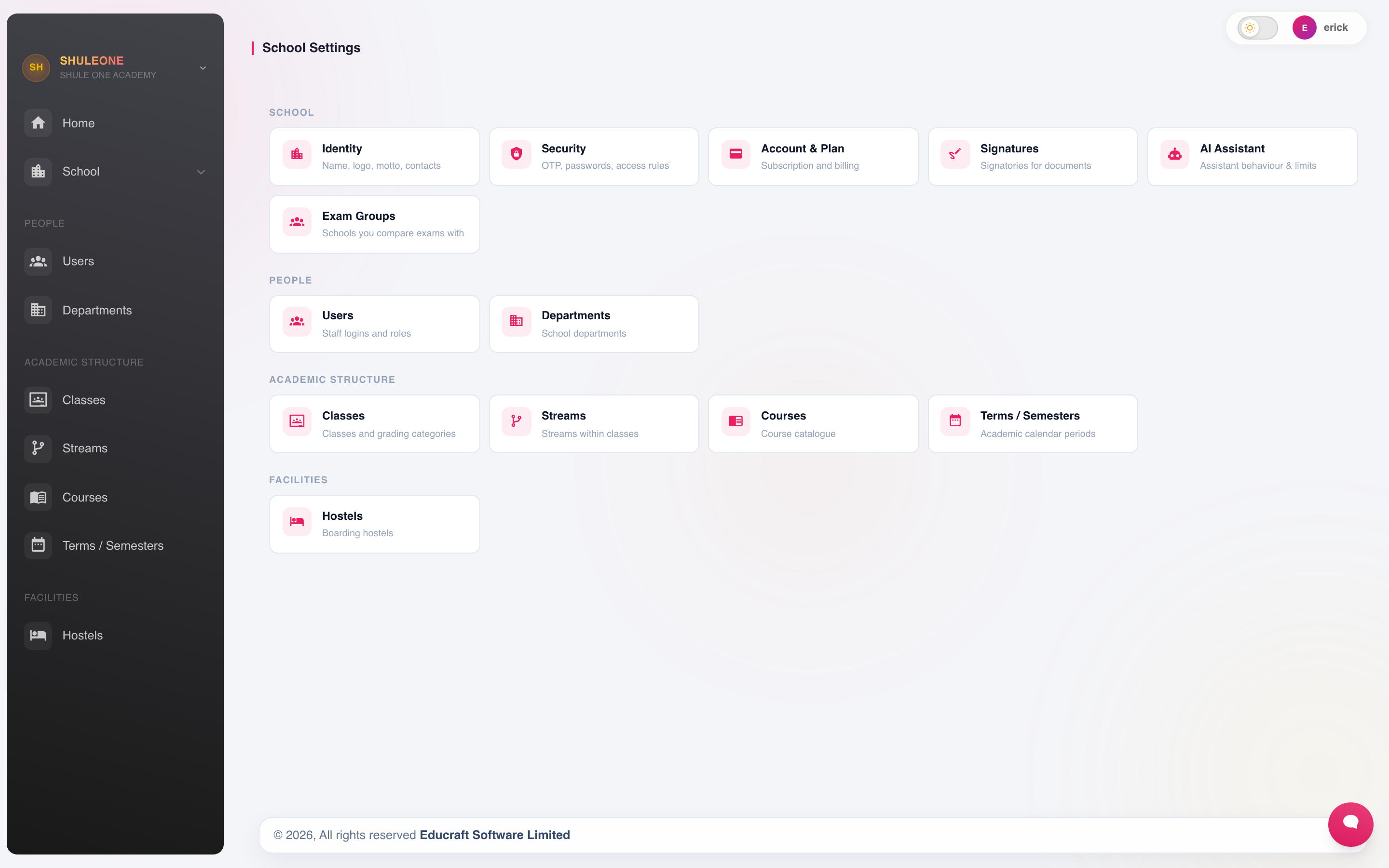
The settings hub links to identity, access, academic and other school-wide options.
- Identity — the profile above, plus branding.
- Security — password rules and whether one-time codes are required at sign-in and on sensitive screens.
- Account — your subscription and the modules enabled for the school.
- Exam groups — how exams are grouped for combined analysis.
- AI — the optional assistive features, and whether they are on for your school.