
Items and stock
Go to Inventory → Items.
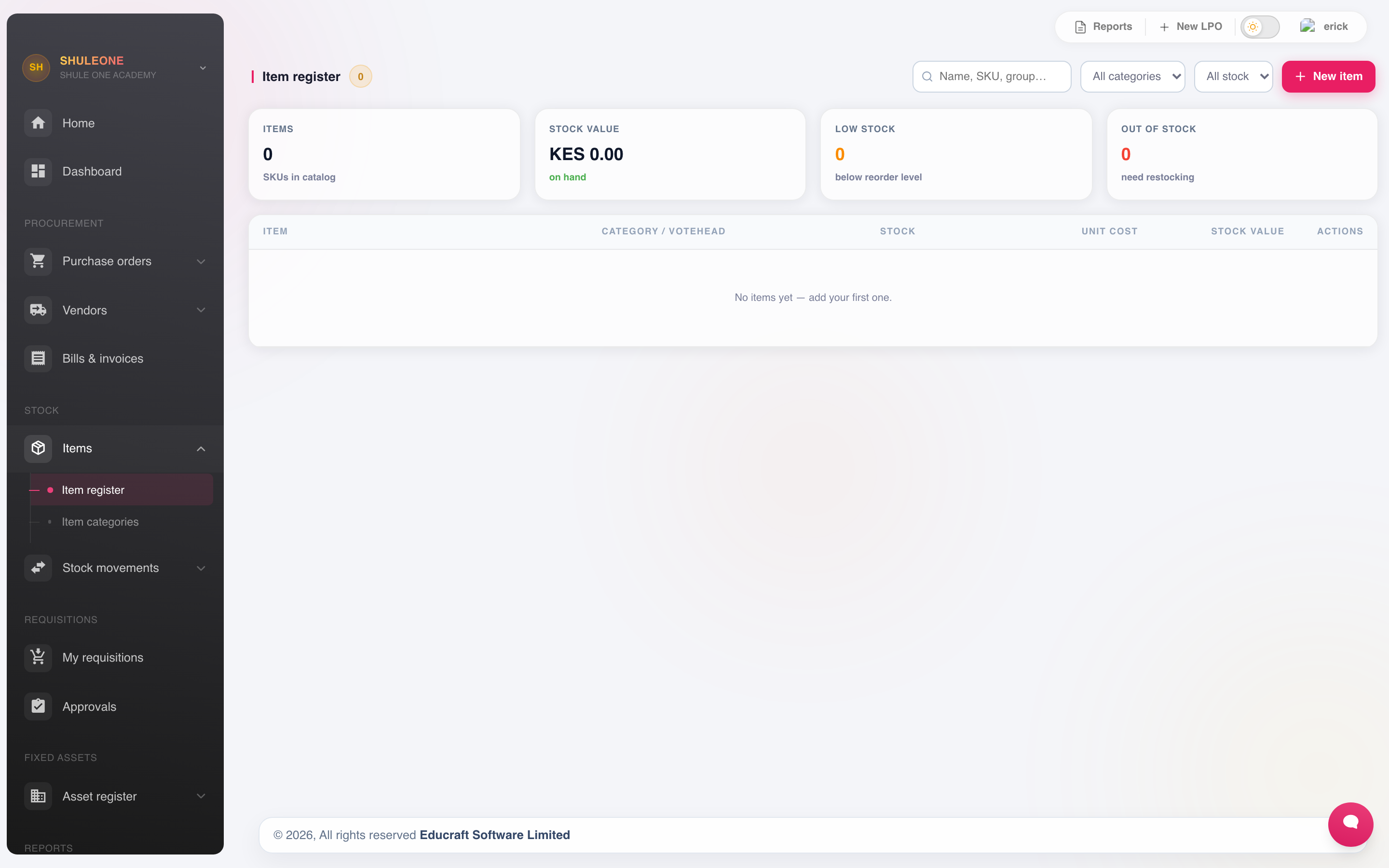
The item register summarises stock value, low-stock totals and recent movement.
Select Add New.
| Field | Notes |
|---|---|
| Name | Specific. “Exercise book A4 96pg”, not “books”. |
| Category | Groups items for reporting and reordering. |
| Unit of measure | The unit you actually issue in. |
| Reorder level | The quantity at which the item appears on the low stock report. |
| Account | The ledger account purchases post to. |
| Opening stock | Quantity already on hand when the item is set up. Zero is allowed. |
| Unit cost (opening) | Cost per opening-stock unit, not the total value or selling price. Zero is allowed for stock received at no cost. |
| Default selling price | The normal retail price for stock sold to students. Leave blank or zero for stock that is never sold. |
Two fields deserve care:
Unit of measure. Buy in bales, issue in reams, and the figures will never agree. Pick the unit you issue in and convert at receipt.
Reorder level. Set it to cover the time it takes to get more, not to zero. If maize takes two weeks to arrive and the school uses 40kg a week, the reorder level is at least 80kg.
Selling price. For a retail item such as a uniform, set the price normally charged to students. The item list compares this price with the current weighted unit cost and shows both markup and margin. The price is a default: it can be changed for a particular student sale without changing the item’s normal price.
Correcting opening stock and unit cost
Section titled “Correcting opening stock and unit cost”Open an item’s action menu under Inventory → Items, choose Edit, and change Opening stock and Unit cost (opening) under Initial state. Save the item. Both fields remain available for an item with zero opening stock.
These corrections are available while the item has no stock movements beyond its single opening-stock entry. Saving updates the stock balance, unit cost and the opening entry on the stock card together; it does not add a second receipt. Setting opening stock to zero keeps the existing opening entry with a zero balance.
After a receipt, issue, return, sale, adjustment or canteen movement, the fields are read-only to protect recorded stock and costs. The form shows the original opening quantity separately from the Current unit cost. You can still edit the item’s name, category and selling price. Use a stock adjustment for quantity corrections after movements; an incorrect historical cost needs review of the source transaction rather than an opening-stock edit.
If another user changes the item while the form is open, refresh the item list and reopen Edit before correcting its opening values.
If the form says The server did not provide opening-stock editing details, the backend needs updating or restarting. Ask your administrator to complete that step, then refresh the page and reopen Edit. This message does not mean the item has later stock movements. The form can display the opening quantity from the stock card, but keeps quantity and cost read-only until the server supports saving them. An unavailable opening quantity is left blank, not shown as zero.
Receiving student contributions and donations
Section titled “Receiving student contributions and donations”Use Inventory → Stock movements → Receive stock, or Receive stock on the item register. This is for supplies such as manilla paper and toilet paper brought by students, parents or donors. No purchase price is required.
- Select New receipt above the receipt register. Choose Student contribution or Donation. Purchased goods still use the purchase-order receiving workflow.
- Choose who supplied the items:
- Student: search by name or admission number and select a registered student. Check the admission number, class and status to distinguish similar names. Search includes inactive students for late receipts.
- Class (bulk): search and select a registered class in the current school.
- Parent: select the registered student represented, then enter the parent’s name. The student is verified; the entered parent name is a receipt description, not verification against the guardian registry.
- Donor (Donation source): enter the external donor’s name.
- Enter the Date received and any notes. Future dates are not allowed.
- Search for each item and enter its quantity in the displayed unit. Add item records several supplies on one receipt. Enter an item only once per receipt.
- Select Record receipt. Stock increases and the receipt shows who recorded it. Its stock-card entry is labelled Student contribution or Donation.
For a whole class, enter total quantities against the selected class. Use a separate receipt per student when individual attribution matters. Student and class IDs are validated against the active school again when recording. A typed student name alone cannot be saved. Names, admission numbers and class details are copied from the registry into the receipt for audit; optional references do not override the verified identity. Receipts do not credit student fees or mark compulsory requirements as fulfilled.
If an item is new, first create it in the item register with opening stock 0 and unit cost 0, then record its contribution here. Do not enter the same quantities as both opening stock and a new receipt. Later deliveries are always new receipts, not changes to opening stock.
Receipt history lists receipts by date received, with 15 per page and Previous/Next controls. Apply a date range, then open a receipt number or its eye button to view details in a separate dialog. The entry dialog keeps its actions visible and scrolls long item lists internally instead of stacking the form, details and history on the page. Older name-only receipts are labelled Legacy / unverified. They are retained as recorded and are not automatically matched to students or classes by name. The stock card changes when a receipt is recorded; an earlier Date received does not rewrite historical running balances.
If a submission cannot be confirmed, use Retry receipt (or Resume receipt after closing the dialog). It reuses the original receipt ID so a retry does not add stock twice. Do not start another receipt for that delivery until you have checked the history. Posted receipts remain audit records; ask the inventory administrator to review any necessary stock correction.
Purchase cost versus donation value
Section titled “Purchase cost versus donation value”The same item can have purchased and contributed receipts. Contributions add no purchase cost and create no purchase order, supplier bill, payment, expense or journal. They do not inherit the most recent purchase price.
For mixed stock, the system spreads its existing recorded value over the new total quantity. For example, 10 rolls with recorded value KES 1,000 plus 10 contributed rolls gives 20 rolls at weighted average cost KES 50; the recorded value remains KES 1,000. This does not estimate the contributed goods’ market value.
The valuation report includes zero-cost stock and a Contributed receipts (all time) column. That column is cumulative receipts, not the contributed quantity still on hand after issues. Any formal donation valuation must be reviewed separately by finance; storekeepers need not invent a price.
Access requires Receive student contributions and donations permission or inventory administrator access. Administrators must deploy the matching backend and receipt schema before the new screen can record stock.
Issuing stock
Section titled “Issuing stock”Inventory → Issue Items moves stock out of the store to a department.
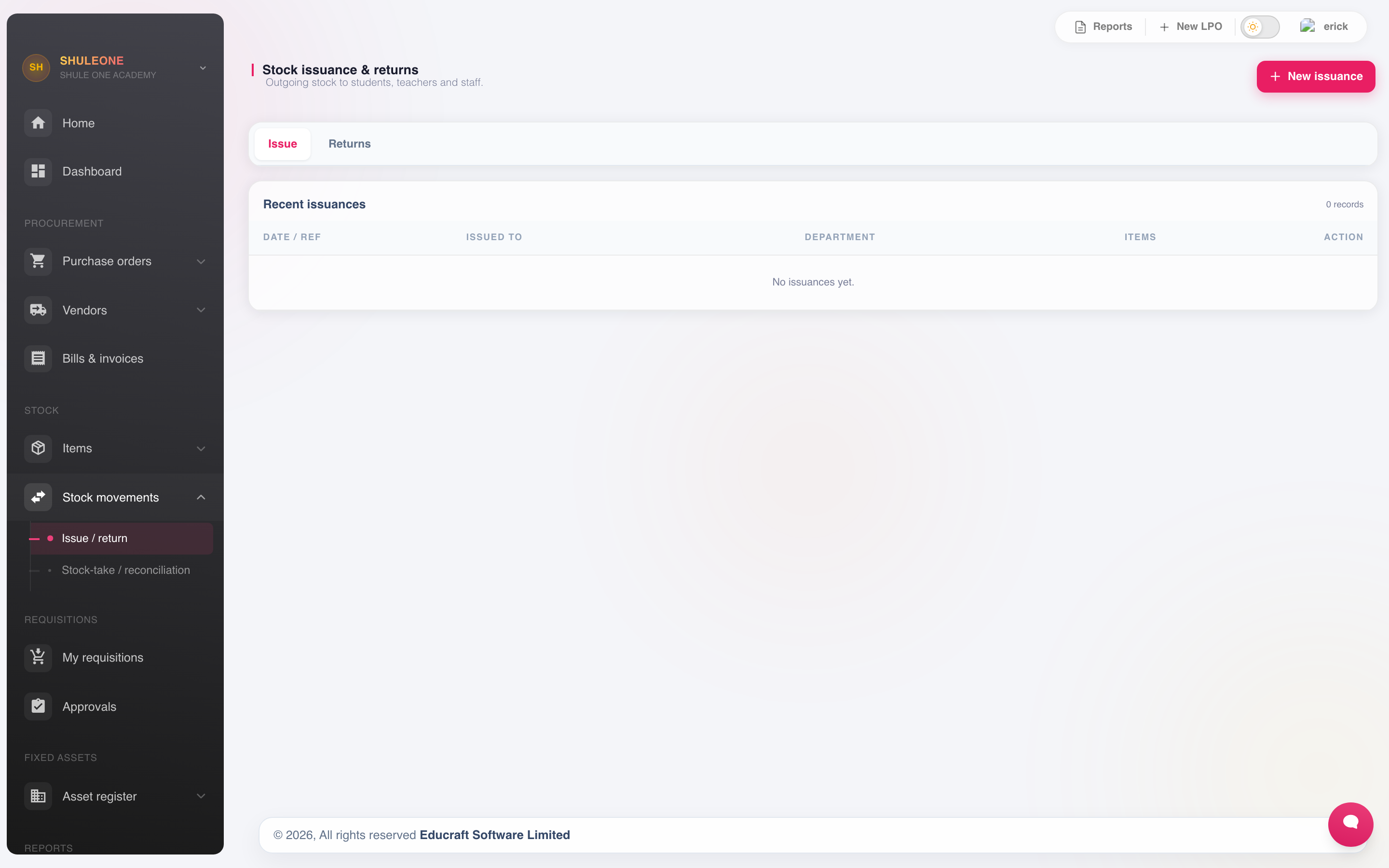
Recent stock movements appear below the issue/return action.
Record the department, the items and quantities, and who collected. Stock reduces immediately, and the issue is attributed to the department for consumption reporting.
Issue at the point the goods leave, not at the end of the week from memory.
Returning stock
Section titled “Returning stock”Inventory → Return Items puts unused stock back. Record which issue it came from where you can, so consumption figures for that department are corrected rather than inflated.
Adjustments
Section titled “Adjustments”Inventory → Adjustment corrects the system to match a physical count.
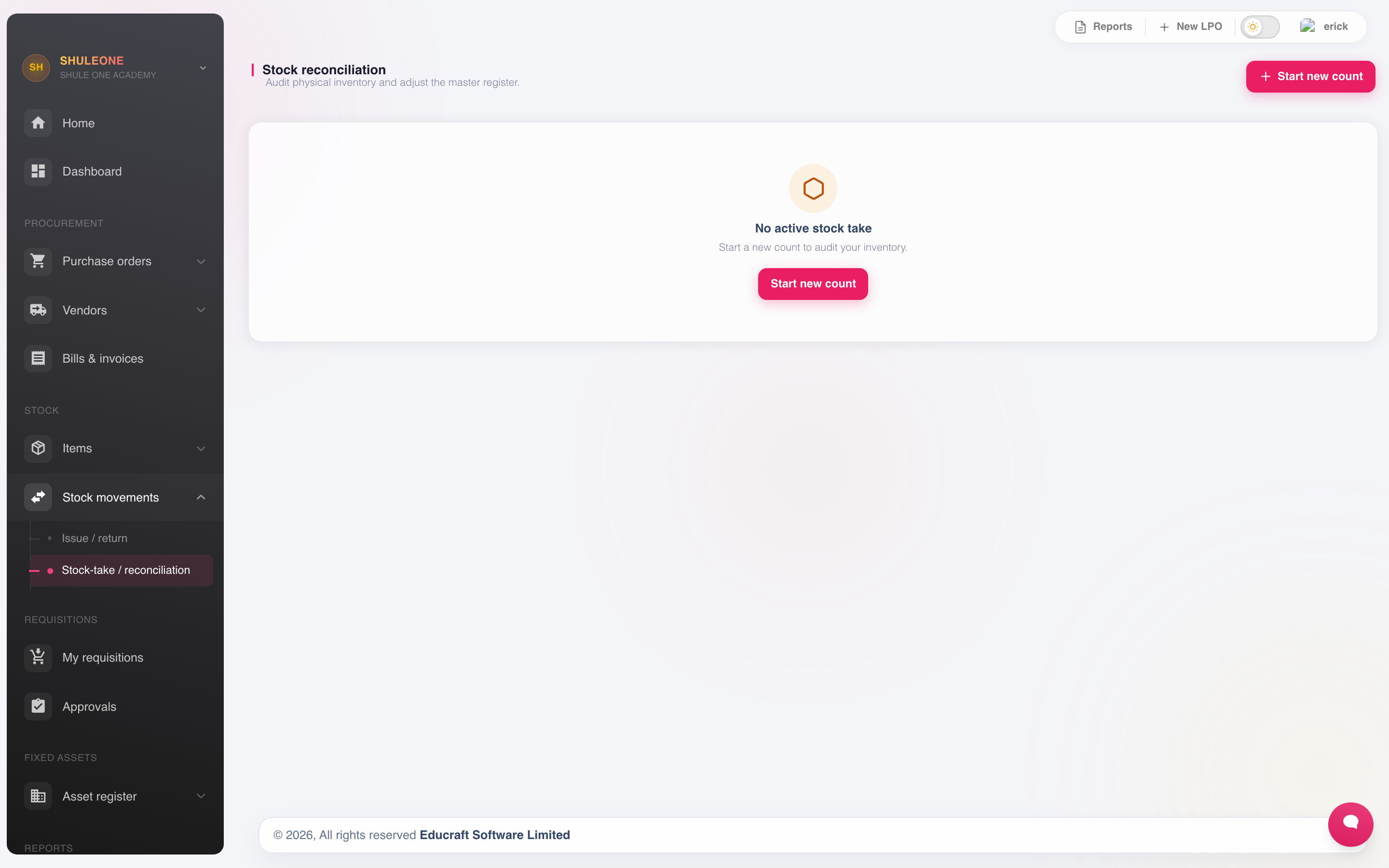
Start a new count from the adjustment screen when no batch is active.
Count at least once a term:
- Print the stock control sheet.
- Count physically, writing what is actually there.
- Enter the counted quantities as an adjustment.
- Record a reason for every discrepancy. Breakage, spoilage, an unrecorded issue, a counting error. An adjustment with no reason is indistinguishable from a loss.
- Have the adjustment approved by someone other than the storekeeper.
When an item is allocated to one or more canteen outlets, this Inventory count is the school-wide total: main store plus every outlet. Count each outlet first under Inventory → Canteen → Stock, then include those quantities in the total entered here. ShuleOne will not let a school-wide count fall below the quantities already recorded at canteen outlets. Main-store issues and deductions are likewise limited to the total not allocated to an outlet.
Approvals
Section titled “Approvals”Issues and adjustments above the threshold in Inventory → Settings go to Inventory → Approval. Set the threshold low enough to be a real control and high enough that the queue is worked rather than rubber-stamped.