
Setting up the timetable
The timetable generator does the hard work, but only if it is told the truth about the school. Nearly every “the generator produced nonsense” complaint is a setup problem.
Go to Timetable → Dashboard.
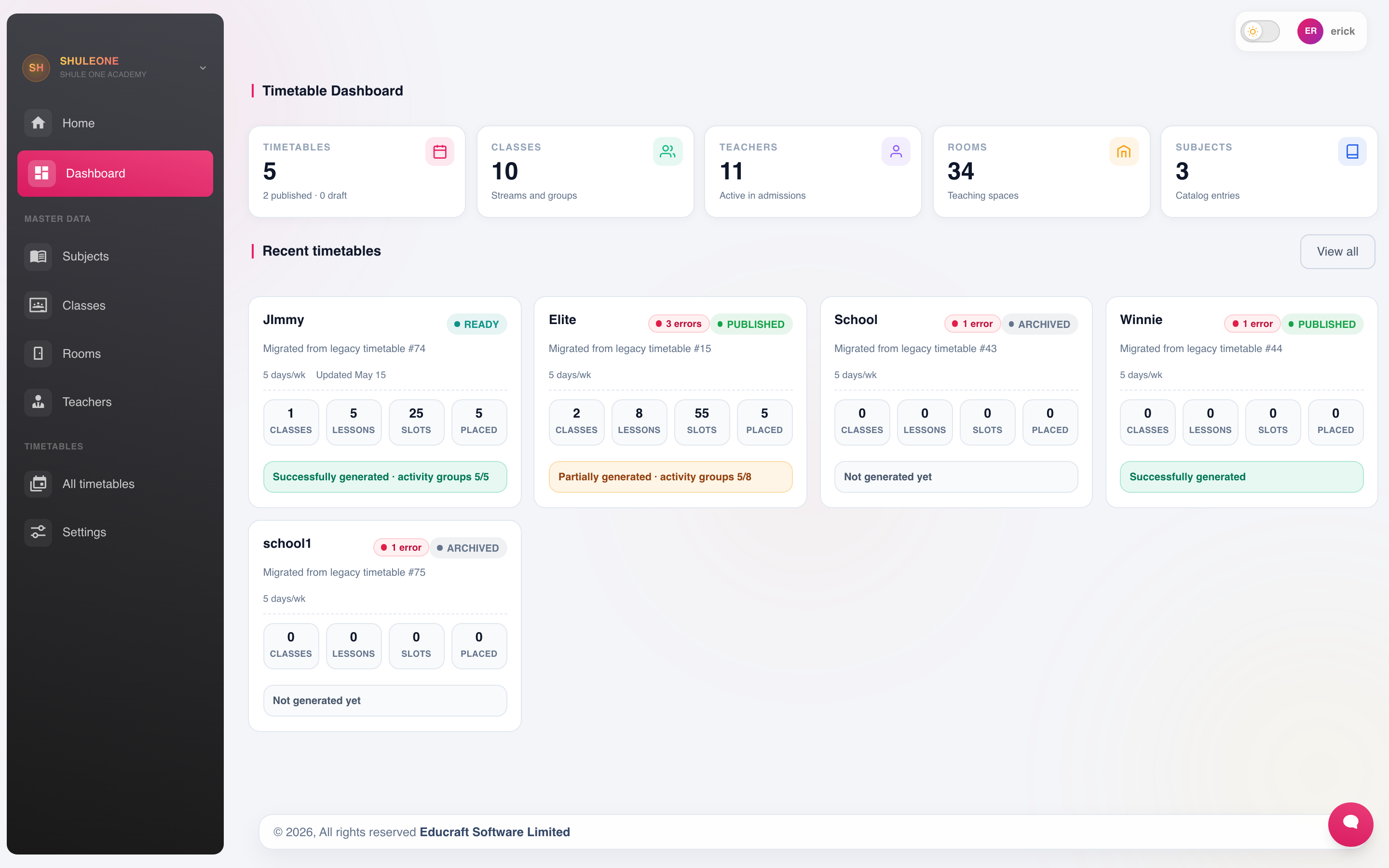
The dashboard summarises lessons, classes, teachers, rooms and recent timetable versions.
What the generator needs
Section titled “What the generator needs”| Setup | Screen | What it tells the generator |
|---|---|---|
| Days | Timetable → Days | Which days are taught |
| Slots and bells | Timetable → Slots / Bells | The periods in a day, and their times |
| Classes | Timetable → Classes | Who is being timetabled |
| Subjects | Timetable → Subjects | The subjects and their weekly lesson counts |
| Rooms | Timetable → Rooms | Where lessons can happen, and capacity |
| Teachers | Timetable → Teachers | Who can teach what, and their availability |
| Constraints | Timetable → Constraints | The rules it must respect |
Days and periods
Section titled “Days and periods”Set every slot in the day, including breaks, lunch and games. Slots that are not teaching periods are marked as such, so the generator works around them instead of scheduling a Physics lesson over lunch.
Bells attach the actual clock times to the slots. These print on the timetable and, where the school has an automated bell, drive it.
Register the teaching spaces, with capacity and any special type — laboratory, computer room, workshop. A subject that requires a laboratory is then only scheduled where one exists, and two classes are never sent to the same room at once.
Teacher allocation
Section titled “Teacher allocation”Allocation comes from the teacher’s registration record. Confirm it here before generating — the generator can only allocate what it has been told a teacher teaches.
Also record availability: a part-time teacher who is only in on Tuesdays and Thursdays must be marked as such, or the generator will schedule them for Monday.
If a teacher is deactivated while they still have lessons in the selected timetable, they remain visible under Timetable → Teachers with Inactive · unassign only. Open or clear those lesson assignments before generating. An inactive teacher cannot be selected for a new lesson, and disappears from the timetable teacher list after their final allocation in that timetable is removed. Reactivate the registration record first if the teacher should continue teaching.
Availability and time-off
Section titled “Availability and time-off”Open a class, teacher, room or subject and select its availability action to mark times when it cannot be scheduled. Choose the bell schedule you recognise, then select individual teaching cells to cycle between Available, Blocked and Prefer not.
Use Select all to mark every usable teaching cell in the displayed bell schedule as Blocked. Break and unused cells are left unchanged. Use Clear all to remove every selected time-off and make the resource available again, then select Save to apply the change.
For teachers, rooms and subjects, the bell schedule is a convenient way to select clock times; the saved restriction applies at those clock times across the active class bell schedules.
Lesson counts
Section titled “Lesson counts”Timetable → Lessons sets how many periods a week each subject gets in each class. This is the single most important number in the setup, and it must be arithmetically possible: the total lessons across all subjects in a class cannot exceed the teaching slots in the week.
Add them up before generating. If the class has 40 teaching slots and the subjects sum to 45, no generator can succeed, and the failure message will be less informative than the addition you could have done first.
Constraints
Section titled “Constraints”Constraints are the rules that make a timetable usable rather than merely valid:
- A subject that must be a double period.
- A subject that should be in the morning.
- A teacher’s maximum consecutive lessons or lessons per day.
- Games or assembly fixed to a particular slot.
- A class that must not have the same subject twice in a day.
Engine settings controls how hard the generator works and how it weighs competing constraints.
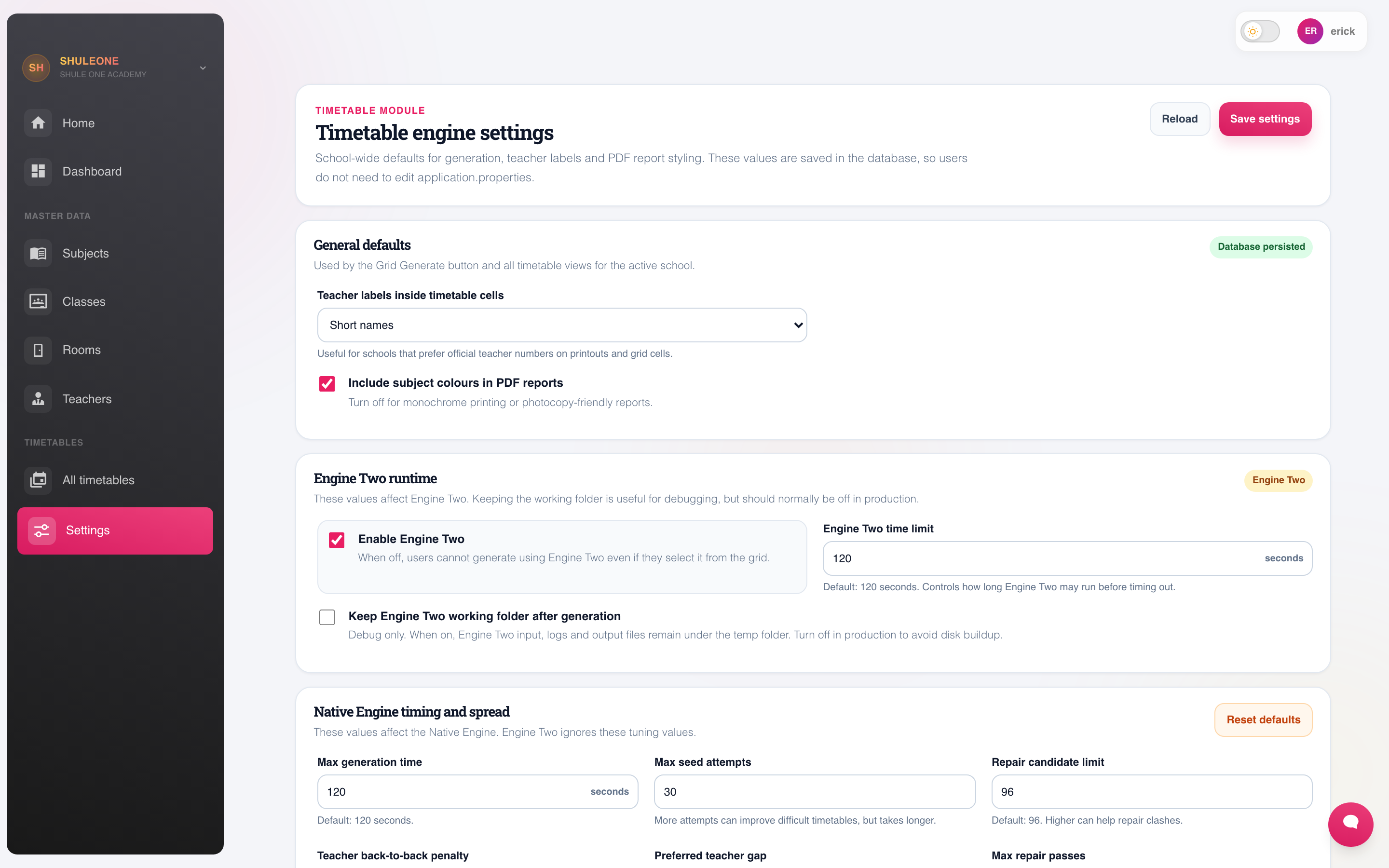
Engine settings define general, soft, hard and scoring constraints.