
Daily operations
What’s new — 15 October 2026: students leaving school stop active transport
Section titled “What’s new — 15 October 2026: students leaving school stop active transport”Transferring, deactivating or moving a student to alumni automatically closes their active transport assignment and releases their morning and home service-run allocations. They leave active pickup-location lists, counts and future run rosters. Departed students cannot be selected for a new transport assignment.
Existing transport invoices and agreed fares are preserved. Use Finance separately for any approved cancellation or refund. Past trip and attendance records remain available; a student already recorded travelling on an ongoing trip stays visible so staff can complete that journey safely.
To review a closed assignment, open Transport → Assignments → Students and change Active to Removed only or All. Readmitting a student does not automatically restart their old transport: create or reactivate their transport assignment and choose their journeys explicitly.
What’s new — 15 October 2026: bill missing term transport charges
Section titled “What’s new — 15 October 2026: bill missing term transport charges”Transport administrators can open Transport → Assignments → Bill this term to review transport billing separately from class fees. Keeping a pickup assignment from last term does not create an invoice for the new term.
Bill transport for the current term
Section titled “Bill transport for the current term”- Confirm the school’s current billing year and term, then open the Term billing tab or select Bill this term.
- Review the target period, ledger, Missing charges, Already billed, Need attention, and the total. The four summary cards cover all active assignments for the displayed period. Select a card to open its billing status group.
- Check student names, pickup points and fares. Unlocked fares use the current pickup-point price; one-way journeys use the student’s saved rate or the school default. Agreed fares stay at their agreed amount.
- Correct invalid assignments, inactive pickup points or routes, missing/invalid fares, or closed or protected ledgers before refreshing the preview. Students without an active class are excluded.
- Search by name or admission number and filter by pickup point or class. Missing, Billed, Attention and All separate the billing groups. The preview shows 10 rows at a time; use the page controls or choose 25 or 50 rows.
- Leave all checkboxes clear to bill every eligible student in the filtered results, across all pages. To bill specific students, tick their rows or select the current page. Selections are kept across pages; changing a status, search or filter clears them.
- Check the count and total beside Review & bill X in the toolbar. That action stays visible while scrolling. Its confirmation names the period, scope, count and amount. Only those missing charges are added.
Use the Students workspace
Section titled “Use the Students workspace”Students keeps the existing roster, route/class/stream/status filters, exports and view/edit/remove actions. Search by admission number or name; choose 10, 25 or 50 rows per page. Each row groups the admission number, class and stream under the student, and keeps the fare area and separate morning/home service runs, buses and stops visible. For transport administrators, the Term billing badge is checked against the actual invoice for the period shown. A previous term’s saved bill does not count as billed now.
Assign student, a row’s Edit action, and Assign groups open a drawer over the roster. Close the drawer or press Escape to return to the same list and page. Saving a student refreshes the current-term billing review. Group assignment still changes only journey plans and leaves fares and invoices unchanged.
Existing current-term charges, including pending reversals, are left unchanged even if their amount differs. Adjust those separately in Finance. Previous terms are preserved. If the period, fares, assignments or billing change after review, refresh the preview and review it again. After an interrupted request, refresh before retrying; already-posted charges are skipped. A failed billing run rolls back its changes rather than leaving a partially billed cohort.
This action is available when Transport manages the school’s transport billing. Schools that manage it through Finance should continue their Finance workflow. After fee-structure billing or a term billing copy, Review transport billing opens this same preview for the school’s current period, which may differ from the period chosen in Finance.
What’s new — 12 October 2026: automatic gadget roster recovery and capacity cleanup
Section titled “What’s new — 12 October 2026: automatic gadget roster recovery and capacity cleanup”Transport assignments now sync to bus scanners automatically after saving, with a five-minute reconciliation that repairs missed updates and applies term expiry. Use Devices → Bus scanners → Send fleet roster to resend the full eligible roster and retry failed commands. Confirmed means that the gadget acknowledged the command; it does not verify changes made directly on the gadget.
Under Edit scanner, set User capacity to the verified user limit for the device (default: 1,000). Current eligible transport students and configured crew/run users always take priority. Previously enrolled students in an active class may remain on the gadget while fewer than three academic terms have elapsed since their last transport enrolment. At three elapsed terms they are removed, even if an old assignment still says active. If space is needed sooner, the oldest former transport users are removed first. Term order comes from the school’s configured terms, including across academic years; it is not a fixed number of months. A legacy assignment without an academic year uses the year it was assigned. Correct an unresolved enrolment period before relying on its expiry.
Leaving an active class removes the gadget identity immediately. Ending transport removes journey eligibility immediately; retaining a gadget identity does not permit boarding. Only previously server-enrolled identities are automatically deleted. Manual users on the gadget must be accounted for when setting its available capacity. If the eligible roster alone exceeds capacity, ShuleOne reports the shortage rather than silently dropping children. Removals are acknowledged before enrolment commands are sent. Lost command replies are retried up to three deliveries; inspect Enrolment commands and resend the fleet roster if a failure remains. Sync updates preserve cards already registered against the same PIN.
What’s new — 12 October 2026: demo school access
Section titled “What’s new — 12 October 2026: demo school access”Presentation demo is available only in demo school 3, for transport administrators and operators with presentation access. It is hidden in both the web navigation and the mobile app’s More → Tools section for all other schools. Switching to another school removes demo access. Normal transport operations remain available according to your role.
What’s new — 9 October 2026: crew-managed runs and gadget student lists
Section titled “What’s new — 9 October 2026: crew-managed runs and gadget student lists”A transport administrator can open Transport → Staff & allocations, edit a driver or conductor, and select Allow this driver or conductor to manage their assigned service runs and students, and view vehicle devices. The grant applies only to that person’s linked login and can be turned off again. The staff member then sees My runs beside the Driver Console.
On My runs, each assigned journey has its own card showing the bus, planned time and student count. Tap Manage this run to view its details, Manage students, or Edit name & times. The bus, direction, crew, run number and gadget credentials remain office-managed. In Manage students, switch between On this run and Available, search by name, admission number or bio ID, then confirm Assign or Remove. This changes the morning or homeward run only; it does not change the transport fare, subscription, travel mode or the other journey. A learner already placed on another run must be transferred by the transport office.
The phone’s Devices button opens bus scanners and GPS trackers fitted to vehicles on the staff member’s active runs. Open a scanner to view its students, enrollment commands and recent scans, or send the fleet roster again. Crew cannot edit device settings, route PINs, enable or disable a device. Gadget students load 25 at a time; search by name, admission number or bio ID, or tap Show more students. Select Export PDF for the full list with each student’s admission number, bio ID and gadget status. Transport office staff can use the same View students on gadget action under Transport → Devices. The list is based on the active transport roster and the most recent scanner command record. A confirmed command shows that the scanner acknowledged enrollment; changes made directly on the gadget cannot be verified from this view.
In the Driver Console, starting a dated service run before its planned start, after its planned end, or on the wrong date shows the scheduled time and a Start anyway warning. Choose Keep planned to leave the trip untouched. Starting outside the window requires explicit confirmation; a tap on Start trip alone cannot start it. Times are checked in East Africa Time. Custom outings are not governed by a service-run timetable. A bus gadget continues to accept a run-start credential only inside its separate configured start window.
What’s new — 8 October 2026: weekly trip planning and national dates
Section titled “What’s new — 8 October 2026: weekly trip planning and national dates”ShuleOne prepares a rolling seven-day transport plan each night at 00:10 East Africa Time. It refreshes today’s trips hourly until 18:00 and checks the coming week’s plan for newly announced closures, so a change can be picked up without waiting for the next night. The plan appears in Transport → Trips when you choose a future date.
Your school’s whole-school breaks and configured term dates take priority. If the school has not entered term dates, transport uses the published Kenyan basic-education term dates instead. It also skips nationwide public holidays. ShuleOne checks official government sources for newly announced nationwide school closures and revised term dates. Closure announcements must match a government notice; revised term dates need either a government source or two independent published sources that show the same dates. If no verified term dates exist for a future year, automatic planning pauses for that year.
When a verified closure arrives after planning, ShuleOne cancels only Planned trips it created automatically. Trips started by the crew and trips prepared manually need staff review. If revised term dates make a previously closed date a school day, calendar-cancelled trips return to Planned. Schools with a different calendar should keep their own term dates and whole-school breaks up to date.
What’s new — 7 October 2026: automatic weekday trips
Section titled “What’s new — 7 October 2026: automatic weekday trips”ShuleOne now prepares daily transport trips automatically on weekdays. It starts at 00:05 East Africa Time and checks again hourly, so staff no longer need to generate each day’s trips by hand. Before creating trips, it checks that the date is inside the school’s configured term calendar and is not a whole-school holiday or break. Automatic generation pauses when no term dates are configured for that year. Weekend, holiday and one-off trips can still be created manually.
What’s new — 7 October 2026: afternoon service runs
Section titled “What’s new — 7 October 2026: afternoon service runs”Service runs now support a separate Afternoon period for learners who go home before the evening departure. Afternoon and Evening are both homeward journeys: a learner selects one home service run and keeps the same return-leg assignment and drop-off stop. Daily generation, trip filters, tracking, manifests and the Driver Console show Afternoon independently. Lakewood Vantage’s 13:25 Mt. Ararat journey is now Karuguru Area · Afternoon run 1 · 13:25.
What’s new — 7 October 2026
Section titled “What’s new — 7 October 2026”Daily trip generation now follows the service-run timetable exactly. Once the school has at least one active service run, Generate trips creates only those configured runs: a Morning run creates one Morning trip, an Afternoon run creates one Afternoon trip, and an Evening run creates one Evening trip. Route allocations without a service run no longer create automatic placeholder trips.
Trip lists and manifests now lead with a readable identity such as Karuguru Area · Morning run 3 · 07:15. On mobile, the area name and Morning/Afternoon/Evening run N · HH:mm identity appear on separate lines so similarly named runs remain easy to distinguish. An opaque route code is not used as the trip’s primary identity.
Service runs are now independent of billing routes and pickup locations. Create a run by choosing its default bus, optional name, direction, number, times and crew. A single run can carry students from several fare routes. In Assignments, Assign groups can add a whole fare route or selected pickup locations to one run without moving their billing location or changing their fare.
What’s new — 6 October 2026
Section titled “What’s new — 6 October 2026”The phone Driver Console now keeps its opening screen focused on the work for the current run. The presentation simulation, summary counters, repeated crew names, and routine GPS status panels have been removed. Tracking still starts automatically; the console shows a GPS warning or Start GPS only when the driver needs to act.
A driver or conductor login is now locked to its linked transport-staff profile. Crew cannot open the profile list or switch to another person. If a crew account has not been linked, the console asks a transport administrator to correct the account instead of offering all staff names. Transport administrators can still select a profile when using the console for support.
Configured service runs now use only their explicitly selected learners. A learner’s fare or location route remains billing information and no longer places an unassigned learner into Run 1. ShuleOne also reconciles still-planned manifests so the service-run count, trip count and manifest remain aligned. Select a morning run and one home run (Afternoon or Evening) on every learner who should travel.
Transport messages now have duplicate-send protection. If a boarding action, trip-start action, tracking-link action, or transport message button is pressed again while the first request is being handled, ShuleOne keeps the first send and ignores the repeat. Automatic push, WhatsApp and SMS queue entries use the same protection. A deliberate resend remains available from Transport → Message history after staff have checked the delivery status.
What’s new — 4 October 2026
Section titled “What’s new — 4 October 2026”Each fitted GPS tracker now has an Allow this tracker to start a planned trip setting. Turn it off when a bus may leave school for inspections, servicing or other non-passenger work during a scheduled window. The driver or conductor then starts the intended run with one personal gadget credential; GPS attaches automatically only after that explicit start. The crew member keeps the same PIN, card or fingerprint for every assigned run. Individual fallback run PINs are not needed unless two planned starts are exactly equally close.
What’s new — 3 October 2026
Section titled “What’s new — 3 October 2026”ShuleOne can now place one school into a controlled transport-notification test. While the test is active, transport SMS, WhatsApp and parent-app push notifications go only to the approved tester phone numbers. Parent destinations are blocked even for messages that were already queued, and the direct bus arrived at school push follows the same allowlist. See Controlled notification testing.
What’s new — 30 September 2026
Section titled “What’s new — 30 September 2026”The Driver Console’s Student locations map now plots every learner whose pickup or drop-off point is known. It uses the registration photo where available, falls back to initials, and gives the next learner on the route a larger blue ring. The next learner is still recalculated from the bus’s current position; completed, absent, and not-using-today learners remain visible but no longer take priority. This map and the Presentation demo fleet map now use Google Maps, matching the main route and live-tracking screens.
Completing a Morning, Afternoon or Evening trip can now create calibration samples automatically from the recorded attendance time and saved vehicle trace. ShuleOne accepts only a nearby, slow-moving GPS fix, then applies the same one-sample-per-trip, three-trip median, and drift checks as a manual capture. If there is no safe match, it leaves the learner uncalibrated rather than guessing. Set pickup here and Set drop here remain available during a live trip.
What’s new — 12 September 2026
Section titled “What’s new — 12 September 2026”Bus scanners now hold the same fleet transport roster: every active transport student is enrolled on every active bus gadget. Removing a student’s transport assignment ends their journey eligibility immediately; gadget removal follows the term-retention and capacity policy described above. Being recognised by a gadget does not authorise a journey; the dated trip manifest still decides whether the child may board.
Trip control no longer uses the 1 PM morning/evening cut-off to choose a journey. Give each driver or conductor one personal gadget credential under Operations → Drivers & assistants. One PIN, card or fingerprint scan authenticates the crew member and starts the assigned run whose planned start is closest to the current time. A later scan ends the one in-progress trip, subject to the normal minimum-trip and boarded-student safeguards. This works for several morning runs and for a delayed morning run that starts after 1 PM.
A gadget-selected run now spends 60 seconds in Starting before becoming In progress. No confirmation is required: it activates automatically. If the wrong run was selected, scan the same personal credential again during the countdown to return it to Planned, or choose Undo start in the Driver Console or Trips screen. Parent departure alerts wait until activation. A valid student attendance scan or GPS fix activates the run immediately and closes the undo window, so recorded movement or boarding cannot be erased as an accidental start.
The selected run is accepted only when the authenticated person and the actual bus are assigned to that dated trip, no other trip is in progress on the bus, and the start is within 30 minutes before or 60 minutes after the planned start. A cancelled dated trip is not considered. Use a dated crew or replacement-bus override before scanning when relief staff or another bus will operate it. If two starts are exactly equally close, use the optional fallback run PIN or have an administrator start the trip. Administrators can now cancel a Planned trip from Trips; this cancels only that date’s occurrence and leaves the recurring service run active.
Assignments also have an admin-only Assign groups action. Choose Morning, Afternoon or Evening, a service run, and whole fare routes or individual pickup locations from any route. Every matching active transport student is moved to that run for the selected direction. The fare area, invoice and opposite-direction journey are not changed.
What’s new — 10 September 2026 (prepared for testing)
Section titled “What’s new — 10 September 2026 (prepared for testing)”Student transport now uses a hybrid assignment model:
- A fare/location area controls billing.
- A morning service run and pickup stop control the morning manifest.
- An independent home service run and drop-off stop control either the Afternoon or Evening manifest.
- Each service run has a directly selected default bus and may have an optional area name.
- Each generated daily trip records the actual bus. Use Daily replacement bus when another vehicle operates that trip; the recurring run remains unchanged.
- Relief pickup remains an individual daily override for a waiting child.
This means a student can use one route and bus in the morning and another in the evening without changing the location used to bill the family. Existing assignments retain their fare/location point, but staff must choose explicit runs for the learner to appear on a configured service-run manifest.
What’s new — 8 September 2026 (prepared for testing)
Section titled “What’s new — 8 September 2026 (prepared for testing)”Scheduled scan-first boarding and relief pickups are available in the review build. Use the matching school API, management website, LMS API and parent apps when testing.
Boarding without route passwords
Section titled “Boarding without route passwords”- In Operations → Service runs, set each bus’s morning, afternoon and evening journeys, times and crew. Give separate runs their actual times, including repeated runs on one route.
- Assign each child to their morning and home service run. For a shared route, select the particular bus’s service run; do not leave children on an unspecified default.
- Under Devices → Bus scanners, edit the scanner and enable Start the scheduled run on the first student scan. This setting starts off disabled.
- Sync students to the scanner. The first matching student scan starts the scheduled run; the crew does not need to enter a different route PIN. A missing daily trip can be created from its scheduled service run.
- Children scan when boarding and again when alighting. A repeated scan within the duplicate-scan cooldown does not count as alighting. Crew can confirm a missed scan in the console after checking the child.
The first scan must match exactly one scheduled manifest within 30 minutes before its start or after its end. Missing or conflicting schedules are recorded for the office; the scanner does not guess. A bus can move to the next scheduled run once its preceding run’s end time has passed and nobody remains marked aboard. An already-boarded child’s alighting scan stays with that ride even across the morning/evening cutover.
In the Driver Console, a conductor can also choose Scan cards on a planned trip. The first boarding starts it. If the bus uses phone GPS, allow the location request; a fitted tracker reports independently. Starting a trip manually remains available.
A first boarding scan cannot announce the bus’s approach before the first child boards. For that early warning, use the fitted-tracker departure flow or a crew trip start. The system retains trip records for history even when the crew does not start them manually.
A fitted tracker always selects one active trip. When Allow this tracker to start a planned trip is enabled, it may instead select one planned run inside its scheduled start/end window. It never starts the first listed route when several runs exist. When the setting is off, the crew or office must start the intended trip first; tracker movement for an inspection cannot start the passenger journey. Missing or overlapping times require an office correction or a crew start, and old GPS uploads cannot start planned trips. Vehicle tracking in ShuleOne still needs a trip record; a powered tracker by itself does not create an unscheduled journey.
A relief bus collects only the children left waiting
Section titled “A relief bus collects only the children left waiting”In Trips, open the original manifest and choose Relief pickup beside a waiting child. Select the receiving bus and run for today in the same direction, enter the reason, and confirm. Repeat for each child who needs the relief bus.
The receiving run must have a spare seat. The original manifest retains a relief note; the receiving crew sees the child ready to board at the existing pickup point. The regular route, service-run choices and billing assignment do not change. Refreshing the manifest preserves this temporary arrangement.
For a ZKTeco pickup, every active transport student is already part of every bus scanner’s fleet roster. Use Devices → Bus scanners → Send fleet roster when commissioning a new gadget or reconciling one that was offline during setup. Use the receiving crew’s phone QR scanner if the device is not ready. Arranging relief sends an app update, but it does not mark the child boarded. The pickup still requires a scan or crew confirmation. The parent map follows the receiving trip’s bus; if that bus has no GPS signal, it shows the missing signal instead of the original route’s bus.
Relief pickup moves a waiting child. For a breakdown while children are already aboard, confirm their alighting and coordinate the transfer with the transport office; this review flow does not automatically move occupied seats between buses.
Confirm every child has alighted
Section titled “Confirm every child has alighted”The bus entering the school geofence reports the bus’s arrival. It does not mark children alighted. Confirm each child by a scan or the crew attendance controls. An unfinished trip with children marked aboard remains unresolved overnight and raises an alert. Staff must check what happened; overnight cleanup does not invent drop-offs.
Calibrate the real pickup and drop-off points
Section titled “Calibrate the real pickup and drop-off points”During the calibration period, record attendance at the actual boarding or alighting place while the trip GPS trace is running. When the trip is completed, ShuleOne matches the attendance time to the closest GPS fix only when it is within 30 seconds and the vehicle is travelling no faster than 15 km/h. A missing or unsafe match is skipped.
You can also use Set pickup here on the morning journey and Set drop here on the evening journey at the place where that learner actually boards or gets off. This manual action takes a fresh phone location and is the fallback when automatic matching is not possible. The first saved point becomes usable immediately; up to three different journey samples refine it. A journey contributes at most one sample for the same learner and direction.
Until an evening drop-off has been recorded, the parent map follows the live bus without claiming that it is travelling back to the school or to the learner’s morning pickup point. It shows that the drop-off will be set when the learner is dropped off. After the crew saves the drop-off, later evening journeys can show the road route and ETA to that calibrated point.
What’s new — 5 September 2026
Section titled “What’s new — 5 September 2026”The Driver Console now distinguishes a vehicle’s fitted GPS tracker from the driver’s phone GPS. A tracker-fed trip shows Fitted tracker — Online, Waiting, or Offline using the tracker state held by ShuleOne. It no longer shows GPS Off or offers Start GPS merely because the phone’s location watcher is stopped.
A trip is one run of a route — the morning pickup, the evening drop-off, or a one-off journey for a games fixture or a trip.
Go to Transport → Trips to see the day’s trips, their status and who is on each.
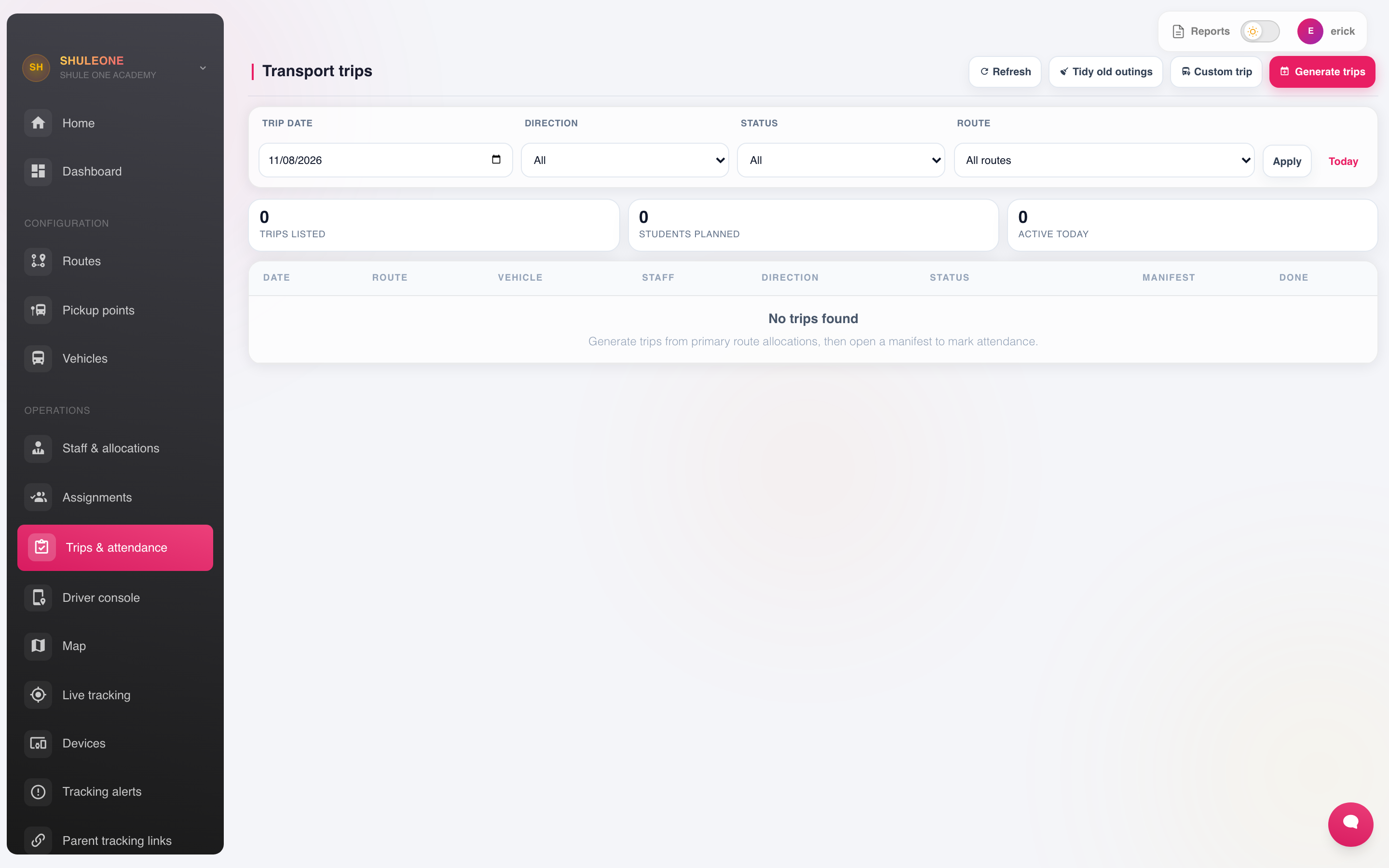
A trip records the route, the vehicle, the driver, the scheduled and actual times, and the students who boarded. Completed trips build the history that reports draw on.
ShuleOne prepares a rolling seven-day plan at 00:10 East Africa Time. It refreshes today’s trips each hour at five minutes past until 18:00; later hourly checks still reconcile closure announcements for the coming week. Trips come from active service runs, or from active primary route allocations at schools using the older setup. The process reuses existing dated trips and reconciles the manifests of open trips.
Automatic planning respects whole-school breaks, school term dates where configured, national basic-education term dates otherwise, and nationwide public holidays or verified closure announcements. Manually cancelled trips stay cancelled. If a closure is announced after the weekly plan was made, automatically created trips that are still Planned are cancelled; already started and manually prepared trips require staff review. Use Generate trips to create an exceptional weekend or holiday trip, or retry a date manually.
Choose Generate trips after the recurring timetable is ready. If the school has active
service runs, only those runs are generated and each keeps its configured direction. The trip’s
primary name combines the route name, direction, run number and planned start time; codes such as
RT-466 are secondary references. Existing dated trips are reused and their still-open manifests
are reconciled rather than duplicated.
Parent messages and delivery history
Section titled “Parent messages and delivery history”Use Transport → Message history to filter notifications by channel, status, date range, or search text. The Messages sent to parents action on a trip shows its notifications. Rapid repeat clicks on transport actions do not create another message. A resend from Message history is deliberate and queues another delivery attempt, so check the current status before using it.
Trip-start push notifications can name the vehicle and open the relevant trip in the parent app. Delivery is tracked per registered device, so a retry does not repeat delivery to a device that already accepted the push.
Controlled notification testing
Section titled “Controlled notification testing”Before testing a live bus with families who must not be contacted, ask the ShuleOne deployment administrator to enable transport notification test mode for that school and provide the approved tester phone numbers. During the test:
- Transport SMS and WhatsApp messages are routed only to the approved tester numbers.
- Parent-app push notifications are routed only to parent-app registrations belonging to those numbers, including the direct school-arrival push.
- A queued message for any other parent destination is blocked before gateway delivery.
- An empty or invalid tester list blocks delivery rather than falling back to parents.
Check Transport → Message history and confirm the test destinations before starting the bus. Ask the deployment administrator to remove the test-mode configuration only after the live test is complete; ordinary parent delivery then resumes for new messages.
Transport operators can still manage journeys and student assignments, but fare amounts and financial references require transport finance visibility. Fare changes also require the appropriate finance permission.
Operations
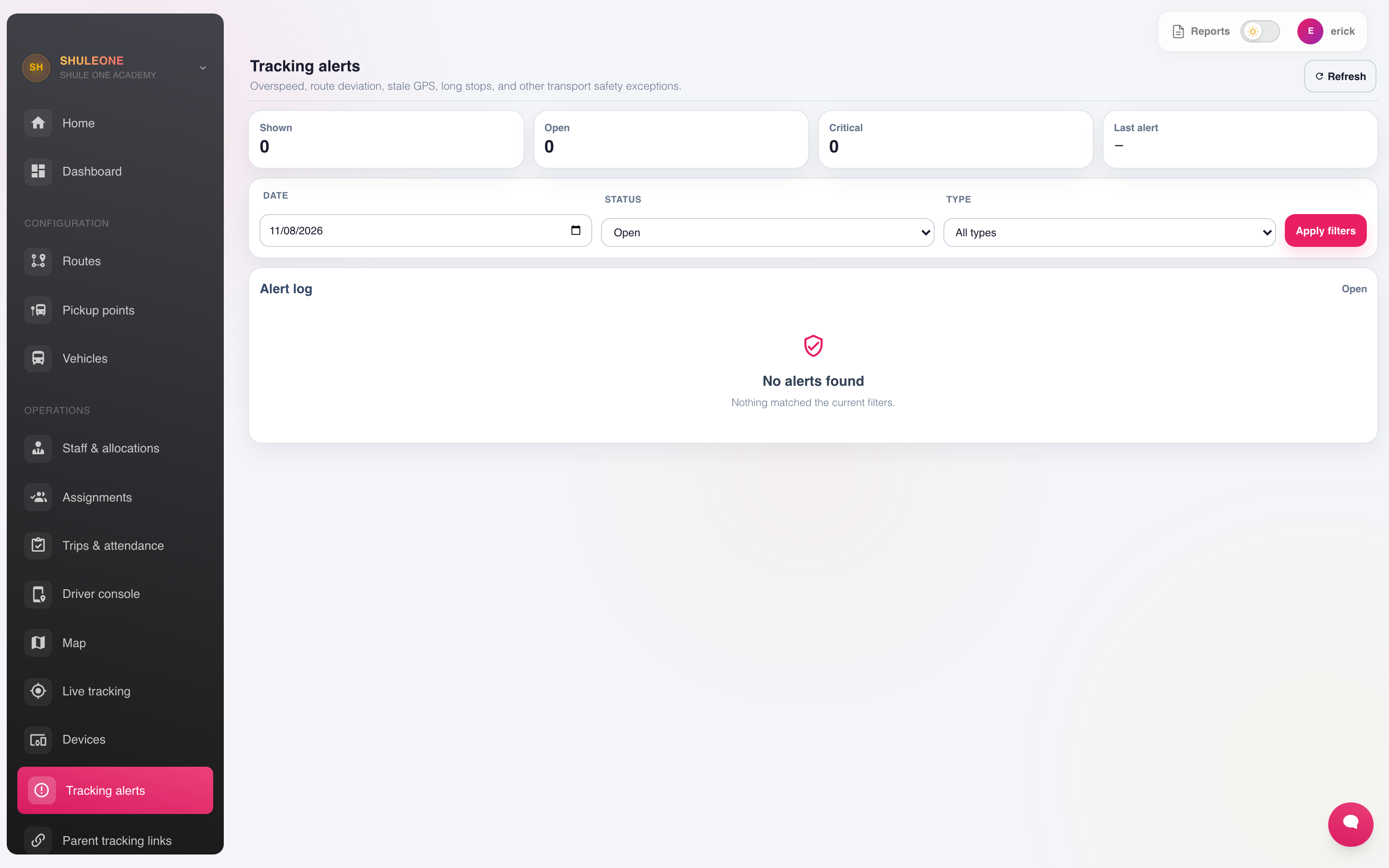
Section titled “Operations”Transport → Operations is where the transport office maintains drivers and conductors, assigns vehicles to routes, and schedules the journeys that repeat each school day.
Route allocations and service runs
Section titled “Route allocations and service runs”A route allocation says that a vehicle may serve a route in the morning, evening, or both. One vehicle may have more than one allocation, so the same bus can serve different routes at different times. When adding the later allocation, select This vehicle or crew also serves another route in this direction. Create the vehicle’s service runs separately with times that show the journeys do not overlap.
A route allocation is separate from a service run. Keep allocations where the office needs a route-to-vehicle dispatch reference, but an allocation is not required to create or operate a run.
A service run is one recurring operational journey. Create every journey separately under Transport → Operations → Service runs, with its:
- Optional run name — for example Karuguru Area.
- Service period and run number — Morning, Afternoon or Evening; for example Morning Run 1.
- Default bus — selected directly from the active fleet.
- Planned start and end time.
- Driver and conductor or assistant for that journey.
- An optional Fallback run PIN for the rare case where the timetable cannot identify one unique run.
A learner’s fare/location route determines billing; it does not determine service-run membership. The morning and home service-run selections are the authoritative operational rosters. A home selection may point to either an Afternoon or Evening run.
The first active service run switches daily generation to the explicit timetable. Before using Generate trips, create every Morning, Afternoon and Evening journey that should operate. Route allocations do not create additional placeholder trips after that switch. Schools that have not created any service runs retain the older allocation-based generation until they begin this setup.
For a bus that makes four journeys each day, create two Morning service runs, one Afternoon run and one Evening run. The same conductor does not have to cover all four: select the right conductor on each run. ShuleOne checks the planned times and stops the same bus, driver or conductor being placed on overlapping runs. Journeys that meet end-to-start, such as 7:00–7:40 and 7:40–8:20, are allowed.
A service run’s bus and crew are its recurring defaults. If substitutes are needed for one day only, open Transport → Trips:
- Use Change trip crew while the trip is still Planned.
- Use Daily replacement bus on a Planned or In-progress trip, select an active bus with enough seats, and record the reason.
These actions update the dated trip, not the recurring run. The trip list identifies a replacement and still shows the run’s default bus for comparison.
Starting one of several runs from a bus gadget
Section titled “Starting one of several runs from a bus gadget”The crew member normally needs only one personal gadget identity:
- The crew member scans their fingerprint/card or enters their personal PIN.
- ShuleOne considers all of that person’s assigned runs on the gadget’s actual bus, across both Morning, Afternoon and Evening, and keeps only runs inside the allowed start window.
- The run with the closest planned start time enters Starting for 60 seconds. Cancelled or completed dated trips are ignored, and daily crew or replacement-bus overrides are respected.
- No confirmation is needed. The run becomes In progress automatically when the countdown ends; a valid student scan or GPS fix commits it sooner.
- If the selected run is wrong, scan the same personal credential again during Starting. The start is undone, its pending timestamp is cleared and the dated trip returns to Planned.
- Scanning the same credential after activation ends the in-progress trip, provided the minimum trip time has passed and no student remains marked Boarded.
The Driver Console and the admin Trips screen show the same countdown and an Undo start button. Once the countdown or operational activity has committed the start, Undo is no longer available. If that dated run should not operate at all, use Cancel dated run instead; returning it to Planned would let the timetable select it again.
For four morning runs, give all four accurate, non-overlapping planned times and assign the crew on each run. The personal credential selects the one closest to the scan time; an unstarted early run does not turn an 8:00 scan into the 6:00 run. If a run will not operate, an administrator should open Trips and choose Cancel dated run so that occurrence is explicitly recorded as cancelled. A fallback run PIN may be configured for an exceptional timetable tie, but it is not part of the normal start flow.
Cancel one run for one day
Section titled “Cancel one run for one day”In Transport → Trips, find the Planned route, direction and run number for the correct date, then choose Cancel this dated run and confirm. The scanner immediately excludes that trip from automatic selection. The recurring service run remains active for tomorrow and later dates. A Completed or already Cancelled trip cannot be cancelled through this action.
Assign students to the correct journey
Section titled “Assign students to the correct journey”When assigning a student under Transport → Assignments:
- Select the Fare-area route and Fare/location area used for billing.
- Select the exact Morning service run, then any active pickup stop the learner uses.
- Select the exact Home service run — Afternoon or Evening — then any active drop-off stop the learner uses.
The choices are independent: the afternoon run does not have to be the reverse of the morning run and does not have to use the same bus. The learner is added only to the manifest for each selected journey, and capacity is checked against that run’s default bus. Configure service runs before creating or editing assignments. A learner with no run selected for a direction is not added to any configured service-run manifest for that direction. Changing a service-run selection does not change the learner’s fare, invoice or billing location.
To assign groups at once, choose Assignments → Assign groups:
- Select Morning pickup, Afternoon drop-off or Evening drop-off.
- Select the target service run.
- Choose Whole fare routes or Pickup locations, then select entries from any route.
- Review the affected student estimate and confirm.
Only active transport assignments whose fare route or fare/location area matches the selection are updated. Each learner keeps that same point as the stop, their fare and billing record remain unchanged, and their journey in the other direction stays as it was. Capacity is checked before the bulk change commits; if the target bus does not have enough seats, none of the selected students move. On mobile, repeat the action for each route or pickup location you want to add.
The driver console
Section titled “The driver console”Transport → Driver Console is the simplified view a driver uses on a phone or tablet in the vehicle. It shows:
- Today’s assigned trips, with Morning, Afternoon and Evening filters.
- The service-run name, an explicit Morning/Afternoon/Evening run N · HH:mm line, vehicle, and number of expected students.
- Actions to start the trip, scan or mark students, and complete the trip.
In ShuleOne Admin, a signed-in driver or conductor opens Trips automatically. The bottom bar also offers My pay when the login has employee self-service access, and Account for password, appearance and sign-out controls. My pay contains personal loans; mobile payslips are marked Coming soon. Switching tabs keeps the trip console mounted. Management shortcuts, presentation simulation and office summary cards do not appear in the crew view. Transport administrators can open the console for support and choose a profile; crew accounts cannot choose or change one.
Marking students as they board is what makes the rest of the module true. It produces the manifest of who is actually on the vehicle, lets the office answer “is my child on the bus” with a fact, and gives parents an accurate notification.
Keep it simple for the driver. If the console takes more than a tap per child, it will not be used at a busy stop.
The name shown under Signed in as comes from the login’s linked driver or conductor record and cannot be changed in the console. If the link is missing or wrong, a transport administrator must correct the account under Staff & allocations. The profile selector is available only when an administrator opens the console for support.
Viewing the next pickup or drop-off
Section titled “Viewing the next pickup or drop-off”In the Driver Console, Student locations shows every learner with a usable stop coordinate. The larger blue-ringed portrait is the next pickup or drop-off, chosen from the learners who still need action and ordered by distance from the current bus position. A green portrait ring means the stop has been calibrated. Where no registration photo is stored, the marker shows the learner’s initials.
Choose Recenter to frame all learner stops and the bus. Full screen gives the map more space; choose Exit full screen or press Escape to return to the attendance controls.
Presentation display
Section titled “Presentation display”In demo school 3, transport administrators and operators with presentation access can open Transport → Presentation demo on the web or More → Tools → Presentation demo in the mobile app. The guided three-bus simulation shows route paths, next stops, boarding and drop-off, and simulated parent messages. Select a bus to follow its journey. The demo does not change real trips or send parent messages. It is hidden and unavailable for all other schools, including direct links and API requests. Driver and conductor accounts do not see or access this presentation tool.
Automatic trip tracking
Section titled “Automatic trip tracking”Tracking stays out of the way during a normal run. A fitted tracker reports automatically, and a vehicle without one starts phone tracking when the crew starts the trip. The console shows Start GPS only when phone tracking needs to be restarted and shows a warning only when the driver needs to act. Tracker health and technical detail remain available to the transport office in the tracking and device screens.
For a fitted tracker with planned-trip auto-start enabled, the first accepted location update during one unambiguous scheduled window can move that planned trip to In progress. When the setting is off, start the run with the crew credential or the console; the tracker then attaches its positions to that active trip. Starting a trip does not power on the physical tracker.
The daily routine
Section titled “The daily routine”Before the morning run
- Check the day’s trips are scheduled and vehicles assigned. Review any late closure announcement against trips that staff created or already started.
- Check for students with a change of arrangement recorded for the day.
During
- With scan-first enabled, the first matching boarding scan starts the scheduled run. Otherwise, the crew starts the trip and confirms boarding at each point.
- The office watches live tracking for anything stuck.
After the evening run
- Confirm every trip is closed.
- Follow up any student marked absent at drop-off who was expected.
Changes for a day
Section titled “Changes for a day”A child going home with a friend, or being collected by a parent, is a change for that day rather than a change of assignment. Record it on the trip so:
- The driver’s list does not show them as missing.
- No “your child did not board” alert goes to the parent.
- The record shows who left with whom.
This is the detail that matters after the fact, when someone asks how a child got home.
Local review sessions
Section titled “Local review sessions”Generate review trips in the local school-management website and view them in ShuleOne Local Test or the local parent website. All three must use the same local test database. Online trips are separate. The local-test profile saves notification records for inspection without delivering SMS, WhatsApp or push; new outbox records are marked LOCAL_ONLY and will not send later. A generated trip does not provide GPS: check that a test location source is connected before expecting the bus to move on the map.