
Inventory overview
Inventory covers the school’s stores and everything that flows through them: what is held, what is issued, what is ordered, from whom, and what it cost.
Go to Inventory → Dashboard.
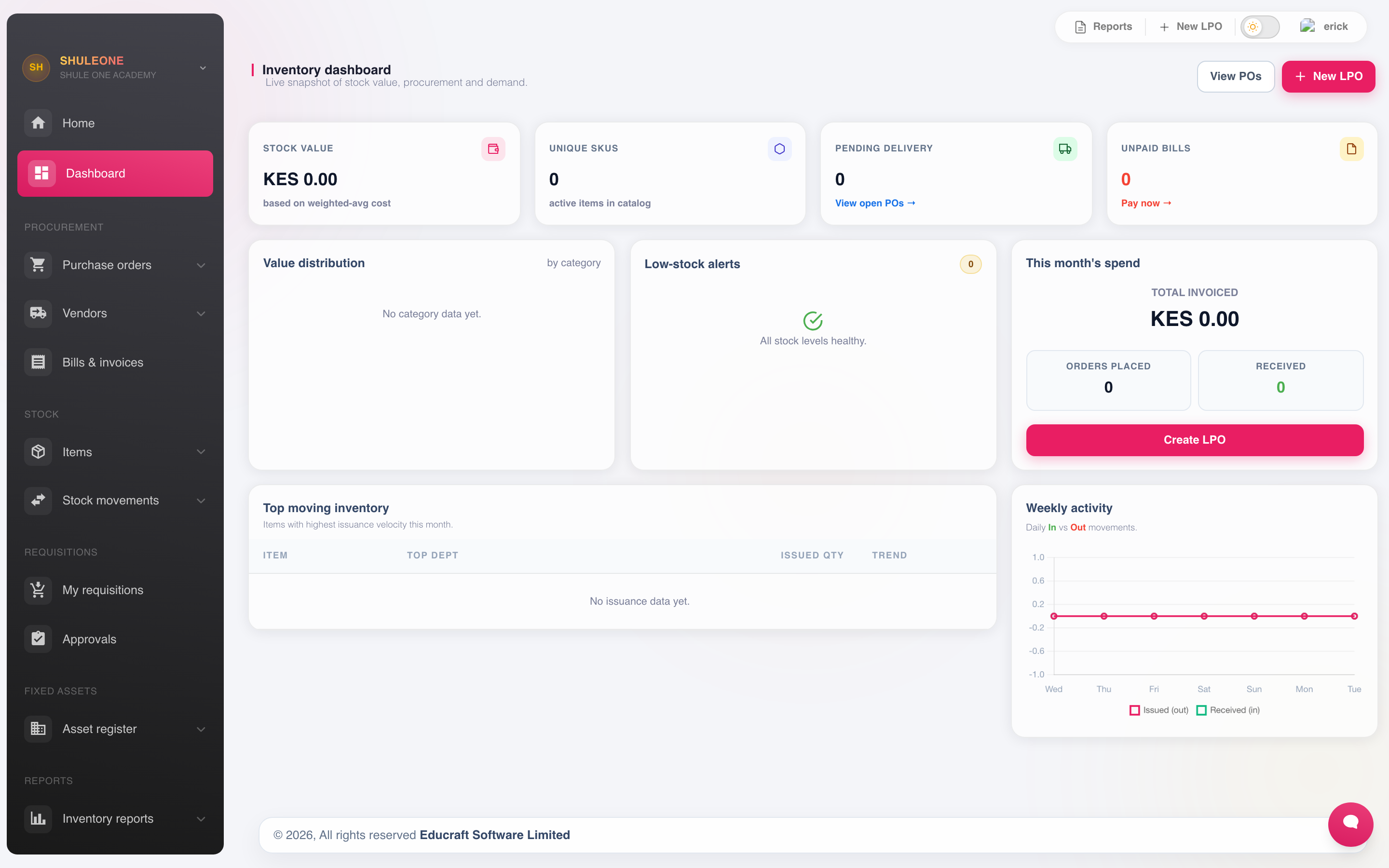
The dashboard summarises stock value, low-stock items, pending orders and recent activity.
Setting up
Section titled “Setting up”- Item categories — Foodstuff, Stationery, Cleaning, Laboratory, Maintenance.
- Items — the things themselves, with unit of measure, reorder level and, for retail stock, a default selling price.
- Canteen — outlets, cashier shifts and PDQ terminals when the school sells food or other counter items.
- Vendor categories and vendors.
- Departments — who requisitions and who consumes.
- Inventory settings — approval thresholds, numbering, valuation method.
The procurement cycle
Section titled “The procurement cycle”The screens follow the cycle, and each step is a control. Skipping a step to save time removes the control it exists for.
- Requisition — a department asks for something.
- Approval — the request is authorised.
- Purchase order — the school commits to a vendor.
- Receive — goods arrive and stock goes up.
- Bill — the vendor’s invoice is matched to what was ordered and received.
- Payment request — the bill is passed to finance.
Between order, receipt and bill sits the three-way match: you ordered 50, you received 48, the vendor billed for 50. ShuleOne shows the discrepancy; the point of the sequence is that it becomes visible before the payment goes out.
The screens
Section titled “The screens”| Screen | Purpose |
|---|---|
| Items / Item Categories | What the school stocks |
| Student Sales | Sell stock such as uniforms to students and issue receipts |
| Canteen POS | Phone-friendly counter sales to students, teachers and staff |
| Canteen Stock | Transfer, count and report stock held at each outlet |
| Canteen Reports / Setup | Sales and PDQ reconciliation; outlets and terminals |
| Issue Items / Return Items | Stock out to departments, and back |
| Adjustment | Correct stock after a count |
| Requisition | Department requests |
| Approval | The approval queue |
| Purchase Orders / New PO / Active POs | Orders to vendors |
| Receive Items | Goods received |
| Bills | Vendor invoices |
| Payment Request | Passing a bill to finance |
| Vendors / Vendor Categories / Balances | Suppliers and what is owed |
| Assets | Capital items |
| Valuation | Value of stock held |
| Low Stock / Overdue / Department Consumption | Reports |
| Settings | Thresholds, numbering, valuation method |
Finding options in long lists
Section titled “Finding options in long lists”Every selector in Inventory is searchable. Open a selector and type part of a vendor, item, category, account, status or other option. The list narrows as you type; use the arrow keys and Enter, or select the result with the pointer. This is especially useful when a school has many vendors or stock items.
Inventory also follows ShuleOne’s light or dark appearance setting across dashboards, tables, forms, menus and pop-ups, including the on-screen supplier statement preview. Downloaded and printed statements keep their light document layout. On a narrow screen, forms stack into one column and wide line-item tables can be scrolled sideways without losing their rightmost controls.
Sorting and paging tables
Section titled “Sorting and paging tables”Select a column heading in any Inventory table to sort by that field. Select the same heading again to reverse the order. Text, dates, quantities and money amounts are sorted according to their displayed values; Actions columns are not sortable. Keyboard users can focus a heading and press Enter or Space.
Long tables are split into pages automatically. ShuleOne fits the number of rows to the current screen height, so a shorter laptop or phone shows fewer rows than a tall desktop. Use Previous and Next below the table to move between pages. Filtering or searching returns the table to its first page. Printed reports still include all matching rows.
Stock only works if it is used
Section titled “Stock only works if it is used”An inventory module reflects reality only if every movement is recorded. The failure mode is always the same: goods are taken from the store without an issue note “just this once”, and within a term the system’s figures and the shelf disagree so badly that nobody trusts either.
Two rules make it work: nothing leaves the store without an issue, a student sale or a canteen sale, and stock is counted and adjusted at least once a term.