
The coding pathway
Coding in ShuleOne is the Coding, Robotics and AI pathway: a CBC-aligned route from Grade 1 to Grade 9, taught the same way as the rest of the portal — a map of stages, each opening a lesson.
It covers three things, not one:
- Coding — blocks first, then real text-based programming.
- Robotics — building and programming with physical kits.
- AI literacy, digital safety and problem solving — what these systems are, what they are not, and how to stay safe around them.
Each level ends in a showcase, where every learner has built something and shows it.
Open Coding from the portal.
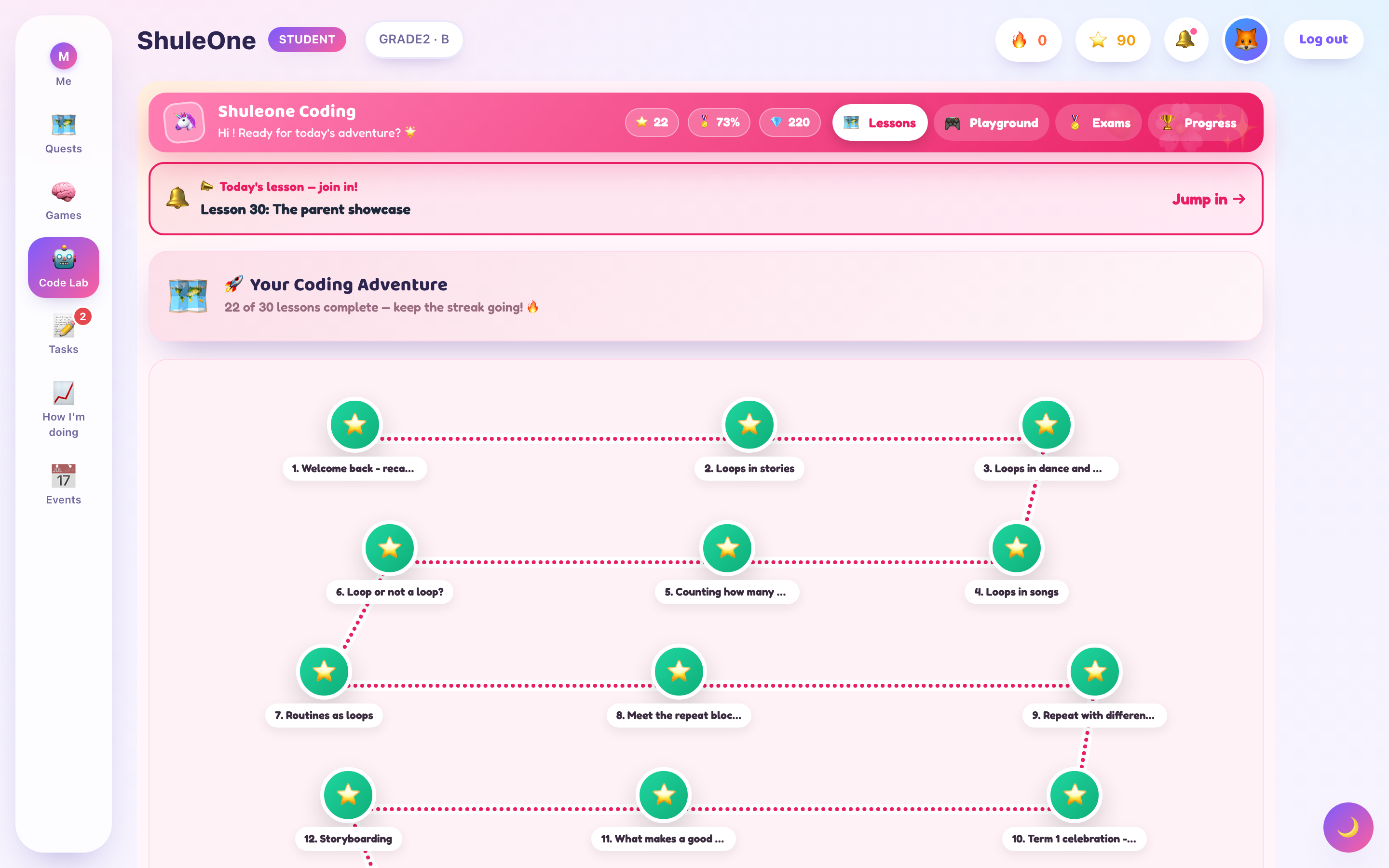
Completed stages, the current stage and locked stages appear together on the pathway.
What is in it
Section titled “What is in it”| Section | What it is |
|---|---|
| Overview | Where you are on the pathway |
| Lessons | The pathway itself, as a quest map |
| Playground | Write and run code, or open the Arduino and Makeblock hardware editors |
| Projects | Bigger pieces of work you build and submit |
| Quizzes | Short checks on what you have learned |
| Exams | Formal assessment |
| Progress | What you have completed |
The lessons
Section titled “The lessons”Coding lessons work like other lessons — read or watch, then try — but the “try” is writing code, and the code runs in the page. You do not install anything.
A typical lesson gives you a small piece of starter code, asks you to change it to do something, and runs it so you can see the result. When it works, you move on.
What you write in
Section titled “What you write in”The pathway covers three, roughly in this order:
Scratch — blocks you drag together. This is where the pathway starts, and it teaches sequence, repetition, conditions and events without any typing. Scratch work opens in the sandbox.
HTML — building a page. The result appears next to your code as you write it, which makes the connection between what you type and what appears very direct.
Python — real text-based programming, run in the page. This is where the pathway goes once blocks have done their job.
Arduino — C++ sketches for supported Arduino boards. The Playground opens the official Arduino Cloud Editor, which can compile and upload from a Chromebook.
Makeblock — block or Python programs for supported Makeblock robots. The Playground opens mBlock 5 Web, which connects to hardware directly from Chrome.
Robotics
Section titled “Robotics”Where your school has kits, some projects are built with physical hardware rather than on screen: you assemble something, program it, and it moves.
Each robotics project comes with a brief and a marking rubric, so you know before you start what it has to do and how it will be judged. Read the rubric first — it tells you which parts are worth doing well.
Kits are shared, so build time is usually booked. Plan what you are going to do before you have the hardware in front of you, because the session is shorter than you think.
AI literacy and digital safety
Section titled “AI literacy and digital safety”Part of the pathway is about AI itself rather than programming: what these systems actually do, where they are wrong, what they do with what you type into them, and how to tell a generated image from a photograph.
This is not a side topic. It is the part of the pathway most likely to matter to you outside school, and it is examined like the rest.
The playground
Section titled “The playground”The playground is a blank space to write and run code without a lesson attached — no task, no marking, nothing to complete.
Use it to try something you half-understand from a lesson. Breaking code on purpose to see what the error says is one of the fastest ways to learn to read errors, and the playground is the place to do it.
Arduino and Makeblock on a Chromebook
Section titled “Arduino and Makeblock on a Chromebook”Open Coding → Playground, then choose Arduino or Makeblock. ShuleOne shows a connection checklist and opens the official editor in a new tab. Keep the ShuleOne tab open so you can return to the lesson or project when you finish.
The editor must open in its own tab. Chrome grants USB and Bluetooth device permission to the official editor, not to the ShuleOne page around it.
Arduino
Section titled “Arduino”- Connect a supported Arduino board with a data USB cable.
- Choose Arduino in the Playground and select Open Arduino.
- Sign in to Arduino Cloud.
- In the Cloud Editor, choose Detect Device, select the serial port, and upload the sketch.
Arduino supports a specific set of boards on ChromeOS. Use the Chromebook setup and supported devices link shown in ShuleOne to check the exact board before the lesson.
Makeblock
Section titled “Makeblock”- Connect and power on the robot.
- Choose Makeblock in the Playground and select Open mBlock.
- Add the exact device model in mBlock.
- Choose Serial for USB, or Bluetooth where mBlock supports it, and select the device when Chrome asks.
- Run the program live or upload it from mBlock.
Open only one mBlock tab at a time. Another mBlock tab can keep the serial port busy and stop the robot connecting.
Projects
Section titled “Projects”Projects are the substantial work: a game, a page, a program that does something. They are usually built in the sandbox or the playground, and submitted to your teacher.
Submitting is a deliberate step. A finished project that has not been submitted has not reached anyone.
Your teacher marks it and it comes back with a comment — see the coding module for what that looks like on their side.
Quizzes and exams
Section titled “Quizzes and exams”Quizzes are short, mark themselves, and tell you immediately how you did.
Exams are formal. They are set by your teacher, open for a fixed window, and reported to the school. Your teacher sees which questions the class found hard.
Certificates
Section titled “Certificates”Finishing a term or an award milestone earns a certificate, issued by your school. Open Coding → Progress and find Certificates. Choose Print to open the browser’s print dialog, or Download to keep the PDF. A revoked certificate cannot be printed. The downloaded certificate is print-ready A4 and stays sharp when zoomed or printed.
What’s new - 10 September 2026
Section titled “What’s new - 10 September 2026”Coding and Robotics certificates now use selectable PDF text and vector artwork, fixing soft or blurry headings, signatures, illustrations and decorative lines in downloaded and printed copies.
What’s new - 29 August 2026
Section titled “What’s new - 29 August 2026”The Coding Playground now launches the official Arduino Cloud Editor and Makeblock mBlock 5 Web with Chromebook connection guidance. Learners can compile and upload to supported hardware without using a Windows computer.
What’s new - 26 August 2026
Section titled “What’s new - 26 August 2026”Earned Coding and Robotics certificates can now be printed from the portal as well as downloaded. Printed certificates use the official ShuleOne Coding, Robotics & AI design, the learner’s school logo, and the earned programme tier.
Getting stuck
Section titled “Getting stuck”Being stuck is the normal condition of writing code, and getting unstuck is most of the skill. In order:
- Read the error. It usually says what is wrong and which line. Errors look frightening and are mostly literal.
- Check the obvious. A missing bracket, a misspelled name, a capital letter that should be lower case.
- Change one thing at a time. Changing five things and re-running tells you nothing about which one mattered.
- Go back a lesson. If nothing makes sense, the gap is usually one step earlier.
- Ask. Your teacher can see your work.
Do not clear everything and start again as a first move. The broken version contains the information about what went wrong.