
The coding module
The coding module is the school-side view of the Coding, Robotics and AI pathway that learners work through in the student portal. Learners write code there; teachers set work, mark it and report on it here.
The pathway is CBC-aligned and runs Grade 1 to Grade 9. It covers block coding in the browser with nothing to install, robotics kits with project briefs and marking rubrics, and AI literacy, digital safety and problem solving. It comes with teacher training and lesson-by-lesson guides, and each level ends in a showcase where every learner has built something.
Go to Coding → Overview.
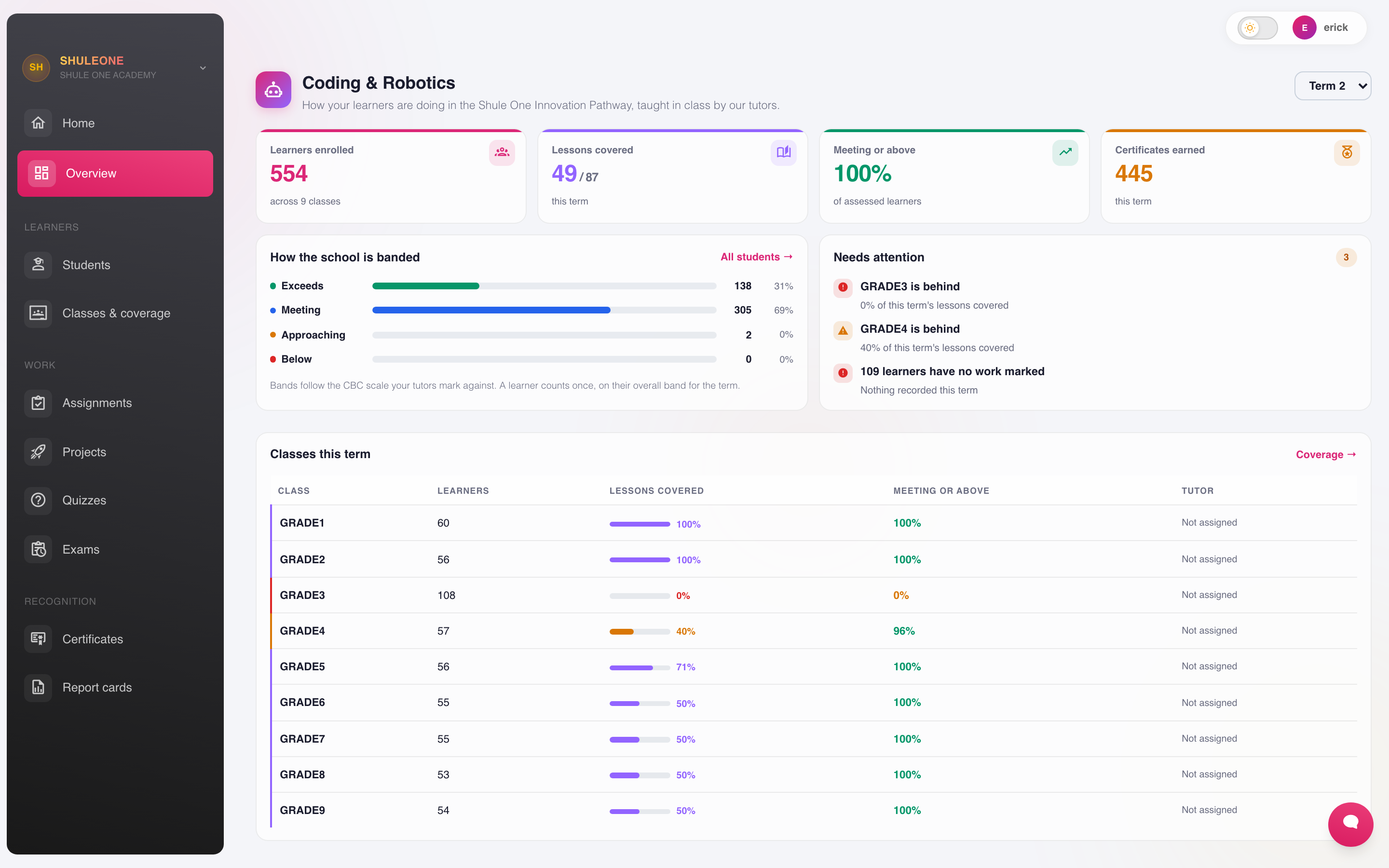
The coding overview summarises enrolment, activity and pathway progress.
The screens
Section titled “The screens”| Screen | What it is for |
|---|---|
| Overview | Participation and progress across the school |
| Classes | Which classes are enrolled on the pathway, and where each has reached |
| Students | Individual learners, their progress and their submissions |
| Assignments | Coding tasks set to a class, with due dates |
| Projects | Larger pieces of work, usually built in the Scratch sandbox |
| Quizzes | Short knowledge checks |
| Exams | Formal assessment, with per-exam analytics |
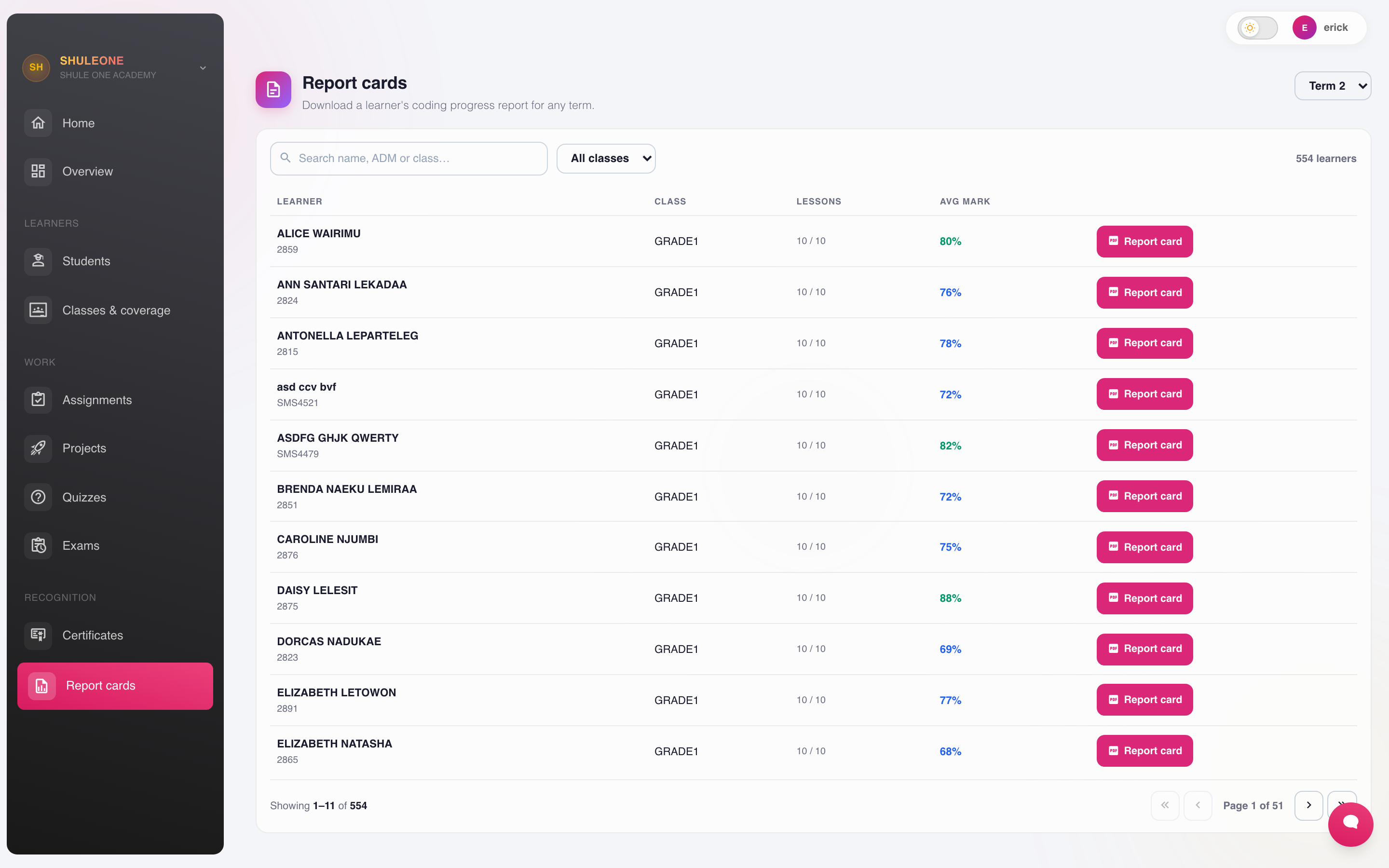
| Report cards | Coding results in report form |
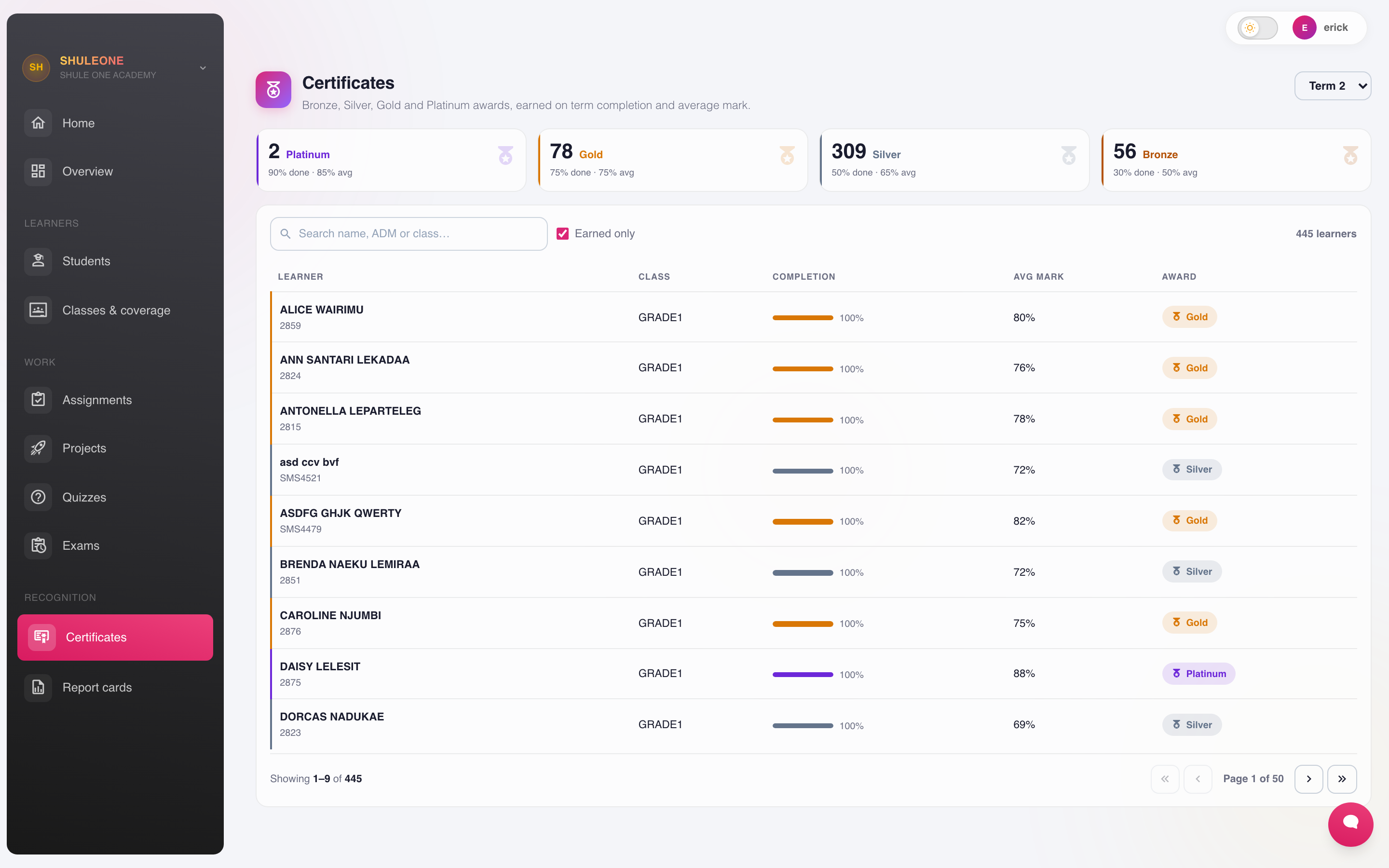
| Certificates | Completion certificates for learners who finish a level |
Enrolling a class
Section titled “Enrolling a class”From Coding → Classes, enrol the class and choose the level of the pathway it starts at. Every learner in the class gets the pathway in their portal, and their progress starts reporting back here.
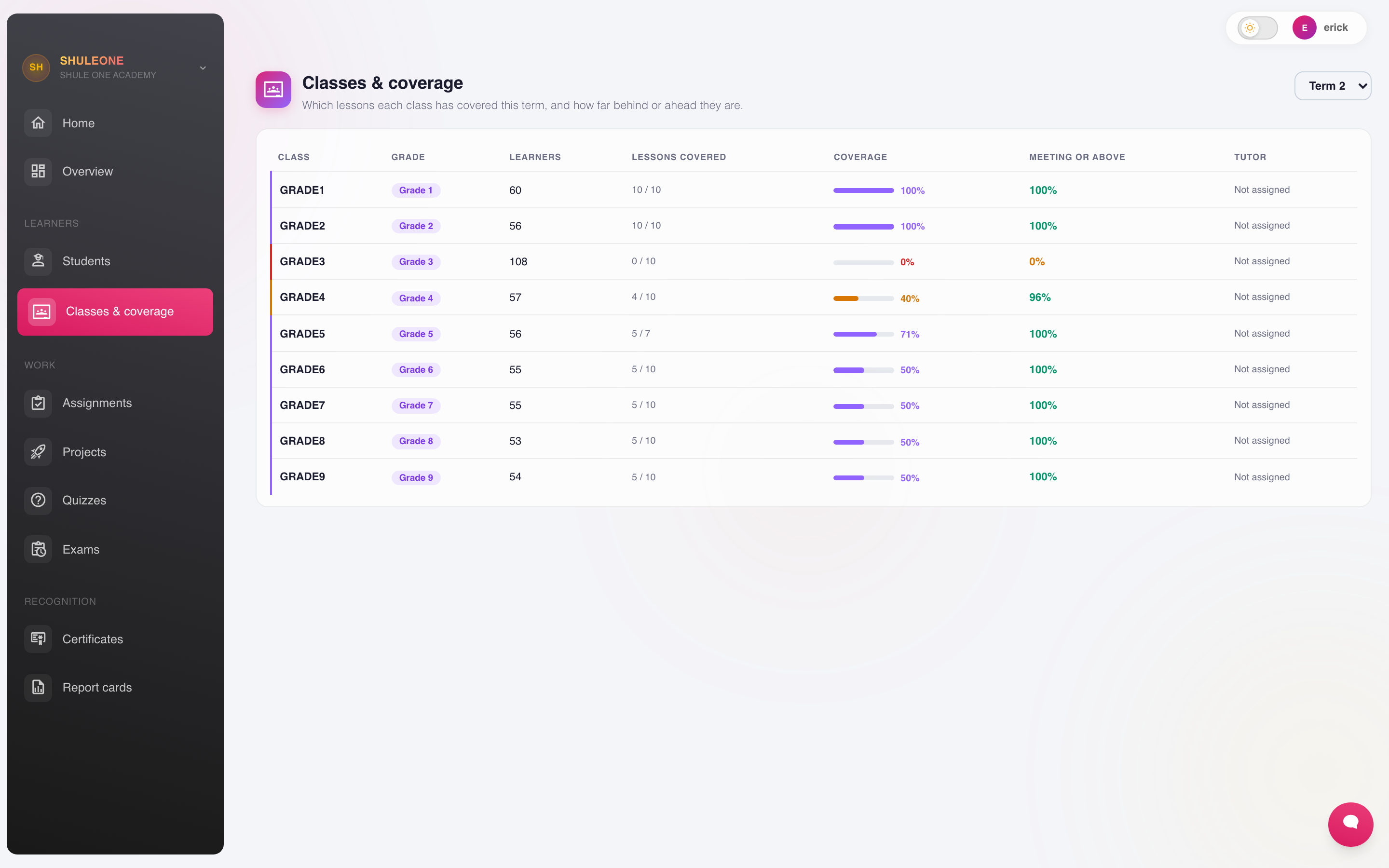
Enrol at class level rather than learner by learner. Learners who join the class later pick the pathway up automatically.
Setting and marking work
Section titled “Setting and marking work”Assignments and Projects are set to a class with a due date. Learners see the task in the portal, do the work — usually in Scratch — and submit from there.
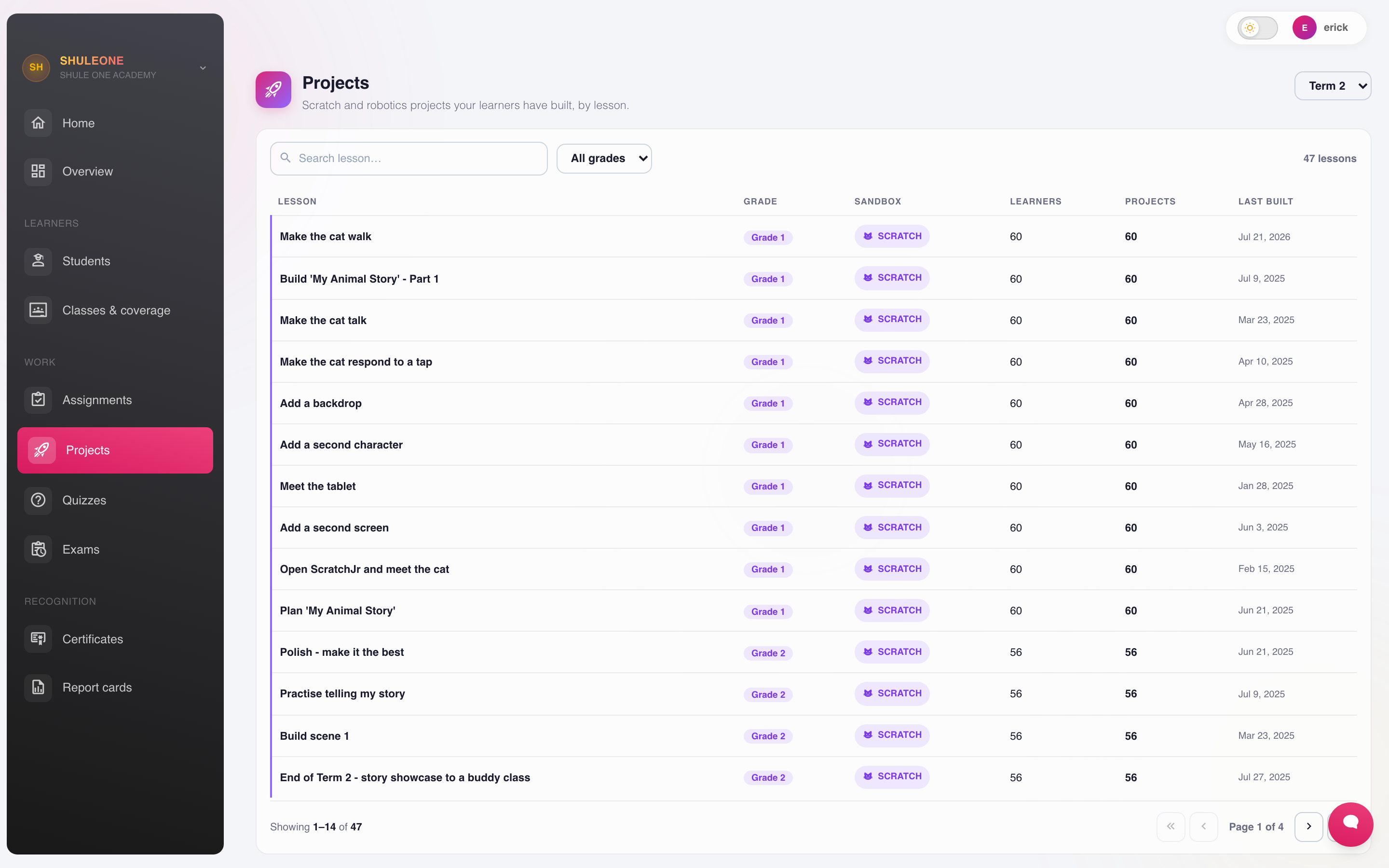
Submissions arrive under the assignment. Each one can be opened, the learner’s project run, and a result recorded. Where the work is assessed by competency rather than a mark, it uses the same rubric mechanism as the rest of CBC.
Quizzes mark themselves and report immediately.
Exams and analytics
Section titled “Exams and analytics”Coding exams are created and sat in the portal, and each has an analytics view showing the score distribution and which questions the class found hard. A question that almost everyone failed is usually a teaching signal rather than a cohort one.
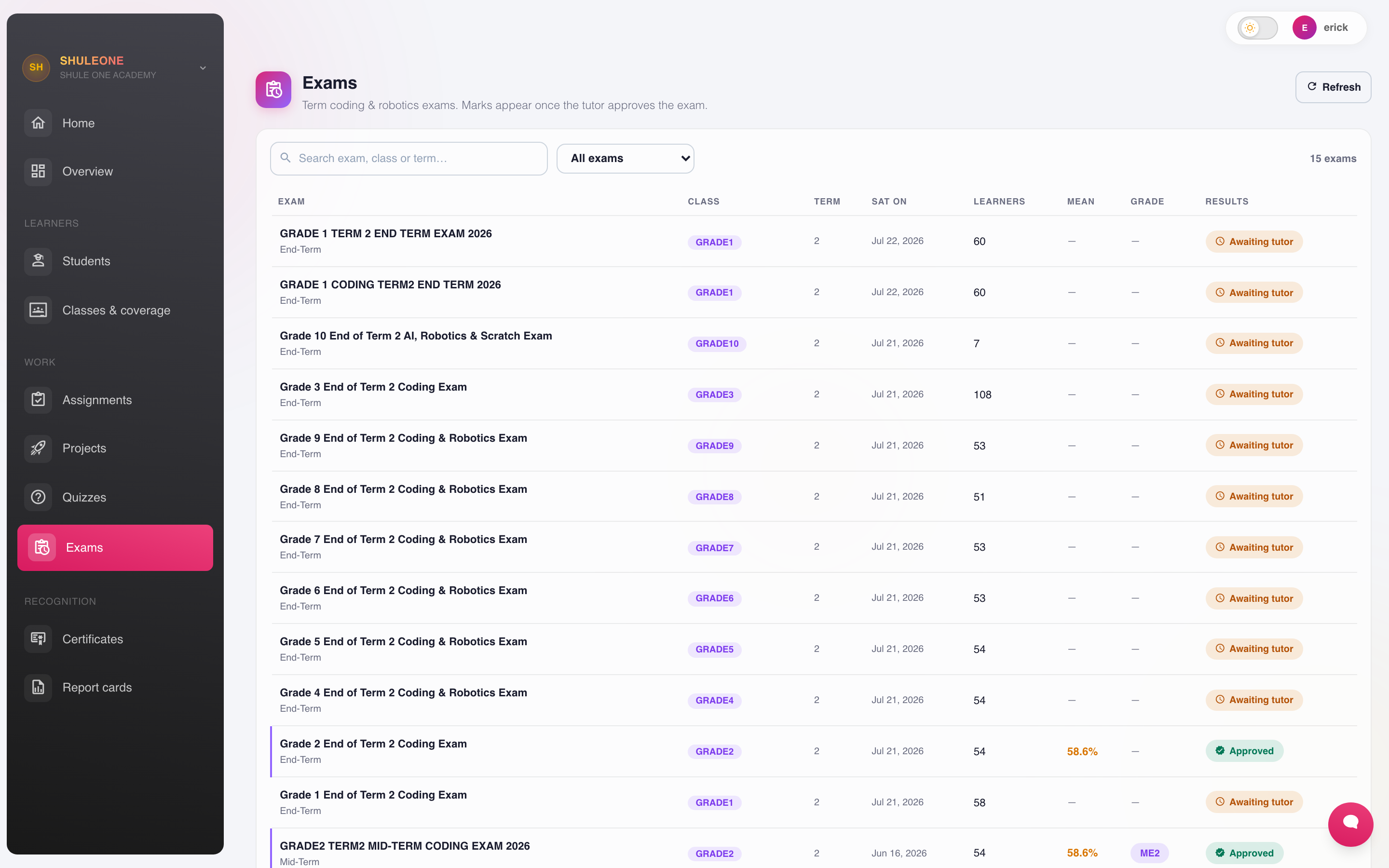
Tutor exam workspace
Section titled “Tutor exam workspace”In the tutor portal, open Exams, filter by school or grade, and select a paper in the list. The selected paper stays beside the list, with its opening time, closing time and duration visible above the tabs. All sitting times use East Africa Time (UTC+3).
| Tab | What you can do |
|---|---|
| Overview | Check the stage, questions, marks, tutor, delivery and sittings started |
| Paper | Preview the learner paper, inspect the answer sheet, print, or edit questions |
| Settings | View or change the title, instructions, duration, pass mark, opening and closing times, and interruption rules |
| Candidates | See the class roster, who has started or submitted, and open a learner’s script |
| Marking | Open this exam’s marking queue or enter marks for a printed paper |
| Results | Check completeness, approve or withdraw result approval, and open reports |
To prepare an exam:
- Choose New exam, select its school, class, term, year and delivery, then create the draft.
- Open Paper → Edit questions to add, generate, review or correct questions and answers.
- Open Settings, enter the sitting times and duration, and choose Save settings.
- Choose Review & publish, check the displayed settings, then Confirm publish.
A published online paper appears to eligible learners. Before its opening time it is upcoming; learners can start when the opening time arrives. A blank opening time means immediate availability on publication. A blank closing time means learners can start until you choose Close sitting. The duration limits each learner’s own attempt. Publishing a paper does not release its results.
Question and settings changes are allowed before any learner starts and before any marks are recorded. Afterwards, these remain visible but are locked. Choose Duplicate to make a revised draft, select its target and give it a distinct title. The copy keeps questions and answer keys but excludes attempts, marks and result approval. Saving an existing paper’s settings preserves its school, class, term and delivery; duplicate it to change those targets.
Before a sitting starts, Return to draft removes the published paper from learners while you prepare it. Close sitting stops new starts and blocks continuing attempts; submitted scripts remain available. Reopen sitting restores availability within the existing window, without resetting attempts. An expired window requires a new duplicate for another sitting. Delete unused exam is available only when there are no attempts, marks or approved results.
After marking, use Results → Approve results to release the cohort. Reports and approval stay separate from the paper’s publication state. Tutors can act only on their assigned schools; coding administrators can work across the programme.
What’s new — 12 October 2026
Section titled “What’s new — 12 October 2026”The tutor Exams page now uses a compact exam workspace. Paper editing, complete settings and scheduling, candidates, marking and result approval are grouped into tabs. Opening and closing times remain visible, while actions follow the exam’s current stage. Failed loading now shows an error and retry action rather than an empty exam list.
Robotics
Section titled “Robotics”Robotics kits come with project briefs and marking rubrics, and are assessed here like any other project — a brief set to the class, work submitted, marked against the rubric.
Learners can program supported Arduino and Makeblock hardware from a Chromebook. In the student portal they open Coding → Playground, choose Arduino or Makeblock, and launch the official browser editor. Arduino opens Arduino Cloud Editor; Makeblock opens mBlock 5 Web. Each launcher includes the connection steps and a link to the vendor’s current supported-device guidance.
Two practical points schools learn the hard way:
- Track the kits in Inventory, as assets with a custodian. Sets of small parts distributed to Grade 6 and never counted back in do not survive a term.
- Book them. One set of kits and four classes needs a timetable, not goodwill.
Before moving a class to Chromebooks:
- Test the exact board or robot model on one Chromebook. Arduino supports a defined set of boards on ChromeOS, and mBlock support varies by device and connection method.
- Use data-capable USB cables. A charging-only cable powers the device but cannot upload a program.
- On managed Chromebooks, allow
https://app.arduino.ccandhttps://ide.mblock.ccto request access under the Chrome Web Serial API policy. - Keep only one mBlock editor tab open per Chromebook so it does not lock the serial port.
Teacher training
Section titled “Teacher training”The pathway ships with teacher training and lesson-by-lesson guides, which matter more here than in other subjects — most schools are teaching this without a specialist.
The guides are in Lesson plans. A teacher one lesson ahead of the class is normal at the start and works fine, provided they have actually done the lesson first.
The showcase
Section titled “The showcase”Each level ends in a showcase: every learner has built something and shows it.
It is worth treating as a real event — parents invited, work on screens, learners explaining what they made. It is the clearest evidence a school has that the pathway is doing anything, and it is far more convincing to a parent than a grade.
Set the date at the start of term so the projects are planned towards it.
Reports and certificates
Section titled “Reports and certificates”Report cards produce the coding section of a learner’s report. Certificates shows the learners who have earned a Bronze, Silver, Gold or Platinum award for the selected term. Choose Print beside a learner to open their certificate as a PDF. The browser opens its print dialog; you can print a paper copy or choose Save as PDF. Certificate lettering and artwork remain sharp at paper-print resolution.
Only earned certificates can be printed. If a learner is shown as Not yet, check the completion percentage and average mark on the same row, then finish or mark the missing work before trying again.
What’s new - 10 September 2026
Section titled “What’s new - 10 September 2026”Coding and Robotics certificates now use selectable PDF text and vector artwork, so headings, signatures, illustrations and decorative lines stay sharp when downloaded, zoomed or printed on A4 paper.
What’s new - 29 August 2026
Section titled “What’s new - 29 August 2026”The learner Coding Playground now provides Chromebook-ready launchers for Arduino Cloud Editor and Makeblock mBlock 5 Web. This replaces the previous edit-only hardware code boxes: learners can now connect supported devices and upload from ChromeOS through the official editors.
What’s new - 26 August 2026
Section titled “What’s new - 26 August 2026”Coding and Robotics award certificates can now be printed directly from Coding → Certificates. The print-ready certificate now uses the official ShuleOne Coding, Robotics & AI design, maps Bronze through Platinum awards to Tier One through Tier Four, and carries the learner, partner school, issue date, programme signatories, the official ShuleOne wordmark, and the school logo configured in Settings → School.