
Financial year and terms
The current term is the single most important setting in ShuleOne. Registers, billing, exams, receipts and reports all filter by it. If a screen is unexpectedly empty, this is the first thing to check.
The order is always: financial year → terms → set current term.
1. Open a financial year
Section titled “1. Open a financial year”Go to Finance → Financial Year.
Select Add New and set the start and end dates.
The financial year is the accounting period. It bounds the ledger, the budgets and the year-end close. It does not have to align with the calendar year, but it must not overlap another financial year.
2. Create the terms
Section titled “2. Create the terms”Go to Settings → Terms.
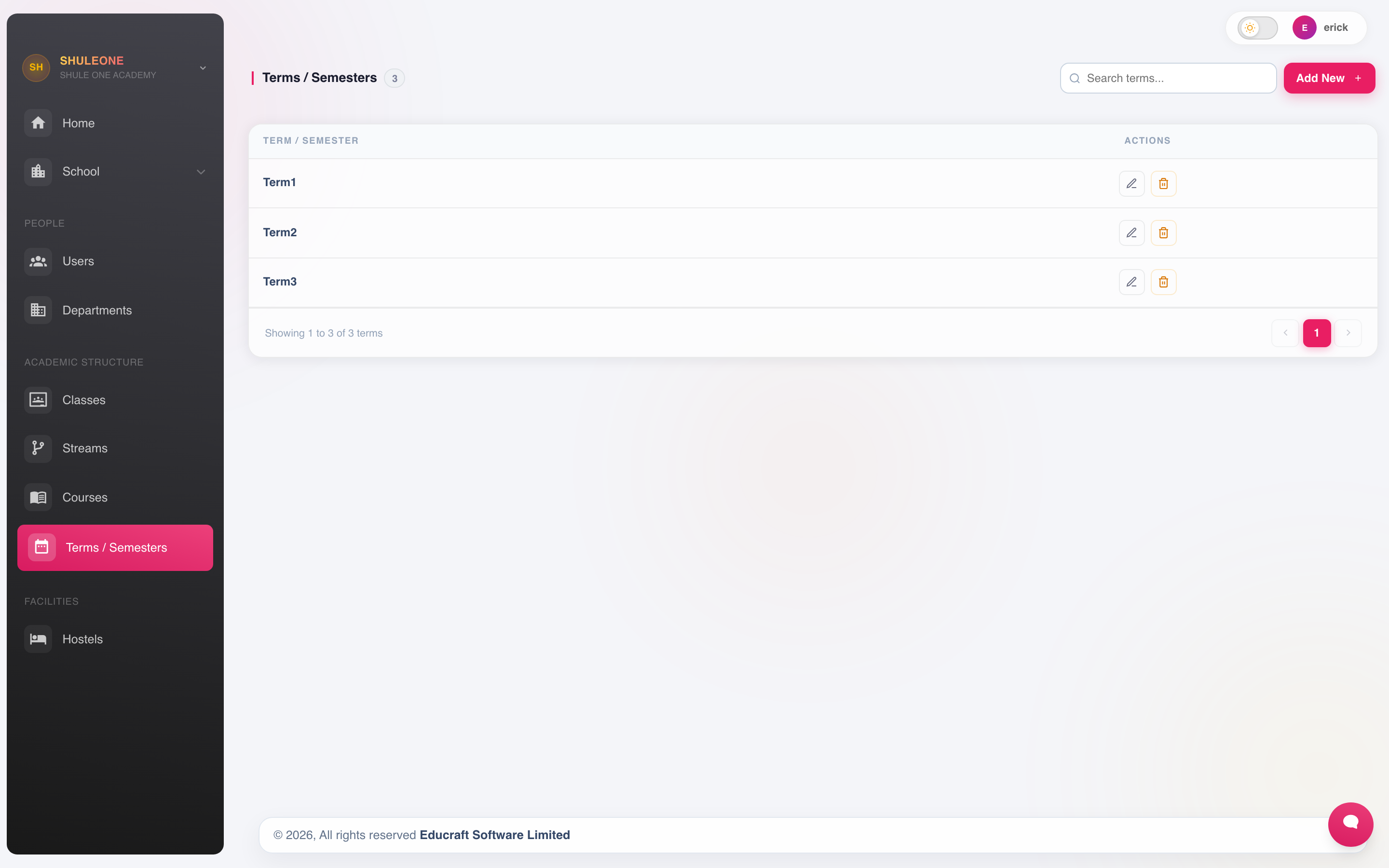
The current terms or semesters, with row actions for maintenance.
Select Add New, then set:
- Term name — Term 1, Term 2, Term 3.
- Financial year — the year the term belongs to.
- Start and end dates — used by attendance to know which days are school days, and by fee reminders to schedule messages.
Semesters
Section titled “Semesters”Institutions that run semesters rather than terms use Settings → Semesters in the same way.
Existing semesters can be edited or removed while nothing references them.
3. Set the current term
Section titled “3. Set the current term”On the terms list, mark the term you are now in as current. Only one term can be current at a time.
Setting the current term changes what every other module shows. Do it on the first day of term, not before — switching early makes the previous term’s registers and receipts disappear from default views while people are still working on them.
What breaks when the term is wrong
Section titled “What breaks when the term is wrong”| Symptom | Cause |
|---|---|
| An attendance register will not open | Today’s date falls outside the current term’s dates. |
| Nobody appears on a billing screen | Fees have not been billed for the current term. |
| Marks entry shows no exams | The exams were created against a different term. |
| A receipt posts to the wrong period | The current term was switched after the payment date. |
| Fee reminders go out at the wrong time | The term’s start and end dates are wrong. |