
Generating and publishing
Generating
Section titled “Generating”With the setup complete, create a timetable and run the generator.
It works through the allocations and constraints and produces a schedule that satisfies them. On a school of any size this takes a little time — let it finish rather than stopping and restarting it.
The generator reports what it could not place. Treat that list as diagnostic context: it records the lessons left without positions when the run stopped, but those lessons can be downstream casualties rather than the original cause. Start with the exact generation result or a verified setup issue. Common causes include:
- Lesson counts exceeding available slots — do the arithmetic per class.
- A teacher over-allocated — more lessons assigned than periods they are available for.
- Too few specialist rooms — three classes needing the one laboratory at once.
- Conflicting constraints — two rules that cannot both hold.
Fix the cause and generate again. Placing the leftovers by hand without fixing the cause produces a timetable that breaks the moment anything changes.
If generation fails
Section titled “If generation fails”Keep the failed result panel open and read What to correct. For recognised setup problems, ShuleOne names each affected class, compares required weekly teaching time with available time, and shows the exact shortage. Select Open class lessons to go directly to that class’s lesson requirements.
For example, if a class needs 22 hr 45 min of lessons but only 21 hr 40 min remains after breaks and unavailability rules, the panel reports a 1 hr 5 min shortage. Correct it by reducing that class’s weekly lesson time, or by restoring at least the same amount in Slots, Bells, or Constraints.
ShuleOne also checks whether a teacher’s single, double or triple sessions actually fit inside the allowed clock windows. A total of six free periods is not enough for three double lessons if breaks split those periods into blocks of three. In that case, Timetable → Issues names the teacher and subject, shows the number of sessions required and the maximum that can fit, and stops generation before the engine reaches its time limit. Open another consecutive window, shorten the session pattern or reassign a lesson.
If every valid start time for one lesson is blocked, the failed result names the class, subject and lesson record, for example Form 1 East — Mathematics (lesson #40). Open Constraints and free at least one compatible slot for that subject, class, teacher and room, then generate again. The lesson number is included so similarly named lesson rows can still be distinguished.
If a teacher allocation changes after a placement was locked, the saved grid can still show the former teacher while Lessons contains the new assignment used by the generator. Generation now stops before starting the engine and names the class, subject, day, displayed period, former teacher and current lesson teacher. Restore the former teacher under Lessons if the grid is correct, or unlock the placement if the new teacher is correct, then generate again.
Editing or deleting a multi-class lesson can also leave an older locked grid cell that refers to a removed lesson row or an obsolete merged group. Generation identifies the affected class, subject, day, displayed period and removed lesson number before starting the engine. Unlock or remove that named saved placement, then generate again. Editing a lesson now removes cells belonging to deleted class rows and keeps surviving cells aligned with the lesson’s current merged or single-class setup.
When a failure is not a recognised setup problem, Technical details distinguishes a time limit, an engine process error, unreadable or missing engine output, and a result rejected by hard-constraint validation.
Use the detail together with Timetable → Issues:
- A timeout means the engine ran out of its configured generation time. The default is 30 seconds; a school can change it under timetable engine settings. Review the most restrictive constraints and over-allocated teachers, including whether double and triple sessions have enough consecutive periods, then try again.
- Missing or unreadable engine output is a server-side engine problem. Copy the full diagnostic when reporting it to support; changing lessons at random will not fix it.
- A hard-validation failure means ShuleOne found clashes in the generated result and did not save the unsafe schedule. The failure panel lists what conflicted.
Do not dismiss Technical details before copying an unrecognised server-side diagnostic if you need support.
The Unplaced lesson diagnostics window does not open over the exact generation result. Open it when you need examples of what remained unplaced. Unless it labels a recommendation as verified, its lesson and constraint cards are not claims that those items caused the run to fail.
Controlling same-day subject repeats
Section titled “Controlling same-day subject repeats”Open a class’s lesson requirements when a subject should be distributed across the week. The lesson’s spread settings distinguish single periods from intentional longer sessions:
- Enable Spread across teaching days for a subject taught entirely as singles.
This enforces a daily minimum of
floor(weekly singles / teaching days)and maximum ofceil(weekly singles / teaching days). Eight singles over five days must therefore follow 2–2–2–1–1, in any order: no blank day and no triple day. Seven follow 2–2–1–1–1; six follow 2–1–1–1–1. - Counts include all allocations of the same subject in the same class, even when entered on separate lesson rows. Enabling Spread on any of those rows enables the rule for the whole singles-only subject. To opt out, disable it on every such row.
- Teaching days come from the class’s bell schedule (or the timetable’s standard slots). A day blocked by teacher or subject availability still counts: the conflict must be resolved, rather than dropping that day from the distribution calculation.
- If any allocation of that subject/class contains doubles or triples, the balanced singles rule does not apply. Ordinary spreading stays a preference; practical sessions are not split up or counted as repeated single sessions.
- Set Priority to 10, keep spreading on, and leave Same-day minimum gap at 0 to require different days. This is a hard rule: the generator leaves the lesson unplaced or fails validation instead of silently adding a second session that day.
- Set a positive Same-day minimum gap when same-day repeats are acceptable but must be separated. This permits controlled repeats and keeps the configured number of teaching periods between their start times; breaks do not count as teaching periods.
For eight English singles, keep Spread enabled and use the required repeat gap (for example 3). Do not set priority 10 with gap 0: that stricter once-per-day rule cannot fit eight separate sessions into five days. If generation reports a distribution conflict, review availability, pinned placements and repeat gaps. ShuleOne checks the result before saving and will not replace the saved timetable with a result violating the daily bounds.
What’s new - 14 September 2026
Section titled “What’s new - 14 September 2026”Generation now stops before the scheduling engine when a locked saved cell refers to a deleted lesson or an outdated merged-class group, and names the exact class, subject, day, period and lesson record to repair. The same exact failure text survives a disconnected progress channel and is returned by status polling. Unplaced lesson cards are explicitly labelled as diagnostic examples and no longer open automatically over the authoritative error. New and reset engine settings use a 30-second generation limit.
What’s new - 4 September 2026
Section titled “What’s new - 4 September 2026”Spread now enforces balanced daily limits for singles-only subjects, including when weekly sessions exceed teaching days. Existing Spread-enabled allocations pick up this rule on the next generation; existing saved timetables are not changed automatically. Fully occupied classes do not disable it. Doubles/triples retain their separate session-spread behavior. Review any reported conflicts before regenerating and publishing.
Use the Subject once per day constraint when the rule applies to a subject and class regardless of the lesson’s spread priority. A hard Subject once per day constraint is enforced even when the class uses every available teaching period. If the weekly demand cannot fit under that rule, correct the lesson counts, availability or other constraints instead of expecting the generator to relax it.
Use Settings → Scheduling rules → Enforce one subject per class per day when this is a school-wide policy. This is a hard rule and deliberately overrides every lesson’s optional spread preference. Before generation, Check setup compares each lesson’s separate sessions with the distinct days left by class, subject and teacher availability. If, for example, two CAD singles are allowed only on Friday, ShuleOne names that lesson, reports “2 sessions but only 1 available day”, and blocks generation. Open another day, reduce the separate sessions, or use a double where a legal consecutive window exists.
What’s new - 31 August 2026
Section titled “What’s new - 31 August 2026”Locked placements now remain exactly where they were pinned when Generate is run. ShuleOne keeps the original locked allocation, including its day, period, room and co-taught class rows, even when the generation engine returns only a partial result. Only unlocked placements are replaced.
Priority-10 different-day lesson settings and hard Subject once per day constraints are now checked consistently by both timetable engines and by final hard-constraint validation. Fully occupied class timetables no longer cause these hard rules to be silently relaxed. Normal-priority spreading was then a best-effort preference; the 4 September update above adds hard daily bounds for singles-only subjects.
The school-wide Enforce one subject per class per day rule is now included in setup checks and timetable diagnosis before the scheduling engine starts. When availability leaves fewer distinct days than a lesson has separate sessions, the issue names the lesson, required sessions and available days instead of allowing generation to end with an unexplained timeout. Lesson editors now identify their spread option as a preference and explain that the school-wide rule takes precedence.
The lesson working area now stores unallocated placements on the server. Moving a lesson there immediately frees its former slot, and the lesson remains in the working area after a page refresh until it is placed again or a fresh generation is started. Schools using the timetable’s standard slots, without a separate bell profile, can place these lessons back into any highlighted teaching slot without a false “no teaching slot” warning. Each working-area lesson is now shown as a full-size card with a readable subject and class label instead of retaining the grid’s compact tile size.
Checking the result
Section titled “Checking the result”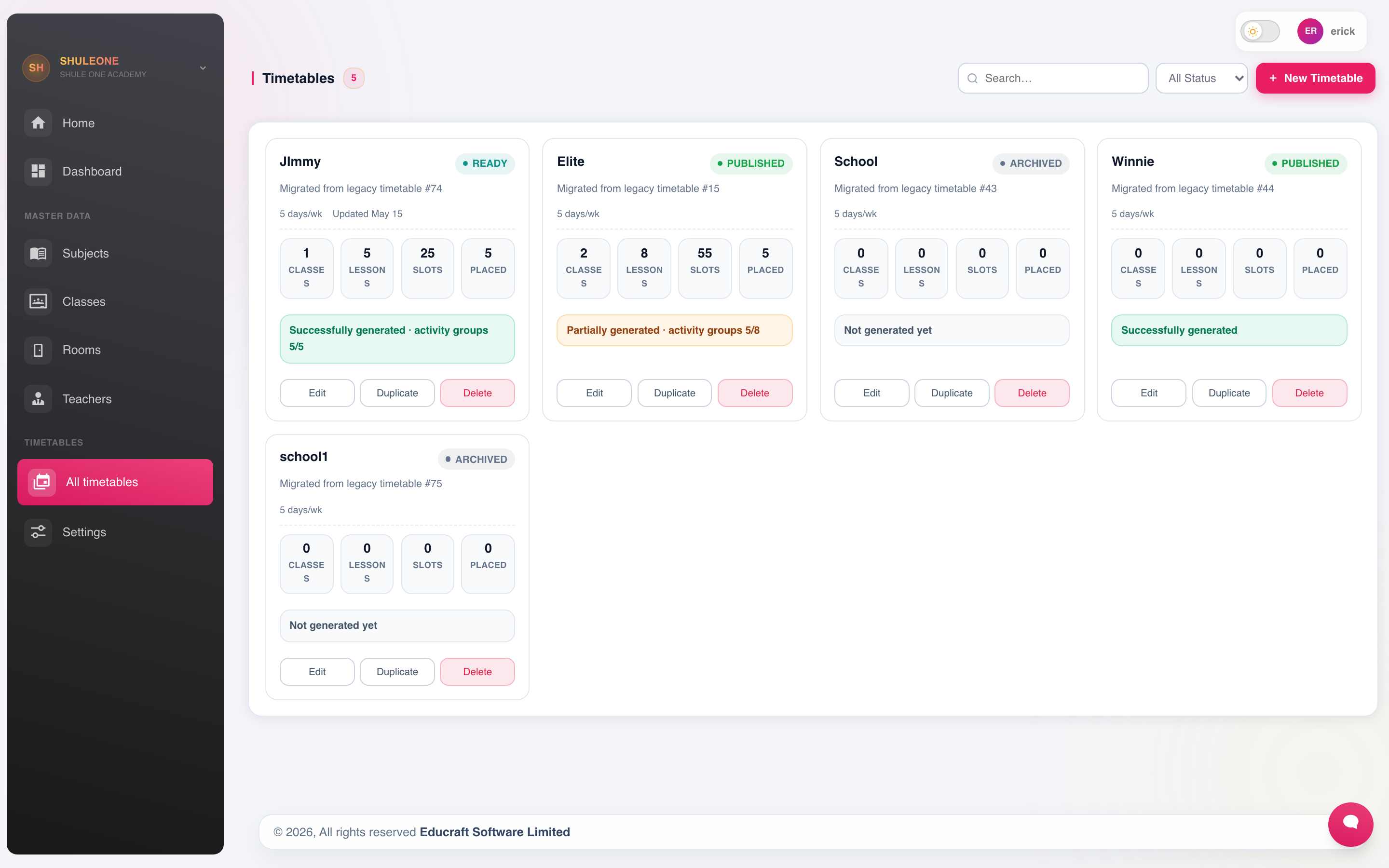
The timetable list identifies draft and published versions before you open a grid.
Look at it three ways, because each shows a different kind of problem.
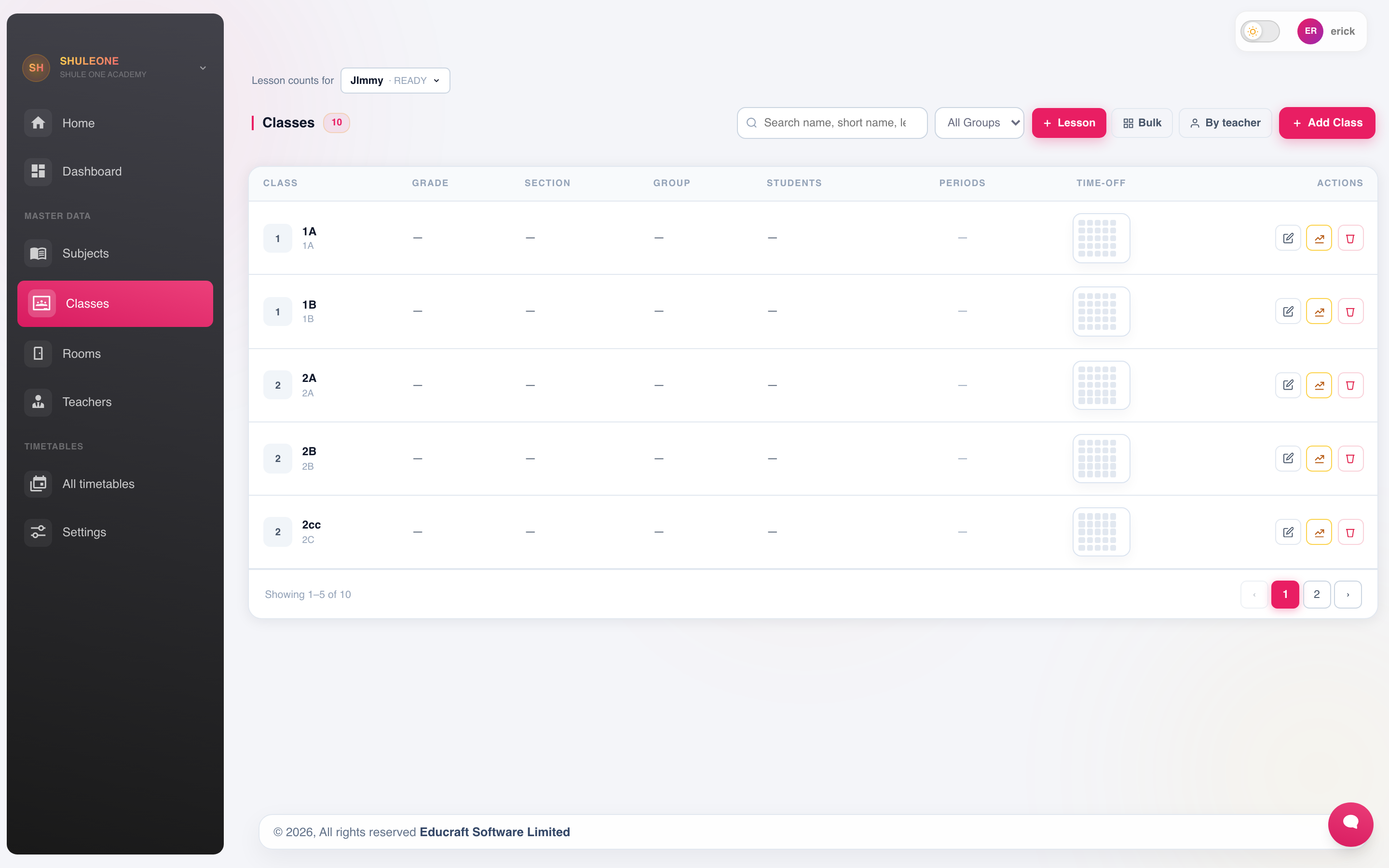
By class — the view students and class teachers use. Check for gaps in the middle of the day, the same subject twice in a row where it should not be, and heavy subjects stacked in the last periods.
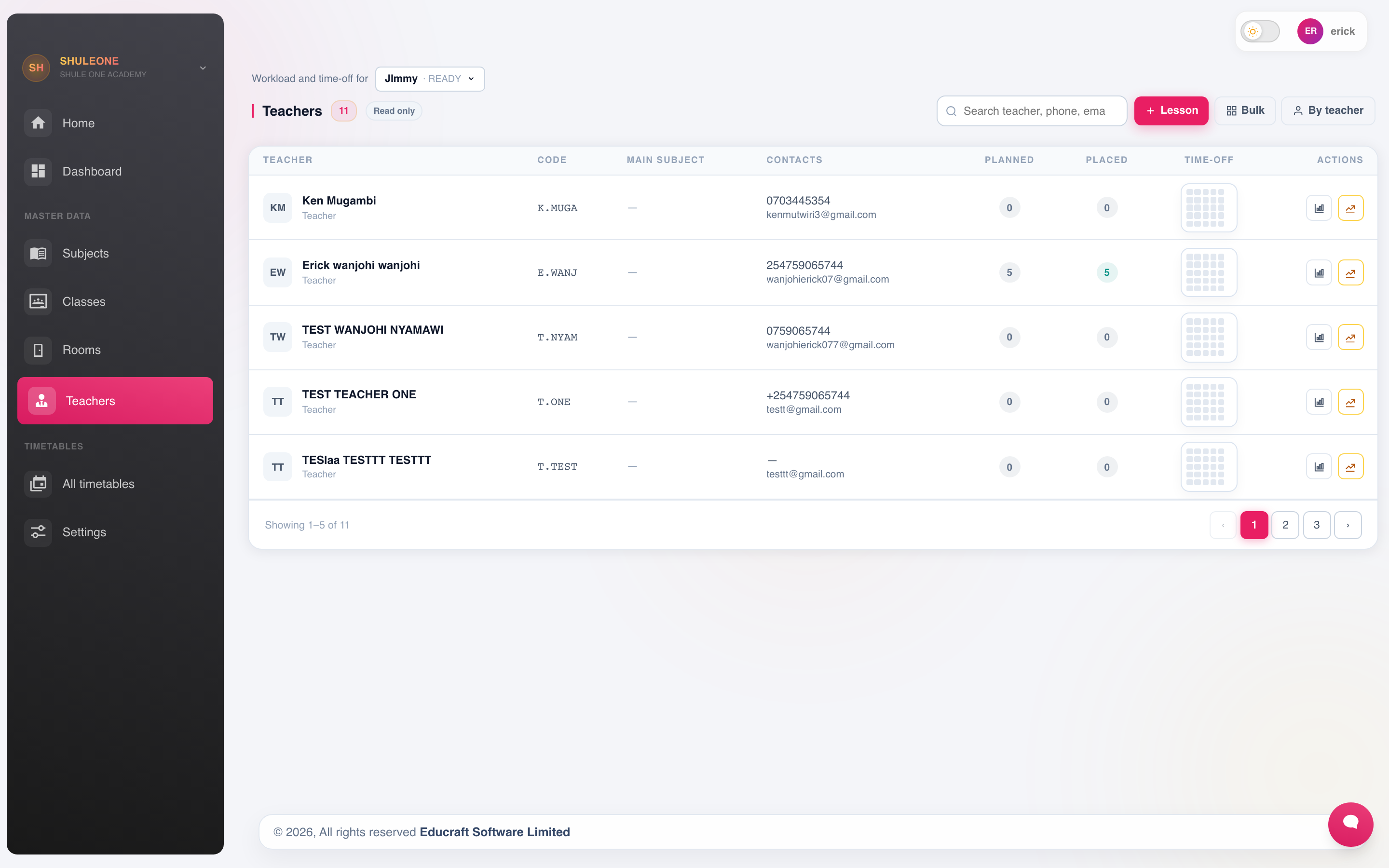
By teacher — check the load is reasonable and fairly spread. Look for six consecutive periods, a teacher with no break, and days that are far heavier than others.
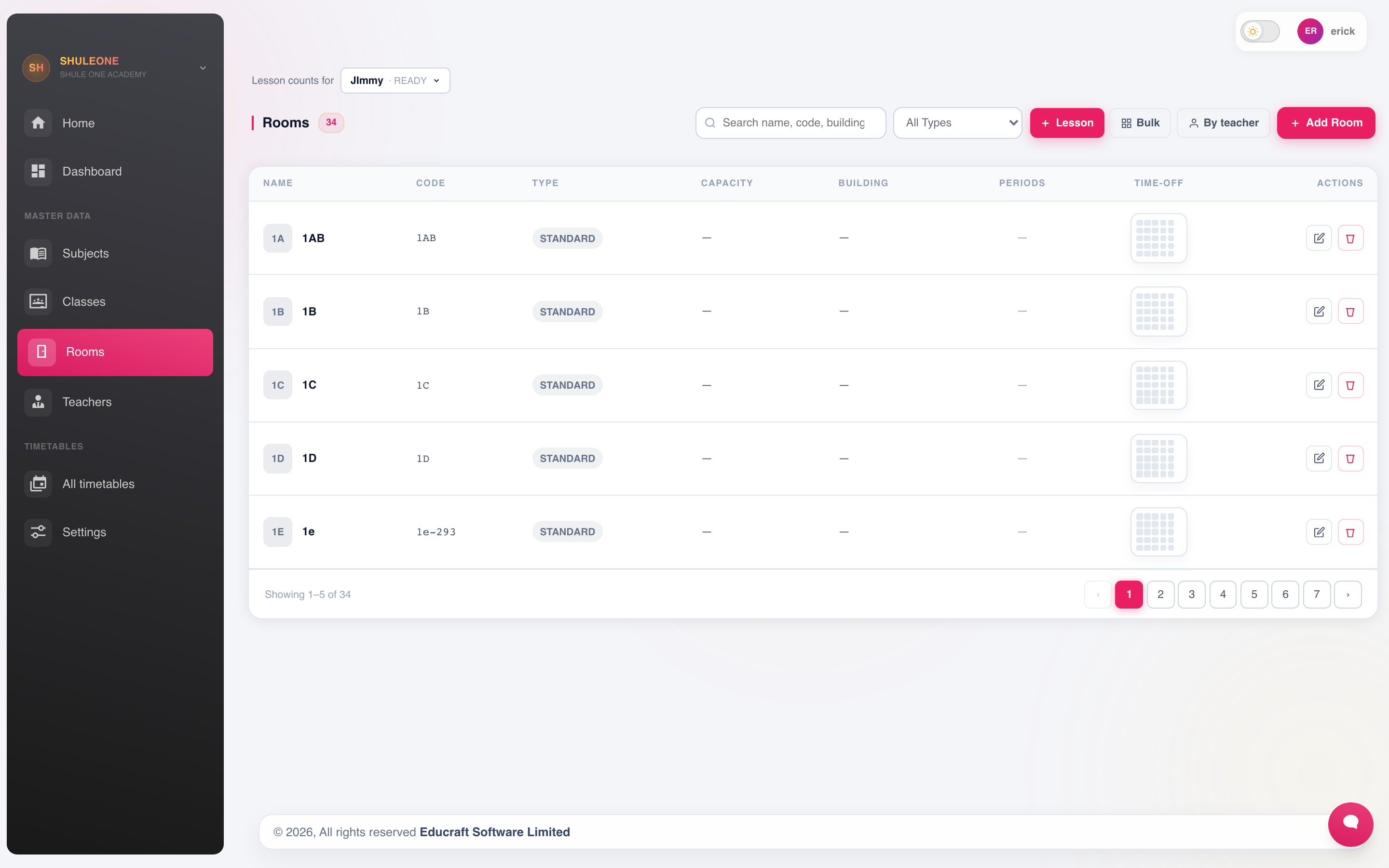
By room — check no room is double-booked and that specialist rooms are used sensibly.
Manual adjustment
Section titled “Manual adjustment”The grid allows manual moves for the cases judgement handles better than a rule.
ShuleOne checks each move and refuses one that creates a clash — a teacher in two places at once, or a double-booked room. If a move is refused, something else has to move first. The message This class has no teaching slot at the selected period now appears only when the class genuinely uses a bell profile that does not contain that period; it is not shown for classes using the timetable’s standard slots.
To free a slot before deciding where its lesson should go, drag the lesson into the Lesson working area below the grid. This genuinely unallocates the placement; another lesson can use the former slot immediately. The unallocated tile is saved, so refreshing the page does not return it silently to its previous position. Drag the tile from the working area into any highlighted safe slot to place it again. Co-taught or merged class rows move into and out of the working area together for that particular session. Working-area cards display the subject and class clearly; a grouped lesson displays the number of classes that will move together.
Manual moves also refresh the lesson’s period and clock-time details together. Class timetable reports therefore print each lesson in its selected grid slot instead of combining lessons that were moved from different times.
Starting Generate includes working-area lessons in the new solution and clears the working area. Generation still replaces all non-pinned manual placements.
Pinning placements before regeneration
Section titled “Pinning placements before regeneration”Lock a placement when it must stay on its current day and period while the rest of the timetable is regenerated. A locked co-taught lesson keeps all of its participating class rows together. Lock all freezes the complete current timetable; generating after that does not move or remove any of those allocations.
Unlock the placements you want the generator to reconsider. If a locked placement now conflicts with a changed lesson requirement, bell schedule or hard constraint, ShuleOne keeps the locked allocation and reports the conflict instead of silently replacing it.
Keep manual changes few. Each one is a decision the generator does not know about, so regenerating discards them. If you find yourself making twenty, express the underlying rule as a constraint and regenerate instead.
Publishing
Section titled “Publishing”Publishing makes the timetable the live one. It then appears:
- To teachers, on their own dashboard.
- To students and parents in the portal.
- On the printed grids for classrooms and the staff room.
Print the class grids, the teacher grids and a master copy for the notice board.
Changing a published timetable
Section titled “Changing a published timetable”Mid-term changes happen — a teacher leaves, a class splits. Make the change on the published timetable rather than generating a new one, and then tell people. A timetable that changed quietly is worse than one that is slightly wrong, because half the school is working from the version they printed.
Reports
Section titled “Reports”Timetable → Reports covers teacher load, room utilisation, subject distribution across the week, and any remaining gaps.
Teacher load is the one to check before publishing. A timetable that is valid but gives one teacher 32 periods and another 14 will not survive contact with the staff room.
Each teacher timetable PDF shows Teacher load below the teacher’s name at the top of their page. This is the number of scheduled teaching periods in the selected timetable, including when printing all teachers or the complete report pack. A double lesson counts as two periods. Co-teachers each receive the lesson’s full period count; a merged lesson shared by multiple classes counts once per teacher for that placement. Lessons in other timetable versions are excluded. Reprint after changing the schedule to see the updated load.