
Procurement
Requisitions
Section titled “Requisitions”A purchase starts as a request from a department. Go to Inventory → Requisition.
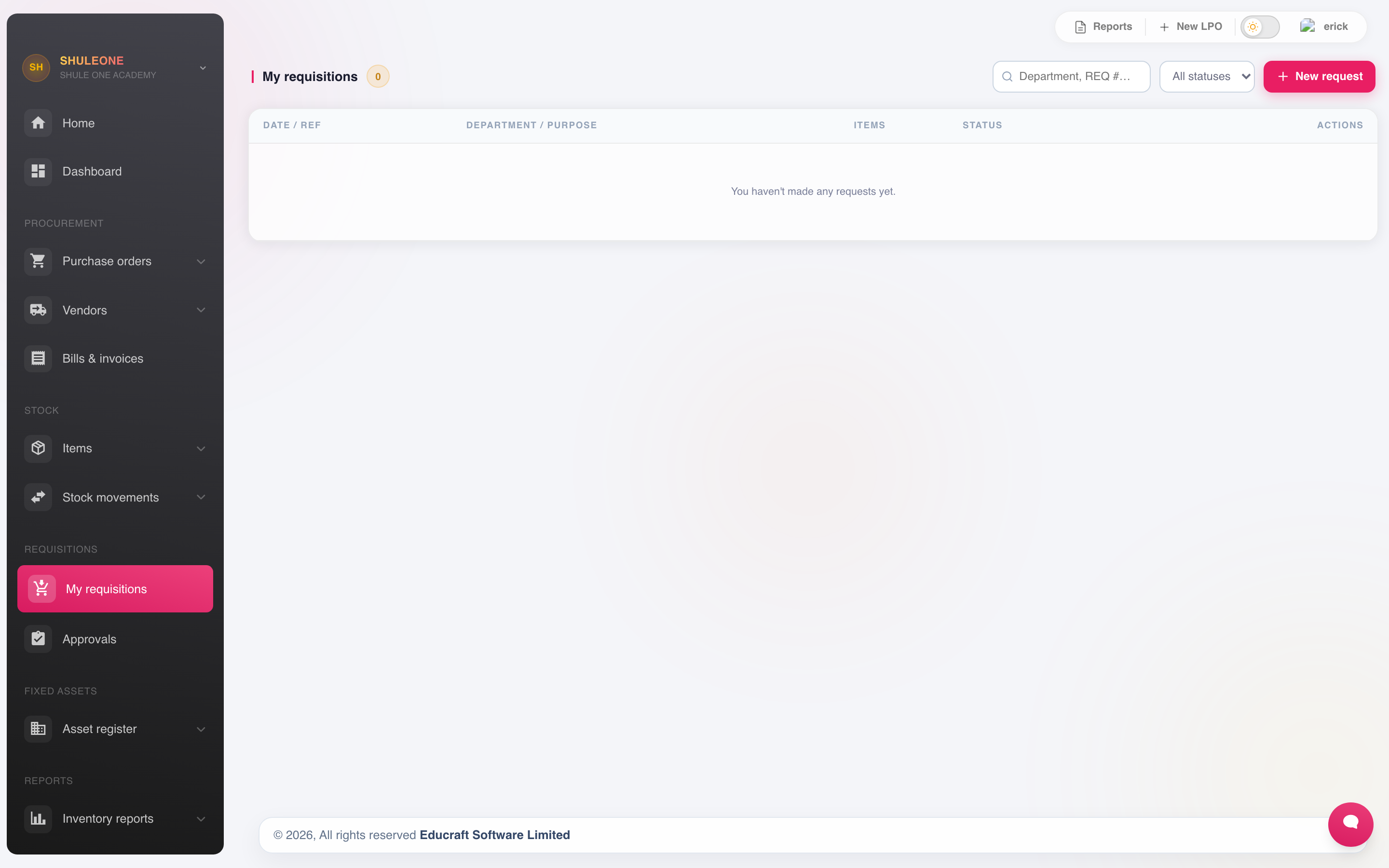
Requisitions can be filtered by department, date and status.
Record the requesting department, the items and quantities, when they are needed, and why. The reason matters when the request is questioned at approval.
Requisitions go to Inventory → Approval. An approver can approve, reduce quantities, or decline with a comment. Only approved requisitions become purchase orders.
Vendors
Section titled “Vendors”Inventory → Vendors holds suppliers.
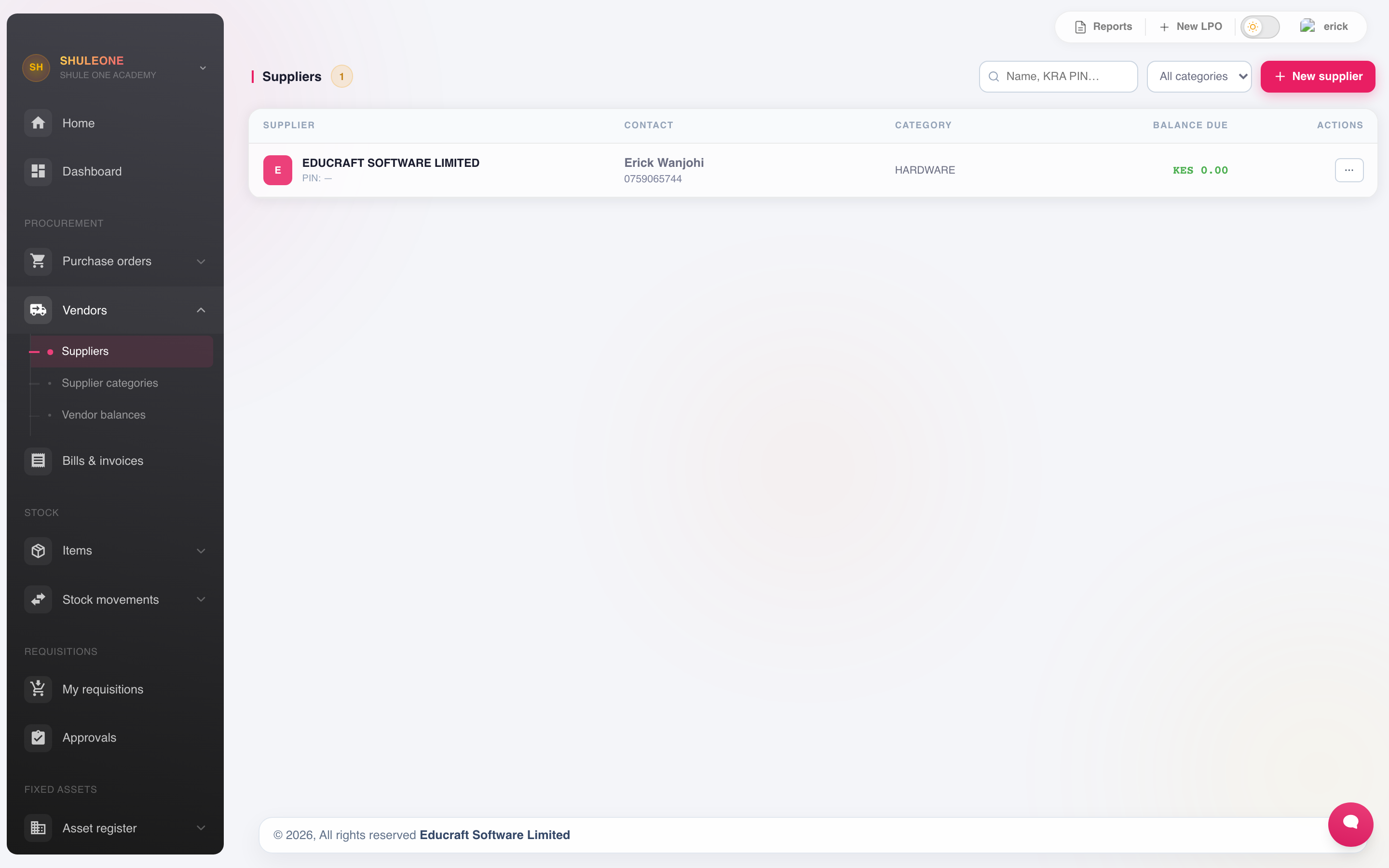
Vendors are listed with their category and contact information.
Record the name, category, contact, KRA PIN, bank details and payment terms. Vendor categories let you compare quotes across suppliers of the same thing.
Vendor Balances shows what is owed to each — the creditors list, and what to check before a payment run. Balance due is what the live, non-cancelled bills owe today, after settlements already applied to those bills. Unapplied supplier credit is shown separately. When a supplier has a post-dated cheque that has not cleared, a second When cheques clear figure projects the balance after available credit and that cheque reduce today’s debt. Treat it as a forecast until Finance records clearance from the bank.
For finance staff who only need oversight, View expenses and suppliers opens Finance → Suppliers in read-only mode. They can inspect supplier statements, bills, credits, write-offs and payment records and print or export them. Adding or editing a supplier, recording or voiding a payment, refunding credit, writing off a balance, and clearing, bouncing or expiring a cheque still require the appropriate operational or administrator role.
Purchase orders
Section titled “Purchase orders”Inventory → New PO turns an approved requisition into an order.
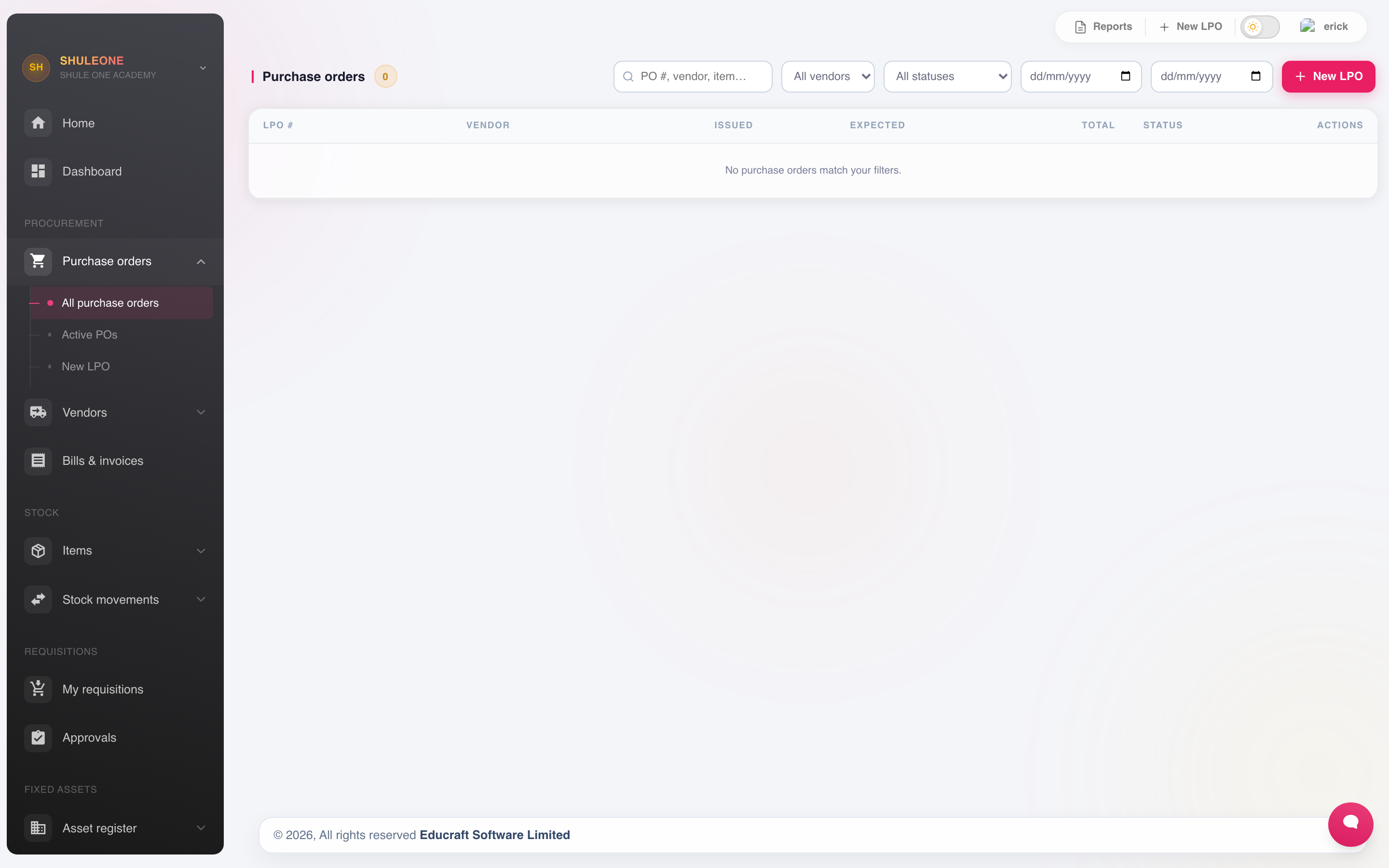
Purchase orders can be searched and filtered by date, vendor and status.
Choose the vendor, confirm items, quantities and agreed prices, and set the delivery date. The order is the school’s commitment, so it should be issued by someone with the authority to make it.
Select a Tax rate for each taxable line. Enable Prices include tax only when the entered unit prices already include that tax. For example, KSh 1,160 including 16% VAT contains KSh 160 VAT; the total remains KSh 1,160 before any additional interest. With tax-exclusive prices, KSh 1,000 plus 16% VAT totals KSh 1,160. Discounts reduce the amount used to calculate tax.
Active Purchase Orders shows what is outstanding, and Overdue shows what has passed its delivery date. Chase from the overdue list rather than from memory.
Delete an LPO entered in error — 13 October 2026
Section titled “Delete an LPO entered in error — 13 October 2026”In Inventory → Purchase orders → All purchase orders, open the row’s ⋯ menu and select Delete LPO, then confirm. Pending, rejected and cancelled LPOs can be deleted only if they have never been approved and have no linked bills or goods receipts. Deletion permanently removes the LPO, its lines and payment schedule.
An approved LPO remains on record even after cancellation. Older cancelled LPOs with missing approval history are retained because the system cannot establish whether they were previously approved. Users with purchase-order creation, approval or administrator permissions can delete eligible LPOs.
Receiving goods
Section titled “Receiving goods”When a delivery arrives, use Receive Items against the purchase order.
Enter what actually arrived, not what was ordered. This is the whole point of the step. If 50 were ordered and 48 delivered, record 48 — the order stays partially open, stock goes up by 48, and the vendor cannot be paid for 50 without the discrepancy showing.
Check quantity, condition and specification before receiving. Once received, the goods are the school’s.
Inventory → Bills records the vendor’s invoice against the order.
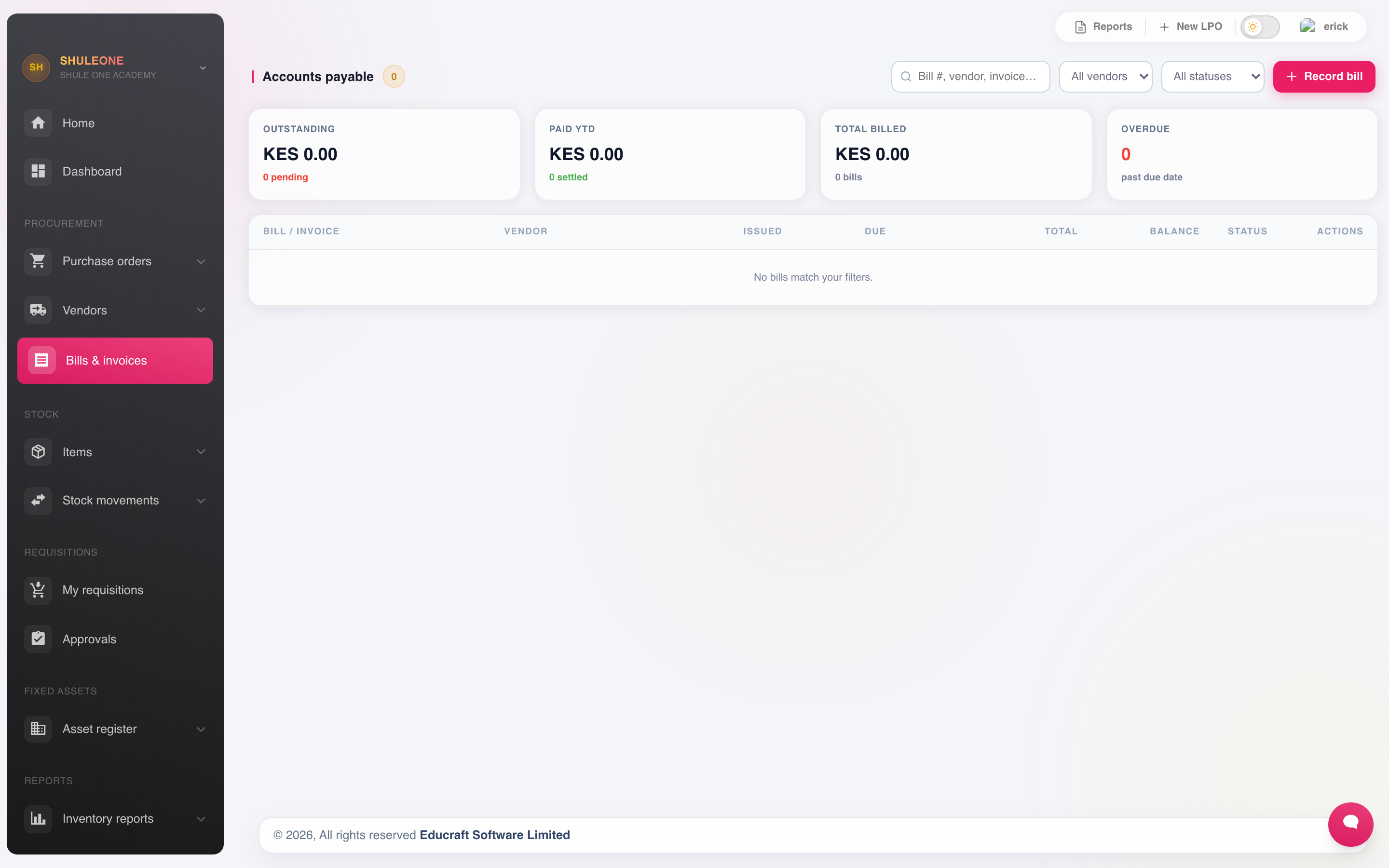
The bills workspace summarises payable, overdue and paid amounts before listing vendor bills.
Select a bill number to view the bill and its item breakdown without printing. Manual bills show their saved bill lines; bills created from a purchase order show the source order lines. A historical record that never stored separate item rows shows its saved description when one is available, and otherwise says that no item breakdown was recorded.
Use the row menu to edit a manual bill. An OB-… record is a supplier opening balance,
not an ordinary purchase, so its action is labelled Edit opening balance and opens
the amount, as-at date and notes fields intended for that type of record. Bills created
from purchase orders remain controlled by their source order and are not edited from
the bill register.
An opening balance with no settlement can be corrected directly; ShuleOne keeps the
same OB-… record, reverses its earlier journal and posts the corrected amount. Once a
payment or write-off has been applied, the amount is locked so that settlement history
cannot be detached or made larger than the debt it paid. Reverse the payment or write-off,
correct the opening-balance amount, then record or allocate the settlement again. The
as-at date and notes can still be updated without changing a settled amount.
Match the bill to the purchase order and the receipt. Three things must agree: what was ordered, what was received, what is billed. Where they do not:
- Billed more than received — query with the vendor before paying.
- Received more than ordered — an unauthorised extra; decide whether to keep it.
- Price differs from the order — check whether an increase was agreed.
When recording a bill, open Vendor and select the supplier. The list is searchable: type any part of the supplier’s name to narrow it, then choose the result. The same search-and-select interaction is used for long Inventory lists throughout the module.
Use Delivery number and Requisition number when those references appear on the supplier paperwork; both fields are optional. ShuleOne also keeps the vendor invoice number as a supplier reference and generates one when it is left empty. An invoice or delivery number cannot be reused on another bill for the same supplier, although a different supplier may use the same number. The references remain available when viewing, searching, editing or printing the bill. A requisition number may be shared by multiple invoices, such as when deliveries arrive in stages.
Every bill also needs a Bill votehead / posting account. Search the billing voteheads and choose the account where the cost, asset or payable should be recognised. The grouped account list opens above the rest of the bill form and remains readable in both light and dark mode. ShuleOne hides only automatic control accounts that it must post itself; valid legacy payable voteheads remain selectable. If unsure, ask the school accountant rather than choosing an account because its name looks close.
When recording or editing a bill, enter each line’s description, quantity, unit price, discount and tax. ShuleOne calculates the line total. On a narrow screen, scroll the line-items table sideways to reach Tax, Total and the remove-line button. Bill totals are saved to two decimal places. Fractional quantity calculations are rounded to the displayed currency amount before an available supplier credit is applied, so the saved bill, payment allocation and balance always use the same cents.
The first line and each additional line start with the school’s default tax rate, if one is configured. Check each line and select None, Zero Rated or Exempt where appropriate. Prices include tax controls how a selected rate is calculated; the checkbox alone does not select a tax rate. A line with None has no calculated tax.
On a fully editable manual bill, changing Prices include tax recalculates the saved VAT, total and balance. Bills restricted to changes in invoice details or dates keep their existing amounts and tax setting. Printed bill vouchers show the saved tax breakdown and billed items for both manual bills and bills created from purchase orders. Historical bills without separate rows print their saved description when available. Inclusive tax is labelled Tax (included) and is already part of the total.
Bill, payment and reporting windows open above the Inventory sidebar, so the left edge
of the form and its controls remain available while the window is open. Schools with a
long bill history can search and open the register without loading full supplier records
for every bill. The register requests only the current page from ShuleOne; use
Previous and Next to request another page. Searches, supplier/status filters and
column sorting are applied before the page is returned. The register opens with the
newest recorded bill first, using the bill’s permanent record ID rather than its invoice
date. Selecting Bill / invoice sorts by the number itself, so imported values such as
BILL-9999. appear in their correct numeric position alongside current bill numbers.
Text entered in search and bill forms therefore appears immediately even when the school
has thousands of historical bills.
To pay an approved bill directly, choose Record payment. You may enter an amount above the displayed balance when the school has paid the supplier more than that invoice requires. ShuleOne settles the bill, saves the surplus as refundable supplier credit and automatically applies that credit to a future bill from the same supplier. Confirm the overpayment amount carefully before recording it.
For a post-dated cheque, the surplus is saved as pending supplier credit. It is shown in the payment and supplier-credit registers but cannot be used against bills or refunded while the cheque is pending. The maturity date only makes the cheque eligible for clearing; it does not prove that the bank honoured it. From Finance → Suppliers → Payments, clear the cheque using the actual date on the bank statement. ShuleOne then activates the credit and applies it to eligible open bills for that supplier, oldest first. Any amount left remains available for a later bill or refund. If the cheque is bounced, expires or is voided before clearing, ShuleOne cancels its pending credit and reverses its bill allocations.
A bill settled only with supplier credit can still be corrected or deleted. ShuleOne identifies it in the bill register and returns the applied amount to the supplier’s available credit as part of the correction. If cash, a cheque or a write-off also touched the bill, reverse that transaction in Finance → Suppliers before deleting the bill.
To void a supplier advance or overpayment that was recorded in error, find its source row under Finance → Suppliers → Payments and select Void. If the credit has already been applied to one or more bills, ShuleOne voids those applications in the same action, re-opens the affected bills and then reverses the source payment. The entire change is atomic: either every application and ledger entry is reversed, or none is. A credit that has a refund cannot be voided as one entry because the refund is a separate cash movement.
What’s new — 30 September 2026
Section titled “What’s new — 30 September 2026”Voiding a supplier advance now also reverses any credit applications automatically and re-opens the affected bills. Finance staff no longer need to find and undo each application before voiding the source advance.
Finding supplier payments
Section titled “Finding supplier payments”Go to Finance → Suppliers → Payments to find payments across the register, including transfers, cheques, M-Pesa and supplier advances.
- Search payments matches supplier names, payment references, bank names and payment methods. Search is case-insensitive and covers every page, not just the rows currently visible. When you enter several words, all must match the payment.
- Combine Supplier, Payment method and Bank account to narrow the list. Their choices come from payments in the selected status.
- Payment date from and Payment date to include both boundary dates. Either can be left blank. These use the payment date in Kenya time, not cheque maturity or clearing dates.
- Use Payment status (initially All payments) for pending, cleared, immediate, bounced, expired or voided payments.
The matching count and pagination follow your filters. Changing a search or filter returns to the first page. Clear filters removes the search, dropdown and date filters and restores All payments. Filtering does not change payments, bill allocations or cheque statuses.
When you print a cheque voucher, its current transaction status appears in the document header and payment details. A voided cheque has a prominent red VOIDED banner with the void date and reason. If that cheque had cleared before it was voided, the original clearing date remains on the voucher as history and is labelled Cleared previously; it is not shown as the cheque’s current status.
What’s new — 4 September 2026
Section titled “What’s new — 4 September 2026”The supplier Payments tab now supports combined search, supplier, method, bank and payment-date filters alongside its existing status filter. Deploy the updated frontend to make these controls available; no database migration is required.
Payment requests
Section titled “Payment requests”Once a bill is matched, Inventory → Payment Request passes it to finance.
The request carries the bill, the order and the receipt, so finance can see the goods arrived before paying. It becomes a payment voucher.
Transfer a supplier balance to student fees
Section titled “Transfer a supplier balance to student fees”In Accounts payable, select a vendor in the vendor filter, then choose Transfer vendor balance to fees. The amount defaults to all pending invoices. Enter a smaller amount to settle part of the combined balance. ShuleOne applies it to the oldest invoices first and posts through the Internal Transfer clearing account. Search by student name or admission number and select the child. Choose the academic year, the school’s semester (the active semester is selected initially), and the ledger before posting. Use Add another child to split the amount, then enter each child’s share. The assigned amounts must equal the total transfer; a child can only appear once. Split transfers create a finance block receipt with one receipt per child under the same supplier reference. Individual bill transfers remain available from the bill’s actions menu. Dialogs throughout Inventory, including supplier, item, requisition, purchase-order, asset and canteen screens, dim the entire browser page and sidebar while open.
After recording a manual or purchase-order bill, the success confirmation shows the vendor’s new closing payable balance, including any supplier credit applied to the new bill.
What’s new - 13 October 2026
Section titled “What’s new - 13 October 2026”Supplier fee transfers now use the finance student search, offer the school’s configured semesters, and allow one supplier settlement to be shared between multiple children. Check the selected semester and each child’s amount before posting. The server rejects a semester that belongs to another school.
What’s new - 12 October 2026
Section titled “What’s new - 12 October 2026”Supplier fee transfers can now settle all pending invoices for a vendor or a partial combined amount. Select a vendor in Accounts payable to use this option. Bill posting shows the vendor closing balance. Requisition numbers can be reused across invoices; invoice and delivery numbers remain unique per supplier.
What’s new - 30 September 2026
Section titled “What’s new - 30 September 2026”Manual bills can record optional delivery and requisition numbers. Invoice and delivery numbers are checked against the selected supplier; requisitions may cover several invoices.
Printed cheque vouchers now distinguish the cheque’s current transaction status from its bank-clearing history. Voided vouchers show a red VOIDED banner, date and reason, while any earlier clearing date is retained only as historical information.
What’s new - 4 September 2026
Section titled “What’s new - 4 September 2026”Tax-inclusive purchase orders no longer add the included VAT a second time. Editable manual bills now save changes to Prices include tax, added bill lines use the school’s default tax rate, and PO-based bill vouchers display their saved tax breakdown.
Existing posted bills and purchase orders are not automatically recalculated. Review any affected historical invoice against the supplier’s document before correcting it. Use the normal edit action where it is available; if the record is locked because of receipts or payments, refer it to the school finance administrator for review.
What’s new - 2 September 2026
Section titled “What’s new - 2 September 2026”The bill register now opens with the most recently recorded bill first. Bill-number sorting uses the numeric part of the number, including historical spreadsheet imports, instead of alphabetic text order. ShuleOne also prevents two bills in the same school from receiving the same internal bill number.
What’s new - 1 September 2026
Section titled “What’s new - 1 September 2026”Inventory dialogs now remain above the sidebar on every Inventory page. The bill register also loads a compact bill summary, reducing the delay for schools with many years of supplier invoices. Search, filters, sorting and pagination now run on the server, which returns only the visible register page and keeps search and bill fields responsive. Session handling now uses the signed-in access token consistently, so opening or saving an inventory bill does not trigger an unnecessary token refresh and return the user to sign-in.
What’s new - 31 August 2026
Section titled “What’s new - 31 August 2026”For staff who work across several schools, open supplier bills and batch-payment allocations are now always limited to the currently selected school. After switching schools, Finance → Suppliers will not carry bills from the previous school into the payment window.
Supplier opening balances — 13 October 2026
Section titled “Supplier opening balances — 13 October 2026”In Finance or Inventory, open the supplier statement and select Opening balance. Enter a positive amount for money owed to the supplier, a negative amount for a supplier credit, or 0 for no opening balance. The bill list’s Edit opening balance action accepts the same values. Zero clears the previous opening journal; negative amounts reverse the debit/credit direction. If payments or write-offs have already settled the opening balance, reverse those settlements before changing its amount.