
Signing in
Office staff — app.shuleone.co.ke
Section titled “Office staff — app.shuleone.co.ke”Open app.shuleone.co.ke and sign in with the email address your school registered for you, or your phone number, and your password. Teachers, support staff, drivers and administrators can all use either.
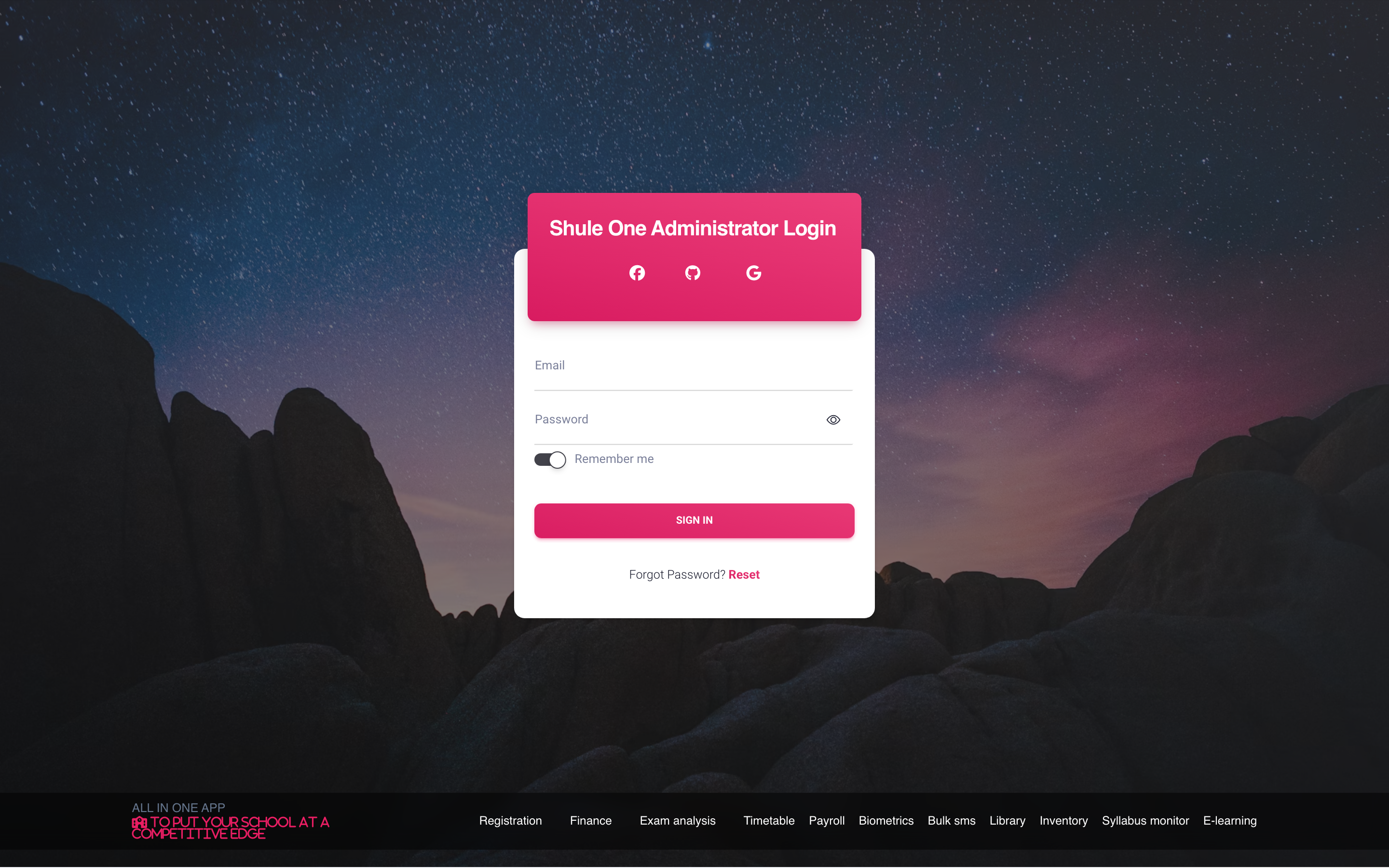
The management-system sign-in page.
- Enter your email address or phone number. A phone number can be typed as
0712 345 678,254712345678or+254 712 345 678. - Enter your password.
- Select Sign in.
Your dashboard opens on the modules your role allows.
Phone sign-in uses the phone number on your account in Settings → Users. Some phone numbers belong to more than one account — a shared office phone, or someone with a separate payroll login. ShuleOne then uses your password to tell the accounts apart. If it still cannot, it asks you to sign in with your email instead; use your email, or ask your administrator to correct the phone numbers. In the ShuleOne mobile app, staff with payslip access could already sign in with their phone number.
Saving your ShuleOne Admin password on your phone
Section titled “Saving your ShuleOne Admin password on your phone”After a successful sign-in to the ShuleOne Admin mobile app, your phone may offer to save the username and password in Apple Passwords or your Android password manager. Accept that offer to fill them in next time. If your school requires a one-time sign-in code, complete that step before the save offer appears. Your phone’s password autofill setting must be on. The app keeps your username for convenience, but no longer keeps its own copy of your password.
One-time codes
Section titled “One-time codes”Some schools require a code as a second step, and some sensitive screens ask for one even after you are signed in — the finance module is the usual case. When that happens ShuleOne sends a short code to your registered phone or email and shows a code box.
- A code lasts 10 minutes, and is cancelled once it has reset a password or opened a finance screen. If yours has expired, request another rather than retyping the old one.
- After 5 wrong entries the code is cancelled; request a new one. The message shows how many tries are left.
- A new code can be requested once a minute. Requesting a new code replaces the old one, so always use the latest SMS.
- If the code never arrives, check that your phone number in Settings → Users is correct and in international format.
Forgotten password
Section titled “Forgotten password”Select Forgot password on the sign-in page and enter your registered email address or phone number. ShuleOne sends you a reset link or a one-time code, depending on how your school is configured. Follow it and set a new password.
If nothing arrives, the address on your account is probably not the one you typed. Ask your school administrator to confirm it under Settings → Users — they can also trigger a reset for you.
Students and parents — portal.shuleone.co.ke
Section titled “Students and parents — portal.shuleone.co.ke”Open portal.shuleone.co.ke. You can sign in with:
- Your username or email and password, as issued by the school, or
- Continue with Google, if the email on your ShuleOne record is a Google account.
Google sign-in matches on the email address. If your school has you down as
jane@example.com but you sign in with a different Google account, ShuleOne will not
find you — it does not create a new record on the fly. Ask the school to correct the
email on the student or parent record.
Parents who have more than one child in the school sign in once; a switcher at the top of the parent view moves between children.
Choose your own password (web, awaiting deployment)
Section titled “Choose your own password (web, awaiting deployment)”If you see Change your password after signing in with the school’s shared default, choose Change it now. Students and parents can set their own password without entering the school’s password again:
- Enter a New password with at least four characters. Choose one only you know; the shared school default cannot be used as your new password.
- Type it again in Confirm new password.
- Select Save new password, then Done after Password changed appears.
The reminder disappears after saving. Use your new password the next time you sign in. The same first-time form is available if you open Change password from your account settings while your account still uses the shared default.
Once you have chosen your own password, future changes require Current password. If the password was changed in another session while this form was open, it will ask for that current password before you can change it again. You must already be signed in to use this form; it does not replace the sign-in step.
Staying signed in
Section titled “Staying signed in”ShuleOne keeps you signed in for a while and renews the session quietly in the background, so you should not be asked for your password repeatedly during a working day. You are signed out when you select Log out, and after a long period of inactivity.
When sign-in fails
Section titled “When sign-in fails”| What you see | What it usually means |
|---|---|
| “Invalid credentials” | Wrong email or password. Check for a trailing space and for caps lock. |
| Sign-in accepted, then an empty dashboard | Your role has no modules assigned. Ask your administrator. |
| “Account inactive” | Your account was deactivated. Ask your administrator to re-enable it. |
| Google sign-in returns you to the start | The Google address does not match the email on your record. |
| Nothing happens when you select Sign in | A stale page. Reload the site and try again. |