
Employees
Go to HR → Employees.
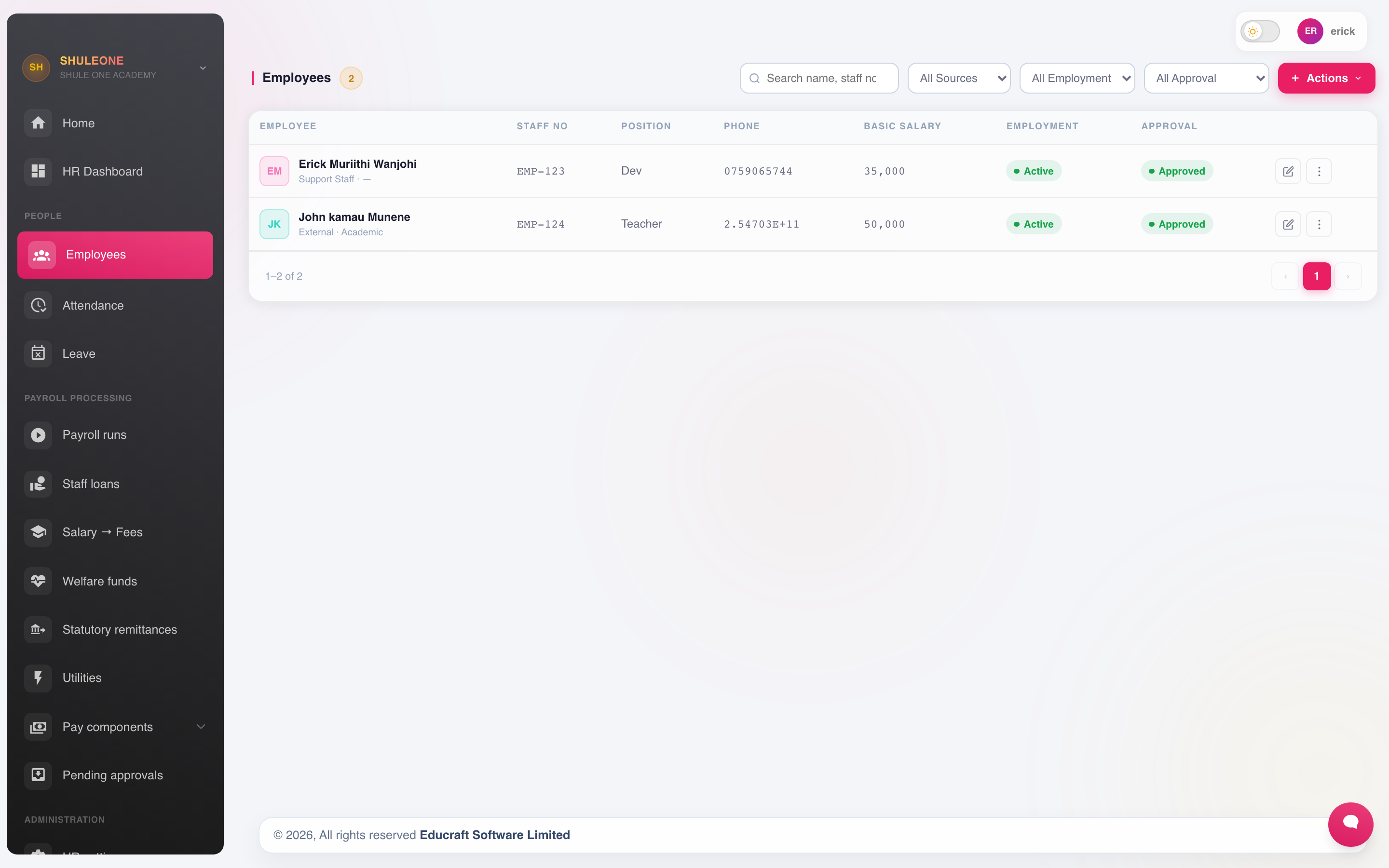
Employee records with department, employment type and payroll status.
Adding an employee
Section titled “Adding an employee”Select Add New.
Personal — full name, national ID, date of birth, gender, telephone, email, next of kin.
Employment — staff number, department, job title, date of employment, contract type (permanent, contract, casual) and, for a contract, its end date.
Statutory — KRA PIN, NSSF number, SHIF number. These print on returns, and a missing or mistyped one is only discovered when a return is rejected. Check them at entry.
Bank — bank, branch and account number for salary payment.
Pay — basic salary and the earnings that apply.
Keeping records current
Section titled “Keeping records current”Open an employee from the list to edit them. The changes that matter most:
- Salary changes — record the effective date. Payroll uses the rate in force for the period being run, so a raise entered without a date can be applied to a month it should not touch.
- Bank details — verify a change of account against something other than the email or message that requested it. Salary diversion fraud works by getting a bank change accepted without a check.
- Contract end dates — keep them current so expiring contracts show up before they expire rather than after.
Transferring an employee to another branch
Section titled “Transferring an employee to another branch”For schools in the same school group, such as the Lakewood branches, an HR administrator can move an approved active employee without losing either branch’s records.
- Go to HR → Employees at the employee’s current branch.
- Open More actions → Transfer branch.
- Choose the destination branch, its active department and the effective date.
- Add an optional reason, confirm the move, then complete the follow-up items shown.
The source employee becomes Transferred and read-only. ShuleOne retains that record’s payslips, statutory entries, leave, loans, documents and audit history in the original branch. The destination receives an active linked employee record with the person’s identity, contact, statutory, bank and current salary details. Branch-owned earnings, deductions, leave balances, loans and documents are not copied; review and configure them at the receiving branch before its next payroll.
Giving an employee self-service access
Section titled “Giving an employee self-service access”An employee does not need HR or payroll rights to see their payslips and borrowing. Teachers and staff use the same login they already have — usually the school email they were registered with — and their payslips and borrowing simply appear in it. ShuleOne never uses the personal email on the payroll record to find a login, so a personal Gmail address in payroll does not create a second account.
When an employee is Approved and Active, ShuleOne links their login automatically:
- Imported from Teachers — the teacher’s school login: the one named after the email in the teacher’s registration, or the login linked to that teacher in Settings → Users.
- Imported from Support staff — the staff member’s school login, named after the email in their staff registration, or for drivers and assistants the Driver Console login of their linked transport record. ShuleOne then remembers that login on the staff record.
- No school login — ShuleOne creates a limited login that can only open self-service. It uses the payroll email if no account has that name yet, otherwise one generated from the phone number. HR can see the username on the employee record.
A login that can only open self-service goes straight to My account when it signs in. Any other login, including a school administrator who also has self-service, opens the usual list of modules as before.
ShuleOne first checks that the linked teacher or staff record carries the employee’s name. If it names someone else — some older records were linked to the wrong person — ShuleOne does not use that record’s login and says whose record it is. Choose the login with Link existing login below.
If the payroll email already belongs to another account, ShuleOne does not take that account over. HR chooses the login instead:
- Open More actions → Employee portal account on the employee.
- Choose Link existing login and enter the username the person signs in with. The usernames are listed in Settings → Users.
An administrator can also open Settings → Users, open the person’s rights, and grant Employee self-service (own payslips and loans) under Hr. ShuleOne then links the login to the matching payroll employee and says which one, or explains why it could not. If no payroll record is linked to the person’s teacher or staff record yet, ShuleOne links the one active payroll record with the same name and the same ID number or phone; a matching name alone is reported for HR to check, not linked.
Employees signing in with their school login keep their usual password. Reset it from Settings → Users; HR cannot reset it from payroll, because that login may carry other rights. For a self-service-only login, HR can issue a one-time temporary password from More actions → Employee portal account, or the employee can use Forgot password with their registered phone.
The employee can use the same credentials on the ShuleOne website or ShuleOne Admin mobile app. On the website they can see only their own payslips from payrolls marked Approved or Paid, and their own personal borrowing products and applications. My account shows the latest payslip first, with earlier ones below, and a Borrow tab. Staff who also have other ShuleOne access see ShuleOne home to go back. If a login is not linked to a payroll record yet, the page says so and asks the person to contact HR; nothing else in ShuleOne is blocked. In the Admin app, HR & Payroll has Payslips, Leave, Attendance, My records and Personal loans. Payslips open once HR approves the payroll; the app labels each one Approved or Paid. Leave shows the employee’s configured balance and requests, and sends a new request to HR for approval. Attendance shows recorded days only; an unmarked day is not treated as an absence. My records shows their own warning documents and non-voided suspension history. Document files are opened only from the employee’s linked login.
They cannot open the employee register, run payroll, see another employee’s salary or HR documents, or approve a loan or leave request. If access must end, revoke self-service from the employee record; this removes these personal services but leaves a school login otherwise unchanged. Suspending or separating the employee also prevents access.
For a driver or conductor whose login opens the Driver Console, the first screen is still Trips. Use the bottom bar to open My pay for HR services or Account, then return to Trips without losing the current trip view. My pay appears only when the login has Employee self-service access and is linked to that person’s active payroll record. If the app says Employee record not linked, ask HR to link the login under Employee portal account. If the payroll check fails because of a connection problem, use Try again; the trip console remains available. Switching schools returns crew to the Driver Console for the selected school, with that school’s payroll access checked again.
Some employees were given a separate payroll login before this change, even though they already had a school login. To move one, open More actions → Employee portal account, choose Link existing login and enter the school login’s username. Payslips and borrowing move to that login and the payroll login loses self-service. The same button changes an employee who was linked to the wrong login. ShuleOne refuses a login that belongs to another teacher, or that another payroll employee already uses.
Each login is linked to one employee record per school. ShuleOne does not grant borrowing access merely because two records share a name or phone number, and it does not let one employee borrow from another employee’s payroll history.
The effective date divides payroll cleanly: the old branch owns days through the day before the transfer, and the destination owns days beginning on the transfer date. A calculated payroll that covers the date must be recalculated. An approved or paid payroll that covers or follows the transfer date blocks the move until the transfer can be dated safely.
If the employee later returns, start the transfer from their current branch and select the original branch. ShuleOne reactivates the original employee and staff number instead of creating a third record. Its earlier branch history remains attached, while the dated branch periods ensure a historical payroll recalculation includes only the days the person actually worked there.
Resolve pending HR approvals and remove active transport-route assignments before the move. The Registration staff or teacher record is a separate branch identity: move it under Registration as well when attendance, biometrics or operational access must follow the employee.
Fixing registry links
Section titled “Fixing registry links”Each payroll employee should be linked to their own teacher or support-staff record. That link decides which login shows their payslips and loans, and whose biometric attendance payroll counts for them. Older imports linked some employees to the wrong record — another school’s, someone else’s, or the same record as many others — or to none at all.
HR administrators can review and fix this under HR → Administration → Registry links, on the Records view. ShuleOne compares names (allowing small spelling differences), ID numbers and phone numbers, and sorts every employee into four tabs:
- Automatic fixes — the evidence is clear: the right record agrees on the name and the ID number or phone, or the linked record plainly belongs to someone else. Select Apply automatic fixes to apply them all, or Apply on one row.
- Needs your decision — a single record agrees on the name only, or the matching record is still linked to a former employee (often a duplicate payroll record). Check the details and select Confirm if it is the same person.
- Other reviews — several records match, the record belongs to a current employee, or the link may be the same person under a misspelt name. Correct the employee or registry record, then select Refresh.
- Correct — nothing to fix. Fill missing details copies the phone number and ID number from payroll into a linked teacher or staff record where those fields are blank.
When a link is fixed, a blank phone number or ID number on the teacher or staff record is filled from payroll as well. Existing details are never overwritten, a value already used by another record is skipped, and emails are never copied, because a teacher’s registration email is their sign-in name.
Every change is checked again when you apply it and recorded in the audit trail. Fixing a link does not change anyone’s login and does not change pay for staff on a monthly salary. It changes which clock-ins appear in HR attendance; recalculate an unapproved payroll if you want those records refreshed, and always recalculate before approving if any staff are paid by the day or hour.
Moving employees onto the login they use
Section titled “Moving employees onto the login they use”Some employees were given a separate payroll login although they already had a school or Driver Console login. The Logins view on the same page lists them:
- Moves — the payroll and registry records agree and the person’s own login is in use. Select Move for one, or move them all. Their payslips and loans then appear on that login and the old payroll login stops showing them.
- Needs your decision — their own login has never been signed into. Confirm only if they know its password, or reset it first in Settings → Users.
- Other reviews and Correct.
Tell the people concerned which login to use before moving them.
Employees who leave
Section titled “Employees who leave”Do not delete the record. From More actions, choose Terminate, Resign or Retire, then record the effective date and reason.
If you are an HR data-entry user, the change is submitted to a director first. The employee keeps their current status until it is approved; this is why a termination does not change their status immediately after you submit it. The effective date you entered travels with the request, so a director can approve a historical separation later without replacing that date with the approval date. You can verify the request in two places:
- The employee row says Awaiting approval: Terminated (or the status requested).
- HR → My approvals lists the request and the time you submitted it.
Directors and HR administrators see the same request under HR → Pending approvals, where they can approve or reject it. The card shows the requested effective date. Only approval changes the employee’s status, but payroll and terminal calculations use the preserved effective date, which may be earlier than the approval date.
Once approved, exiting:
- Removes them from the next payroll run.
- Keeps their payslip and statutory history, which the school must retain.
- Keeps their name on historic returns.
Deleting the record breaks the returns already filed. Run a final payroll first — the final salary, leave days owed, and any outstanding loan balance — before exiting them.
What’s new - 8 October 2026
Section titled “What’s new - 8 October 2026”The Admin app’s HR & Payroll hub now opens approved and paid payslips, leave requests and balances, recorded attendance, and the employee’s own disciplinary documents and suspension history. The refreshed hub has the standard app header, compact service cards, and light and dark layouts. Personal loans remains in the same hub. HR must link the login to one active, approved employee before any of these records appear.
What’s new - 2 October 2026
Section titled “What’s new - 2 October 2026”HR administrators can now transfer an approved active employee to a sister branch while retaining branch-specific payroll and personnel history. Returning to a previous branch reactivates its original employee record and staff number, and dated branch periods keep historical payroll recalculations aligned with the branch where the employee worked.
What’s new - 31 August 2026
Section titled “What’s new - 31 August 2026”Teacher and support-staff registration now checks existing HR employee names, including likely spelling errors, before creating another employee. Automatic linking requires a compatible name plus a reliable ID or a strong name-and-phone match; phone alone is never enough. Ambiguous manual registrations show masked candidates for confirmation, while ambiguous import rows fail for correction. Choosing to create a separate person requires a reason that is written to the HR audit trail. New teachers now receive the same pending HR linkage as support staff and teacher imports.
Termination, resignation and retirement requests now preserve the effective date chosen by the HR data-entry user. Approving a backdated separation changes the employee’s status at approval time while keeping the requested date for payroll, terminal dues and audit. The Pending approvals card also shows that date before a director decides. Separation requests submitted before this update without a stored effective date cannot be approved; reject and resubmit them so payroll does not use the approval date by mistake.
Managing suspension history
Section titled “Managing suspension history”Open More actions → Suspension history to review every suspension period.
- Active means the suspension is currently in force.
- Lifted is the stored history status. It means the suspension reached its end date or was ended early; its dates still affect payroll for the period it covered.
- Served is the employee-list label for someone who is active again after completing a suspension. It is not a separate database status — the underlying history row is normally Lifted.
- Voided means the record was entered in error. It remains visible for audit but is ignored by payroll.
HR administrators can Edit an exact history row or Void it with a required reason. Use Void for duplicates rather than deleting audit history. ShuleOne prevents a new suspension from overlapping an existing non-voided record; correct the existing row instead.
An approved or paid payroll locks suspension records covering that period. Cancel an approved run or reverse a paid run before changing them. A calculated but unapproved payroll shows a warning and must be recalculated after the correction.
What’s new - 27 August 2026
Section titled “What’s new - 27 August 2026”HR data-entry users can now see their own pending employee status changes under My approvals, and the employee list shows the status that is awaiting a director’s decision. This makes a queued termination or suspension visible without allowing the person who submitted it to approve it themselves.
Administrators can now edit or void individual suspension-history rows. Approved and paid payroll periods are protected from history changes, while calculated runs display a recalculation warning.
Statutory numbers
Section titled “Statutory numbers”| Number | Needed for |
|---|---|
| KRA PIN | PAYE, and the P9 at year end |
| NSSF number | NSSF returns |
| SHIF number | SHIF returns |
| Staff number | Matching to the registration record |
A blank statutory number does not stop payroll running; it stops the return being accepted. Audit the list for blanks before the first return of the year, rather than on the day it is due.