
Assignments and tests
Go to E-learning → Assignments.
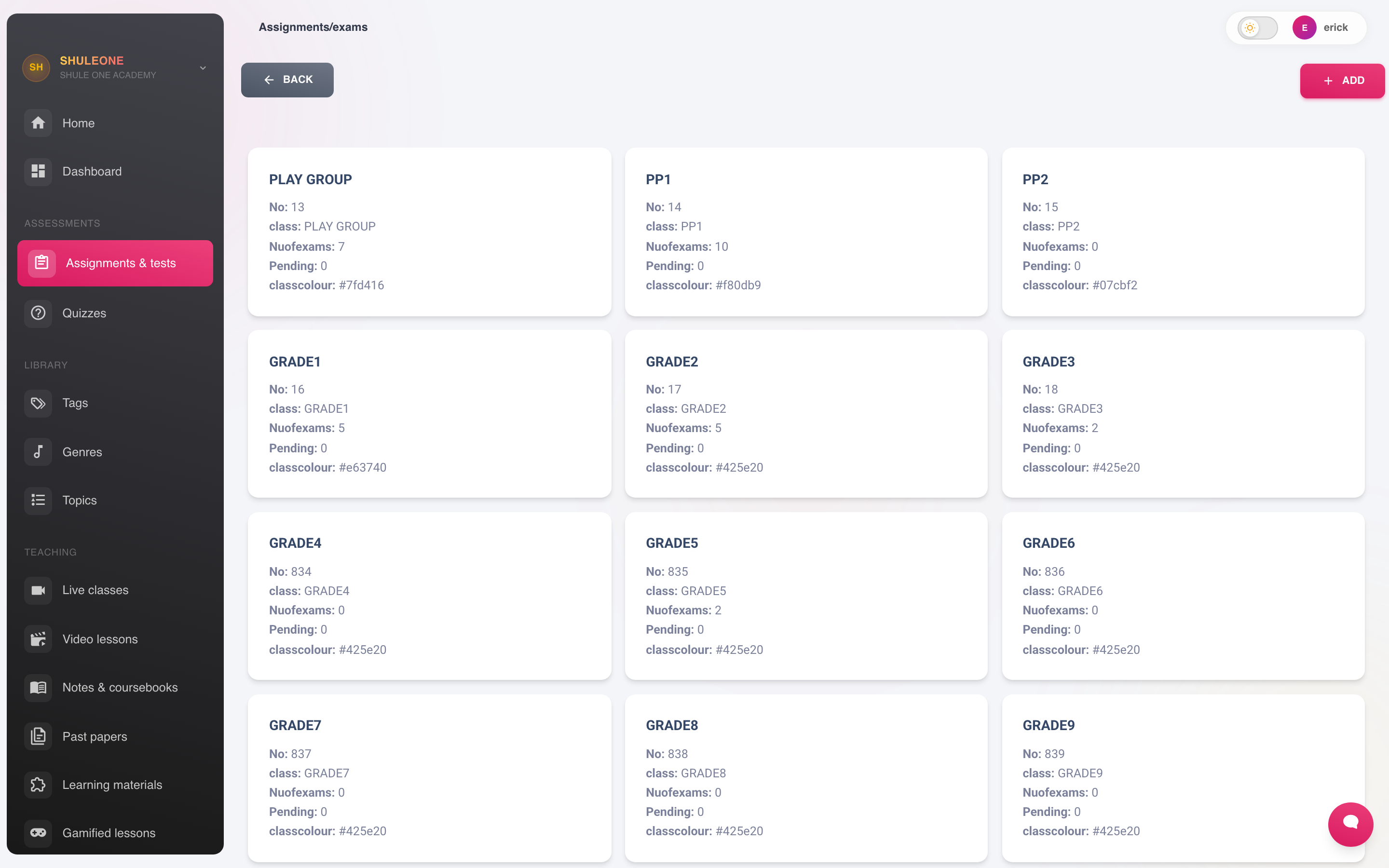
Each grade card shows its current assignment totals.
Assignments are listed by grade. Select View on a grade to expand its assignments.
Setting an assignment
Section titled “Setting an assignment”Select Add New.
Set the title, the instructions, the subject and class, the due date, and how it is marked.
Write the instructions as though the student is reading them alone at 9pm, because they are. State what to do, what to submit, and what it is out of.
Adding questions
Section titled “Adding questions”Once the assignment exists, add its questions. ShuleOne supports multiple choice, short answer and longer written responses, with marks per question.
Multiple choice and short answer with defined answers mark themselves. Written responses come to the teacher for marking.
For a mixed paper, put the auto-marked questions first. Students get immediate feedback on those, and the teacher only handles the part that genuinely needs judgement.
Activating
Section titled “Activating”An assignment is not visible to students until it is activated. This is deliberate — it lets you build a paper over several sittings without students seeing a half-written version.
Activate when it is ready. Check the due date before you do; an assignment activated with yesterday’s due date is immediately overdue for the whole class.
Deactivating a paper stops learners from starting it or taking another attempt. It does not remove an existing submission from that learner’s Done history; their own marked work remains read-only. Use Delete only for a paper that has no submissions.
The actions on an assignment
Section titled “The actions on an assignment”| Action | What it does |
|---|---|
| Edit | Change the title, instructions, due date or class |
| View Questions | Review or amend the questions |
| View Results | Student performance |
| Activate | Make it visible to students |
| Deactivate | Stop new starts and retakes; keep completed learner history |
| Delete | Remove it — only sensible before any submissions |
Results
Section titled “Results”View Results shows who submitted, what they scored, and the breakdown by question.
The per-question breakdown is the part worth reading. A question the whole class got wrong is more likely to be badly worded or badly taught than a coincidence — and either way, that is the finding to act on rather than the class average.
Marking written work
Section titled “Marking written work”Written responses appear in a marking queue. Open each, read the response, award marks and add a comment.
Comments are what the student actually reads. A mark with no comment tells them where they finished, not how to do better.
Common problems
Section titled “Common problems”| Symptom | Cause |
|---|---|
| Students cannot see the assignment | It has not been activated. |
| A student is missing from the results | They are not registered for the subject — check subject selection. |
| The assignment is not in the list | It was created against a different term or class. |
| Scores look wrong | Check the marks per question sum to the stated total. |