
Entering marks
Go to Exams → Enter Marks, choose the exam, your class and your subject.
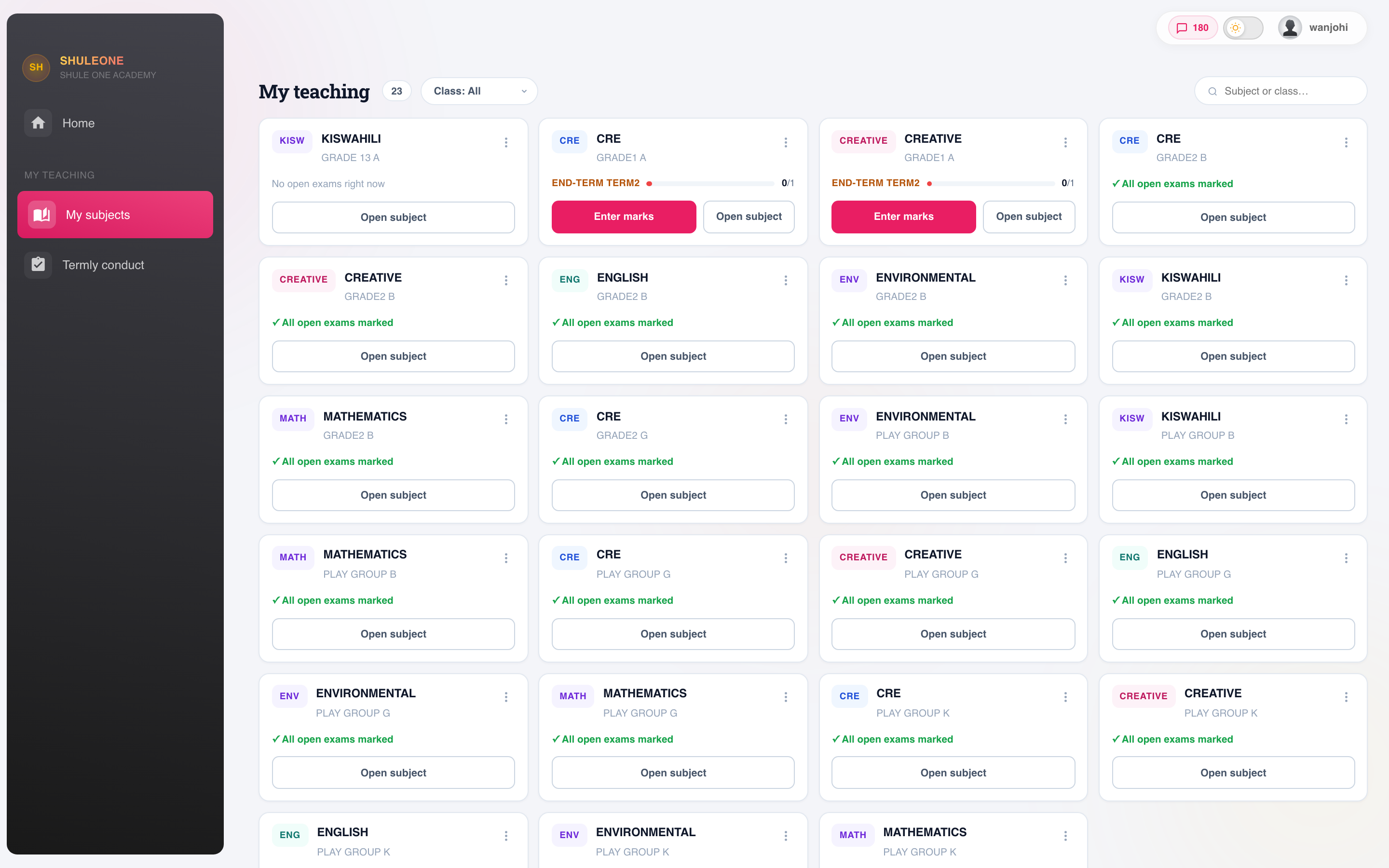
My Subjects lists only the classes and subjects assigned to the signed-in teacher.
The screen lists your students with a field for each. Enter the marks and save.
What’s new — 14 October 2026
Section titled “What’s new — 14 October 2026”Exams created before promotion keep their original students and class. You can finish entering marks in the existing exam after students move up or graduate. Select the original exam in My Exams or Marks Admin. Existing marks and maximum marks stay available. Do not create a replacement exam or reverse promotion to finish marking. Refreshing these exams from current classes is disabled to protect the original roster. My Subjects keeps showing pending exams and progress for your assigned subjects and streams using those original exam students, even after promotion.
Before you start
Section titled “Before you start”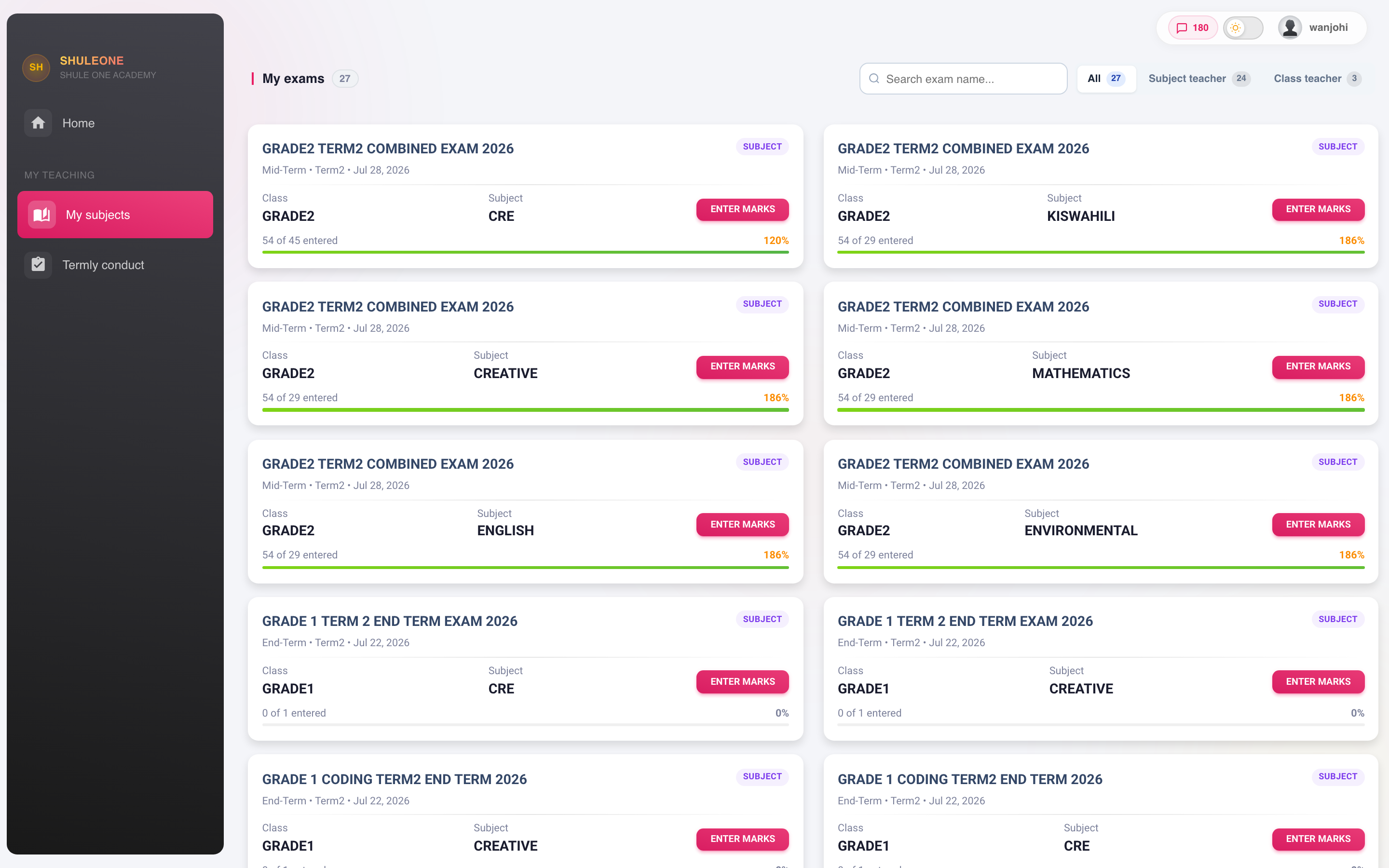
My Exams shows each exam, class, subject, completion percentage and Enter Marks action.
Check you have the right exam. Marks entered against the wrong exam are tedious to undo, and the office may have to do it for you.
Check the class list matches the scripts in front of you. A student missing from the list is not registered for the subject — sort that out with the office before entering, not after.
Know the maximum. The screen enforces it; knowing it saves you finding out at student thirty-four.
Entering
Section titled “Entering”Enter in the same order as your scripts. Sorting the scripts by name or admission number before you start is a minute that saves ten.
Save as you go. Do not enter eighty marks and then save. Save every few rows.
Absent is not zero. Mark an absent student as absent. A zero counts in the mean and drags the class average down for someone who never sat the paper.
Checking before you submit
Section titled “Checking before you submit”Entry errors happen and they are hard to spot once published. Three checks catch nearly all of them:
- Count. Does the number of marks entered match the number of scripts?
- Scan the extremes. A 98 in a class averaging 45, or a 4 from a strong student, is usually a mistyped digit — a transposed 89, or a 40 entered as 4.
- Spot-check three. Pick three scripts at random and compare against the screen.
Submitting
Section titled “Submitting”Submitting hands the marks to the school for checking and publication. Marks are usually locked afterwards.
That is deliberate — results that can be quietly changed after publication are not results. If you need a correction after submitting, ask the exams office; the change is recorded.
Uploading from a spreadsheet
Section titled “Uploading from a spreadsheet”Where the school allows it, marks can be imported from a template.
Download the template rather than building your own. It carries the student identifiers that match students to marks — a spreadsheet with only names in it cannot be matched reliably, because two students share a name more often than you would think.
Fill in only the mark column. Do not sort the rows, rename the columns or delete the students you have no mark for.
What happens next
Section titled “What happens next”- The exams office checks and releases the results.
- Analysis is generated — class, subject, stream, teacher, and the trend across exams.
- Report cards are produced.
- Parents see the results in the parent view.
Nothing is visible to students or parents until release, so an incomplete mark sheet is not on display — but it does hold up everyone else’s report cards.
Comments
Section titled “Comments”Where you write comments, they are the part parents actually read.
Name something specific. “Good effort” tells a parent nothing they can act on; “works well in class but does not finish written work at home” tells them exactly what to do this term.
Write about the work rather than the child. And write your own — a class of forty identical comments is noticed.