
Accounts and roles
Two people can sign in to the same ShuleOne site and see completely different menus. That is by design. What you can see is decided by the role your school gave your account, not by anything you can change yourself.
The account types
Section titled “The account types”Office accounts sign in at app.shuleone.co.ke. Every office account belongs to a
school and carries one or more roles — Administrator, Bursar, Accountant, HR, Librarian,
Storekeeper, Teacher, Class Teacher, and so on. A role decides which modules appear on
the dashboard and which buttons appear inside them.
Student accounts sign in at portal.shuleone.co.ke. They are created from the
student’s admission record, so a student exists in the office system first and gets
portal access second.
Parent accounts also sign in at portal.shuleone.co.ke, and are linked to one or
more students. A parent with three children in the school signs in once and switches
between them.
Super-admin accounts sit above individual schools and are used by Educraft to manage groups of schools and branches. If your school is part of a group, your administrator may also have a branch-level view.
Why a menu is missing
Section titled “Why a menu is missing”Work through these in order — it is almost always one of them:
- Your role does not include that module. Ask your school administrator to check your role under Settings → Users.
- The module is not enabled for your school. Not every school buys every module.
- You are on the wrong site. Marks entry is on the management system; quests are on the student portal.
- The term is not set up. Several academic and finance screens stay empty until the current term has been set.
Managing users (administrators)
Section titled “Managing users (administrators)”Go to Settings → Users.
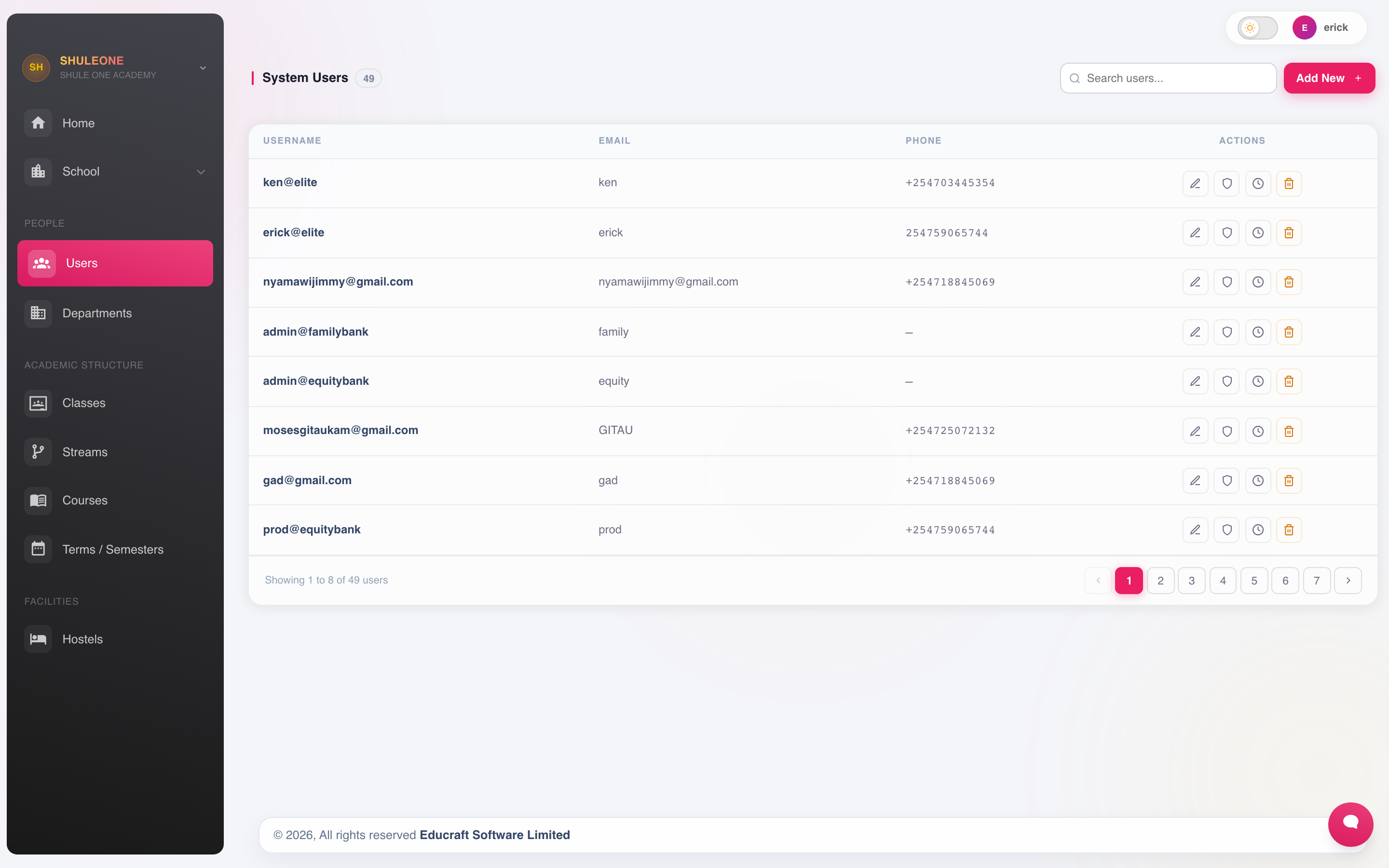
The current user list; use the row actions to edit or deactivate an account.
- Add creates an account. Set its Display name, Login username, phone and
password. Display names such as
admincan repeat across schools. Login usernames must be unique across ShuleOne; use a school-specific login such asadmin@ackvalleyview. Existing accounts keep their login usernames. - Edit changes a role or contact detail.
- Reset password (the key button) shows the account username and sets its password to
the default
1234@#. You can tick Send by SMS to text the saved phone the username, password, ShuleOne Admin links for Google Play and the App Store, and the web sign-in address. The result reports whether SMS was sent. If you do not send SMS, give the password only to that user. Ask them to replace it after signing in. The reset also clears a sign-in lockout and cancels any outstanding password-reset code. - Deactivate blocks sign-in without deleting the account. Prefer this to deletion when a member of staff leaves — deleting an account detaches it from the records it created, such as receipts and marks. You cannot delete the account you are signed in with.
- Teacher links the account to a teacher in this school, so it opens that teacher’s classes, marks and timetable. A teacher can be linked to only one account; if ShuleOne says the teacher is already linked, find and edit the other account instead of creating a second login.
The screen lists, edits and resets only accounts whose home school is the school you are working in. Super-admin and partner-bank accounts are managed by Educraft and cannot be changed here, and the Super Admin, bank and coding-programme rights cannot be assigned or removed from this screen.
Roles are managed separately from users, so a change to a role applies to everyone who holds it.
The Manage users permission opens Settings → Users and allows its holder to add, edit and delete accounts, assign and revoke rights, print user logs and reset passwords. No other permission can do these things. Treat it as a sensitive permission: its holder can change other people’s access, and a password reset lets the operator access the account until its owner changes the temporary password. Administrators and super administrators can also manage users.
Finance permissions
Section titled “Finance permissions”Finance access is split so that an office account can inspect the records without being able to change the school’s money.
| Permission | What it allows |
|---|---|
| View only | Open finance records, receipts and reports, including the students billed under a votehead, and print or export the information. It does not allow payments, allocations, billing changes, transfers, refunds or reversals. |
| View bank accounts | Open bank and cash account cards, inspect balances and statements, and print or export statements. It does not allow account maintenance, transfers or opening balances. |
| View other incomes | Search, inspect and print other-income receipts. It does not allow recording, editing or reversing income. |
| View expenses and suppliers | Search and inspect payment vouchers, supplier bills, supplier statements, credits, write-offs and payment records, and print or export them. It does not allow supplier maintenance, bill payments, write-offs, refunds, reversals or cheque actions. |
| Pay fees | Receive a fee payment, split or bulk-upload receipts, allocate an unallocated receipt, send a receipt SMS and request a receipt reversal. |
| Cross receipts | Approve or reject a pending receipt-reversal request. Give this checker permission to a different authorised finance user where possible. |
| Set fee structure | Create and assign fee structures, make authorised billing changes, and inspect the students billed under a votehead. It does not allow votehead maintenance. |
| Access other incomes | Record and edit other income and request a reversal. Finance administrators approve or reject reversal requests. |
| Access expenses | Create and edit payment vouchers and request reversals. It does not grant supplier-payment or finance-administrator approvals. |
| Process refund | Transfer an available credit or prepare a refund. |
| Approve refund | Approve or reject a pending refund. |
| View daily collections | Review collection figures without granting receipting rights. |
| View financial reports | Open finance reports without granting receipting rights. |
| Send fee balances | Send balance information and resend an existing receipt to a parent. It does not allow a payment or billing change. |
| Finance admin | Full finance administration, including sensitive corrections and approvals. Reserve it for the bursar, accountant or another authorised finance lead. |
To make an account read-only, go to Settings → Users, open its rights, remove Pay fees, Set fee structure, Process refund, Approve refund and Finance admin, then assign View only plus only the reporting or messaging permissions the person needs. Ask the user to sign out and back in after the change so their new rights replace the permissions held by the current session.
An account may hold View only together with another permission. The specific permission still controls its own task: for example, View only + Send fee balances may inspect, print and resend existing receipts but cannot receive money, while View only + Pay fees can receive payments because Pay fees explicitly grants that action.
Use the three specialised View … roles when a staff member needs only one part of Accounts & banking. Combine them when the person needs several pages; this is narrower than assigning the broad View only role.
What’s new — 10 October 2026
Section titled “What’s new — 10 October 2026”Accounts assigned canteen or contributed-stock permissions can now sign in correctly. If an affected account previously showed Authentication failed, retry with its current password after the update. Keep the assigned rights; this fix does not require a password reset or removing inventory permissions.
Branches and school groups
Section titled “Branches and school groups”Schools that run more than one campus have a branch layer above the individual schools. From Branches a group administrator can see each school in the group, move between them, and manage the users attached to each. Records stay separate per school; only the group view aggregates them.