
Games and the league
Games holds short learning games — quiz games, memory games and others depending on your subject and tier.
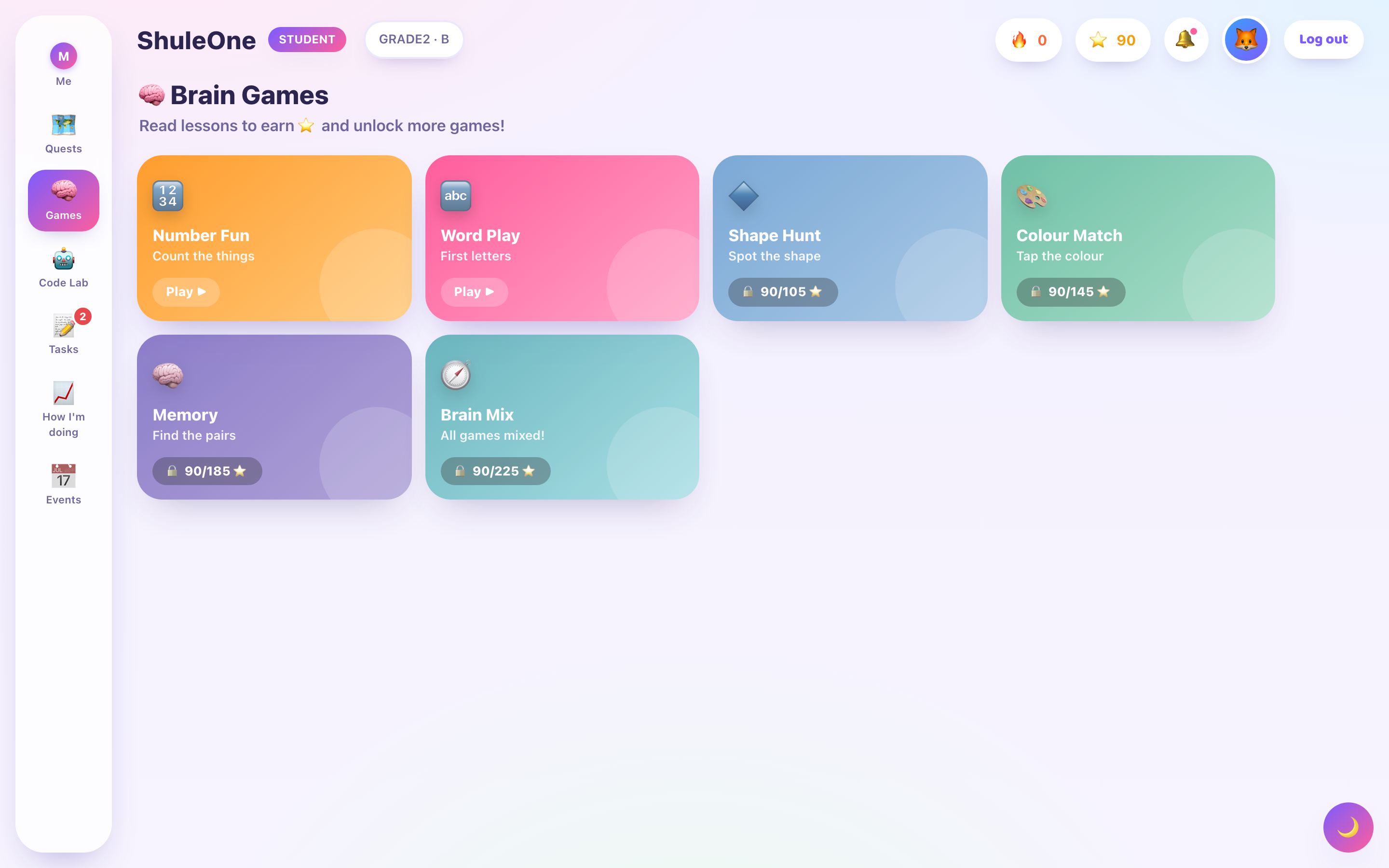
They are quick, they are meant to be played more than once, and they cover the same material as your lessons in a different shape.
ShuleCraft (pilot, not yet switched on)
Section titled “ShuleCraft (pilot, not yet switched on)”What’s new (6 October 2026): questions now appear only in the Learning panel on the right (the game shows a short note pointing to it). A wrong answer lets you try the same question again; from the third try your tutor gives a clue, and after five tries they explain the answer so you can carry on. Your tutor’s words stay on screen until they finish speaking.
ShuleCraft is a large block world, like Minecraft, that you explore and build in with other ShuleOne learners. It uses the open-source Luanti engine and the VoxeLibre game. When your school’s world is switched on, open Learn, choose the Play tab and press Play ShuleCraft on the ShuleCraft card. Until then, the World page says ShuleCraft is coming soon.
World fills the screen. Small buttons float at the top: Back to Play (returns you to the Play tab), How to play and Learning. They fade while you play and come back when you move the mouse. The Learning panel opens by itself when a question is waiting, and its button turns orange. It is always daytime with clear skies in ShuleCraft.
Your tutor helps you play. The tutor you chose appears in the bottom-left corner, their face moving as they talk, and speaks in their own voice: they welcome you and say what to do, read each question and its choices aloud, cheer when you get one right (telling you what you earned), and help when you don’t. Their words stay on screen until they have finished speaking. Turn the voice off or on with Tutor voice at the top of the screen.
How to play
Section titled “How to play”The controls also show while World loads, and any time from How to play.
| Do this | Press |
|---|---|
| Walk | W A S D |
| Jump | Space |
| Sprint / sneak | Ctrl / Shift |
| Look around | Move the mouse. Click the game first; Esc gives the mouse back. |
| Dig or hit | Left click |
| Build, or use a learning stone or board | Right click (a left click also works on stones and boards) |
| Open your inventory | E |
| Choose an item | 1–9 or the mouse wheel |
| Pause | Esc (Continue, Settings, Sound Volume) |
On a tablet or phone, the joystick on the left walks, drag to look, tap to use and hold to dig.
Learning in ShuleCraft
Section titled “Learning in ShuleCraft”Follow the gold sparkles to a glowing learning stone (or find a learning board) and click it, or type /learn in the game, to get a question from your own curriculum (CBC, IGCSE or the one your school uses) for your level. Questions come from the topics you are studying, and the ones your learning plan says need more support come first, then ones due for review and ones you have not tried yet. They are drawn from your published lessons and quests, in your own curriculum. As your school adds quests for more grades, ShuleCraft uses them automatically. The question opens in the Learning panel on the right and your tutor reads it; the game shows a short note (press OK) and gives you the mouse so you can click your answer. Correct answers also unlock new things to craft: iron tools at 2, gold gear and redstone machines at 4, diamond tools at 7, the enchanting table at 10 and nether portals at 14. The Learning panel shows how many more answers you need.
If your answer is wrong, it is crossed out and you try the same question again:
- Right first time: 2 emeralds.
- Right after more tries: 1 emerald.
- From the third try: your tutor gives a clue and takes away one wrong choice.
- After five tries: your tutor explains the answer, and the question (and its stone) is done so you can carry on. No emeralds this time, but you have learnt it.
Only your first try counts towards your learning plan.
Learning Trail: five glowing learning stones are spread out from where you start. A gold marker shows the way to the next one, and when you join you start facing it. Each stone asks a question; answer it (or let your tutor explain it) to complete the stone. Complete all five to earn 3 diamonds. Your trail progress is saved. Finished stones stay in the world for other players; clicking one again tells you which stone is next for you.
Your buildings and inventory stay in the world between visits. Each visit lasts up to two hours; open ShuleCraft again from ShuleOne to continue. Opening World in a new tab closes the older tab’s game.
To keep play safe: chat is off, players cannot hurt each other, monsters are peaceful and only your first name is shown. During the early rollout, learners from all schools share one ShuleOne world, so you may meet explorers from other schools; you cannot chat with them. World needs the latest Google Chrome or Microsoft Edge on a computer or Android device; it does not run on iPhone or iPad yet.
In the ShuleOne app (coming in a later app update): on Android, open Games and tap the ShuleCraft card. The game turns your phone sideways. Tap Learning at the top right for the question panel and your unlock progress, and the back arrow at the top left to leave. The first visit downloads the game’s pictures and sounds and takes a few minutes; later visits are much quicker. If your phone says it can’t open ShuleCraft in the app, update Google Chrome and Android System WebView from the Play Store, or tap Open in Chrome.
ShuleTown (3D prototype, awaiting deployment)
Section titled “ShuleTown (3D prototype, awaiting deployment)”Every class can choose ShuleTown - Let’s build in the Play area described below. Explore a small 3D town with Amani, an original animated explorer. Walk, run and jump around houses, trees, hills and a playground, then create with seven block materials. The neighbourhood now includes a furnished café and home, a slide and swing, flowers, lamps, a water garden and animated residents. A furnished school, market and workshop, a community garden, roaming puppy Pip and a passing yellow bus give you more places to discover. Original animated characters now blink while idle and have articulated hands, feet and jaw movements, with talking, dancing and cheering as well as walking, running and cycling. Buildings have pitched roofs, framed windows, school books and a clock, café pastries and workshop tools. Water ripples and butterflies bring movement to the garden. The bus is scenery, not a driveable vehicle. Beyond the building area, a wider walkable ring holds the Adventure Park (a jumping course of timber posts up to a lookout tower), a hedge maze, a fountain, a garden arch and a picnic meadow. A low fence marks the edge of the town; outer homes are scenery with closed doors. Enter a house through its front door (jump up the older house doorstep); the roof and walls nearest the camera open while you are inside. The camera keeps the same heading as you enter. This version remains single-player: other students cannot visit or edit your town yet.
Talking neighbours: choose Talk to [name] to hear a short voiced greeting and read the instructions. Hear again replays the greeting. Captions remain available even if voice playback fails or is muted. The recordings use original scripts and locally synthesized Windows voices, rather than cloud AI voices. Closing a conversation stops its voice. Choose More directions to read the longer task explanation. Character portraits come from the original Blender rigs.
Bike adventure: get on the bike, then choose Start bike adventure. Ride through five glowing gates in order: square, west avenue, square return, north avenue and finish. Follow the direction arrow and distance. The clock counts active riding, pauses with the game or when you get off, and shows your completion time. Choose Ride again to try improving it or Stop circuit to explore freely. There is no time limit. Your fastest finish is saved with your world as Best time, and beating it shows New personal record! This is a private personal best, not an academic reward or a class leaderboard score. Buildings can block a custom route: go around them, undo your blocks or stop and return to the square.
Options: choose Close, Normal or Wide camera view, sunny day or Golden evening lighting, and an orange, blue or green jacket. The golden Star gold jacket unlocks after you find all twelve Shule Stars. Jacket choice is a browser preference; view, lighting and performance choices reset each visit. Smooth permits up to 60 frames per second; actual performance depends on the device. Battery saver caps rendering at 30 with a lower resolution. Choose Wave, Dance or Cheer while standing on foot; movement interrupts the emote. These actions are unavailable while seated or riding.
Choose Full screen in Options on a supporting browser. In full screen, Exit full screen, Pause and Sound on/off remain available; Escape also pauses. Explore mode hides the block preview and crosshair. Selecting a building material or choosing Build + opens Build mode. Choose Explore mode in Options to hide the preview again. Walking/running animation follows actual movement, so the explorer stops stepping when a wall blocks the path.
Your goal: earn the Town Helper medal. The welcome screen explains the two parts: repair Nia’s bridge with four wooden planks, then light the four town lanterns. You may do these in any order. The adventure panel shows progress out of eight actions and explains the next task. Choose Guide me to Bridge or Guide me to [place] for a direction arrow and distance; walk around obstacles and use the nearby task button when you arrive.
Finishing both parts opens You’re a Town Helper! with your medal. Choose Save my town to save or Keep playing to return to building and exploring. The world continues after the adventure. Your completed adventure returns with your saved bridge and lantern blocks; choose View my medal to see the reward again. Reopening a completed world does not interrupt play with the celebration. Removing or undoing a required block reopens that task until you replace it. This is an in-game achievement, not academic XP or a class leaderboard score.
Star hunt: twelve golden Shule Stars are hidden around the town. Walk into a star to collect it. Some sit in plain sight, some need careful jumps (up the Adventure Park posts, onto the fountain or to the top of the brick steps) and one needs a staircase of building blocks. A soft twinkle gets quicker as you approach a star at your height, and your explorer glances towards nearby stars. Open Star journal in the adventure panel for a clue to each missing star; found stars also appear on the town map. Talk to Mara at the market for an introduction. Stars are saved with your world. Finding all twelve opens You’re a Star Explorer! and unlocks the Star gold jacket. Falling from the posts does no harm: climb back up and try again.
Help Nia repair the garden bridge: walk near Nia in the square and choose Talk to Nia (keyboard F). After accepting, the camera faces the garden. Follow the golden trail to the glowing bridge squares. Add Wood manually or use Place wood plank when nearby. Step aside if a square overlaps your explorer. Four correct wood blocks complete the bridge and reveal a golden builder badge. The bridge and badge return with the saved world. Removing or undoing a bridge plank removes completion until it is replaced; this is a building activity, not a learning score or a separate permanent award.
Visit Kito’s café to talk to the host and explore its furniture. Near the front chair choose Sit at café table; move, jump or choose Stand up to leave the chair. Tables, counters and other solid props block movement. Free building remains available; the mission does not lock exploration or interrupt play with questions.
Use WASD or the arrow keys to walk, Shift to run and Space to jump. All directions follow the visible camera: D / Right moves screen-right, A / Left moves screen-left, W / Up moves away from the camera, and S / Down moves toward it. The on-screen arrows use the same mapping, including inside houses. Drag the world to turn the camera. Use the mouse wheel, or pinch with two fingers on a touch screen, to bring the camera closer or further away. Choose Centre camera (the circular target button) to put it behind your explorer again. Holding a movement key keeps a straight course until you turn the view. On a phone, drag the round thumb pad: a small drag walks slowly and a larger drag walks faster. Release to stop. You can also hold the arrows and Run or Jump; you can use two controls together. Select a material, aim the + at a nearby block, and press Build + (keyboard E) or Remove - (keyboard Q). The ground cannot be removed; blocks cannot be placed through your explorer. Building is limited to the central 40-by-40-block area and up to 2,000 changed block positions; you can walk across a larger 64-by-64 area.
A translucent cube previews the next block: green means you can build there; red means that position is blocked or outside the building boundary. Undo (keyboard Z) reverses up to 20 recent block changes from this visit. Move aside if replacing an undone block would trap your explorer. Undo history clears when you leave, but your saved buildings stay. Short sounds accompany footsteps, jumping, landing and building, with birds, wind and gentle background music. Choose Sound on/off to mute everything, including voices. Open Audio to change volume, turn music or voices off independently, or choose Test sound (also available while paused). If Audio blocked appears, try Test sound and check your device volume. Sound settings stay on this browser. Pausing silences the town; an audio failure does not stop gameplay.
Choose Town map to see your location, nearby buildings and the four lanterns. Choose Find School, Find Market, Find Garden, Find Park or Find Café for a directional arrow and remaining distance. Clear route removes the guide. Directions help you explore; they do not teleport your explorer or move it for you.
Near the bicycle in the square, choose Ride bike. Use the same arrows, WASD or thumb pad to travel; hold Run to pedal faster. Choose Get off bike to park in an open spot. Get off before jumping or building. A blocked parking spot needs more space. Your location saves as usual, but reopening starts you on foot and returns the bike to the square. Cycling and navigation are optional and do not lock the town.
Movement accelerates smoothly and stops when you release. A short jump grace period helps near ledges and when landing; release Jump before pressing it again.
Open the Adventure journal to see the School, Market, Garden and Park lanterns. Walk near each purple marker and choose Light [place] lantern. Leave space beside the post; move aside or clear the light square if it is occupied. Each light is a saved Sand block, so removing it or using Undo removes that journal stamp. Four lights reveal a golden badge, which returns with the saved world. This exploration activity does not award academic XP or unlock another game.
Talk to Asha at the school or Mara near the market. Near the school, choose Ring school bell. Find Pip and choose Pet Pip; he follows for a little while. Near a bench, choose Sit on bench, then move, jump or choose Stand up to leave. The bridge activity, building and exploring remain open alongside these activities.
School students and independent learner profiles have separate private worlds. Blocks and location autosave to the signed-in account. Save pauses and saves; Save & exit returns to the playground after a successful save. If saving fails, keep the page open and press Save again. If another device has saved a newer world, the game refuses to overwrite it. Reopen the world to load that version; unsaved changes on the older page are not merged. Pause - Return to town square gets you back to the starting area without clearing your buildings.
The development-only /shuletown-demo page is a separate practice preview. It saves
only in that browser and does not save a student’s account world. Production use
requires the updated web app and LMS backend, including the shuletown_world table.
ShuleKart
Section titled “ShuleKart”What’s new (7 October 2026): ShuleKart is here! Find it on the Play tab, or press Have a look on the line about new games in your What’s next card on the Me page.
ShuleKart is kart racing with Tux and friends, inside ShuleOne. It is built on SuperTuxKart, a free and open-source racing game, with learning added by ShuleOne. Open Learn, choose the Play tab and press Race ShuleKart on its card.
- Choose your kart and track. You start with two karts (Tux and Gnu) and two tracks (Around the Lighthouse and Zen Garden). Locked karts and tracks show how many right answers they need. Choose Easy or Medium opponents.
- Answer your tutor’s question. Press Start race. Your tutor reads a question from your own learning plan, starting with topics that need more support. Every two right answers unlock the next kart or track. A wrong answer is crossed out and you try again: from the third try your tutor gives a clue, and after five tries they explain the answer. Either way you then race. The Race! button waits until your tutor has finished speaking.
- Race! The race starts straight away: two laps against three computer drivers. Steer with the arrow keys; Space fires a power-up, N uses nitro, V drifts round corners and B looks behind.
- See your result (for example You finished 2nd of 4!), then Race again (with a new question) or Change kart or track.
The first visit downloads the game (about 120 MB) and takes a few minutes; later visits are much quicker. ShuleKart needs the latest Google Chrome or Microsoft Edge on a computer or Chromebook; phones and iPads are not supported yet. Your answers count as practice on their topics, like your other ShuleOne practice.
City Sprint (web prototype, awaiting deployment)
Section titled “City Sprint (web prototype, awaiting deployment)”What’s new (6 October 2026): City Sprint now has pit stops with learning questions, fuel, turbo boosts, coins and a garage of cars. Pit-stop answers count towards your learning, like other practice. Your tutor now appears beside the race while they speak, the race waits for them to finish, and ⛶ Full screen fills your screen with the game.
City Sprint is available to every class, without quest or XP unlocks. In Grades 1-3, open Learn & Play - My playground. In the other classes, open your learning page and choose Play. Select City Sprint - Let’s drive to race three computer-controlled drivers over a 1.2 km course. The live position shows where you stand among four racers. Rivals can pass you, and you can overtake them. These racers are computer opponents; the class board below compares saved student results separately.
The route changes from open streets to downtown and then a denser skyline district. Now and then a police car comes up from behind and overtakes. Other road users include cars, delivery vans and semitrailers. Passing trucks needs more clearance. The finish has a checkered gantry, waving spectators and a short crowd celebration. Crossing it shows your race position and statistics. A car collision still ends the race immediately, before the finish.
The car accelerates automatically. Steer with left/right arrow keys or the on-screen arrow buttons. Hold down arrow or Brake to slow down; hold up arrow or Faster for extra speed. The road and tyres move with your actual driving speed. Each star multiplies the automatic cruising speed by 1.04 (a compounded 4% increase). Distance milestones also raise the starting pace. There is no fixed gameplay speed cap: later stars add larger speed increases, so it becomes harder to avoid traffic. Before distance bonuses, 10 stars target about 126 km/h, 20 about 186 km/h and 30 about 276 km/h; the car accelerates smoothly towards that target. Braking always works. Touch controls support steering and a pedal together in portrait or landscape.
Hitting another car ends the run immediately and plays a collision sound. Choose Race again to start fresh with speed, stars, distance and time reset. The three hearts apply to roadside barriers: two barrier bumps allow recovery and keep your stars; the third ends the run. A car collision still ends the run during barrier recovery. Traffic remains staggered so there is room to pass in another lane.
The dashboard and results show stars, distance driven, driving time, crashes and top speed. Choose Pause and Keep driving for a break; leaving the game window also pauses it. Paused time does not count as driving time. Start a fresh race from the pause screen resets progress and restores three hearts. End drive lets you stop early and save a result. Race again starts over after a crash; Exit or Back to my playground leaves the game.
Pit stops, fuel and turbo
Section titled “Pit stops, fuel and turbo”Three blue PIT STOP gantries cross the road, at 300 m, 600 m and 900 m. When you drive under one, the race waits and a question appears. Your tutor appears in the top-right corner and reads it aloud. After you answer, the race waits until your tutor has finished speaking, then carries on by itself (or press Keep driving). The question comes from your own curriculum, and topics your learning plan says need more support come first.
- Right answer: a 3-second turbo boost, +1 star, a big refuel and 10 coins (5 coins if it took more than one try).
- Wrong answer: it is crossed out and you try again. From the third try your tutor gives a clue and takes away one wrong choice. After five tries your tutor explains the answer, you get a little fuel, and you carry on.
The FUEL gauge on the dashboard empties as you drive; a full tank lasts about 450 m. If it runs out, the race ends with You ran out of fuel! Answering at each pit stop keeps you racing to the finish. Outside ShuleOne (the practice address), pit stops ask quick sums instead.
Above the game, ⛶ Full screen fills your screen with the race (press Esc or Exit full screen to return), and Tutor voice turns your tutor’s voice off or on.
Garage
Section titled “Garage”Choose 🚗 Garage on the start screen to see your coins and cars. Coins buy new paint (Ocean blue, Sunset) and new cars: the Sports car is 10% faster, the Jeep shrugs off one crash with another car, and the Matatu is 5% faster. Choose a car you own and it is the one you drive in your next race.
One marked police car, with alternating red and blue roof lights, comes past about every twenty seconds. Its quick siren gets louder as it approaches from behind and fades as it passes. It never crashes into you or blocks the road, so being overtaken never ends your race. Sirens stop when you pause, end the run or mute sound.
Engine sound starts when you choose Let’s drive, with a softer rumble that rises with your speed and the Faster pedal. Choose Sound on to mute, or Sound off to enable sound again. Stars and distance milestones have short celebration sounds. If your browser cannot play sound, you can still drive.
Inside the signed-in portal, completed races, crashes and End drive results save to a separate City Sprint game record. The Play tab shows your class place on the City Sprint card (for example 🏁 3rd in your class). Inside the game, My class drivers shows on the start screen refreshes when you return and keeps your best saved result across visits and devices. This saves results, rather than resuming a partly driven race. If you stop early, use End drive and wait for Drive saved before leaving. My class drivers compares the best race from each active student in your current school and class. Furthest distance ranks first, then shorter driving time, then more stars; exact ties share a place. First names and surname initials are shown. Older runs with different crash or speed rules remain stored but are not mixed into the new race board. Browser-reported statistics are checked for plausible limits; this is a casual game board, not a prize competition or assessment score.
The standalone URL is practice and does not save a class score. Independent learner accounts can save runs but have no school class board. If saving fails, the result stays visible and Retry saving appears when a portal connection was established. Retrying the same run does not add another score. The updated backend must be running for race results and class rankings to be available.
City Sprint is open without quest unlocks. Race results, stars and speeds do not change learning scores, XP or the academic league. Pit-stop answers do count, as practice on that topic, and teachers see them with the learner’s other practice. The learning games below are separate.
Game time and who can play what
Section titled “Game time and who can play what”What’s new (8 October 2026): games now sit behind learning. Your Me page shows your next learning step first; when a new game arrives you see one short line about it in the What’s next card (close it with ×). Once you reach today’s learning goal, the card changes to Great work… Today’s goal is done with buttons for the games and the game time you have left. Keep learning takes you back to your next step.
- Daily game time: ShuleCraft, ShuleKart and City Sprint share 30 minutes a day. The time counts only while a game is open. When it is used up, the game says That’s your game time for today and you can carry on learning; the time starts again the next day.
- ShuleCraft is for Grade 4 and up (it needs keyboard and mouse together and lots of reading). Grades 1–3 play ShuleKart and City Sprint.
- ShuleKart in Grades 1–3 races Easy opponents only.
What the learning games are for
Section titled “What the learning games are for”Games are not a break from learning that happens to be on the same website. They are built on the material you are working through, and they are good at the part lessons are bad at: recall under a bit of pressure.
Knowing a times table is different from being able to produce it quickly. Reading a definition is different from recognising it in a list of four. Games practise the second kind of knowing, which is the kind an exam asks for.
A few minutes of a game after a lesson is worth more than the same few minutes spent re-reading the lesson.
The league
Section titled “The league”The league table ranks players by points earned. Depending on how your school has set it up, you may see your class, your year, or the whole school.
Points come from playing well, not from playing often, so grinding the same easy game repeatedly does not climb the table.
Playing well
Section titled “Playing well”Play after learning, not instead of it. A game on a topic you have not met yet is guessing.
Short and often. Five minutes most days beats an hour on Saturday.
Notice what you keep getting wrong. That is the thing to go back to the lesson for. The game is telling you something useful.
Play the harder level. Once a level is easy it has stopped teaching you anything.
Games and your teacher
Section titled “Games and your teacher”Your teacher can see participation, and some schools use games as set work. Whether games count towards anything is your school’s decision, not the portal’s — ask if you are unsure.