
Exams and practice
The portal has two different things that look similar and are not.
Practice is yours. Take it as often as you like, see the answers immediately, and nothing is reported to anyone.
Exams are set by your school. They open for a fixed window, you get one attempt, and the result goes to your teacher.
Check which you are opening before you start.
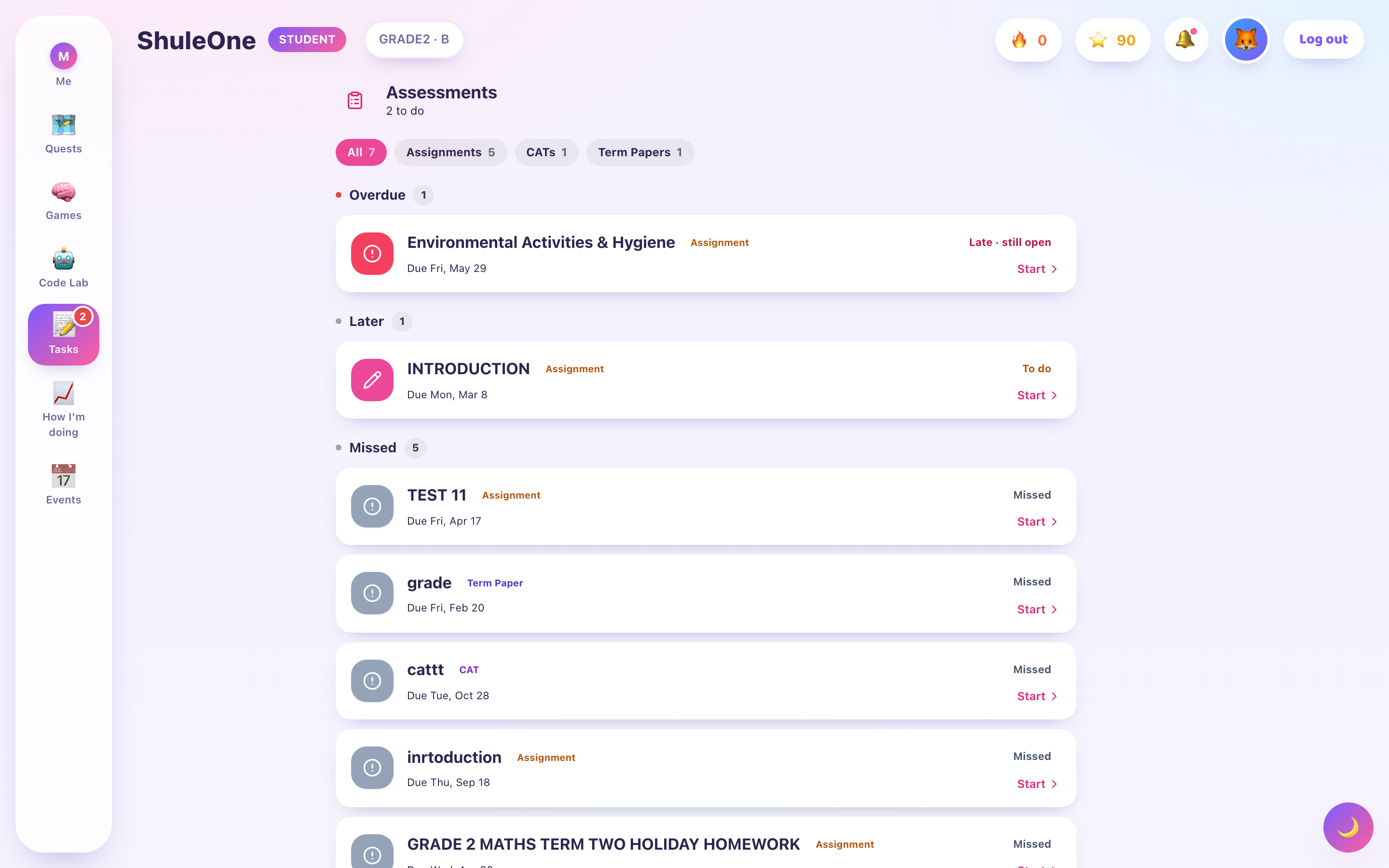
The Assessments screen groups assignments and other set work by status.
Practice
Section titled “Practice”Practice papers and self-tests are built from the same material as your lessons, and often from past papers.
Use them like this:
- Do it properly first. Time yourself, no notes, no looking things up. A practice paper done with the book open tells you nothing about what you know.
- Mark it and read the answers — including the ones you got right, in case you were guessing.
- Go back to the lesson for whatever you got wrong. This is the step people skip, and it is the only step that changes anything.
- Take it again a few days later. Not immediately — the gap is what makes it work.
When a visual practice paper is unavailable
Section titled “When a visual practice paper is unavailable”A generated paper containing diagrams must pass the checks for its figures, answers, and how the figures appear in the player. If it says the visual paper is unavailable, choose another available practice activity and tell your teacher which paper you tried to open. Do not treat an unavailable paper as a completed attempt or assume it has been marked. The new visual-generation work does not by itself make every diagram paper available; rendering verification is still required.
An exam has a window: a start, an end, and a time limit once you begin.
Before you start
- Check how long you have and how many questions there are.
- Use a device you trust, with charge in it.
- Get somewhere with a stable connection.
- Do not start unless you have time to finish. The clock does not stop.
During
- Answer everything you can first, then go back to the hard ones.
- Your answers are saved as you go, so a brief connection drop is usually survivable.
- Watch the time.
Submitting
Submit before the time runs out. Depending on how the exam is set, an unsubmitted paper may be submitted automatically at the end — but do not rely on it.
If something goes wrong mid-exam
Section titled “If something goes wrong mid-exam”Tell your teacher or the invigilator immediately. Do not sign in again on a different device without telling anyone, and do not wait until the end to mention that the page froze for ten minutes.
Your answers are saved to ShuleOne as you go. For a coding or robotics exam, an automatic submission caused by a closed page, switched-off laptop or tab-lock event may show Continue under My exams when your tutor has allowed recovery. Continue opens the same attempt and saved answers; it does not restart the clock. The option disappears when your original duration or the exam closing time ends. Selecting Hand in yourself is final.
If Continue does not appear, tell the invigilator. Do not repeatedly start or submit the paper, and do not assume a new device gives a new sitting.
Coding exams
Section titled “Coding exams”Coding exams are taken in the coding section and involve writing and running code rather than answering questions about it. The same rules apply, with one addition: save and run your code before submitting. Code that has not been run is code you do not know works.
Results
Section titled “Results”Practice results are immediate.
Exam results appear when your teacher releases them. School exams sat on paper are published through the management system instead, and reach you and your parents that way.
Open Exams in the learner website, or More → School exams in ShuleOne Connect, to see your own published school results. Nursing students also see approved nursing-paper exams here. Open one to see the overall mean and classification, then the total and the MCQ, SAQ, LAQ 1, LAQ 2 and CAT marks for each of Papers 1–3. Nursing classifications use the lowest paper result, so the overall classification can be Fail even when the mean is 60 or higher.
For an approved nursing result, choose Assessment report, then Download assessment PDF. The school system creates a fixed A4 report containing your identity, examination details, all three paper calculations, overall classification, grading guide and sign-off space. The website downloads that document directly; it does not print the browser page.
Only the signed-in student’s linked results are shown. If an approved nursing exam is missing, ask the examinations office to check that your exam number was linked to your student record before the results were approved.
When your school allows more than one take, the assessment list and readiness summary use the latest take’s submission status and score. Earlier takes remain in the attempt history; their marks are not added to the latest score.
A completed online assessment remains under Done if the school later deactivates the paper. You can still open your own marked work and attempt history, but you cannot start or retake a deactivated paper unless the school activates it again.