
Taking attendance
Attendance covers students and staff, marked by hand or captured by biometric device. Go to Attendance → Dashboard for the day’s position.
What’s new — 10 October 2026
Section titled “What’s new — 10 October 2026”The corrected ShuleOne Admin build restores student search in Attendance → Students and Attendance → Others → Sent SMS Logs. Search by learner name or admission number after installing the updated build.
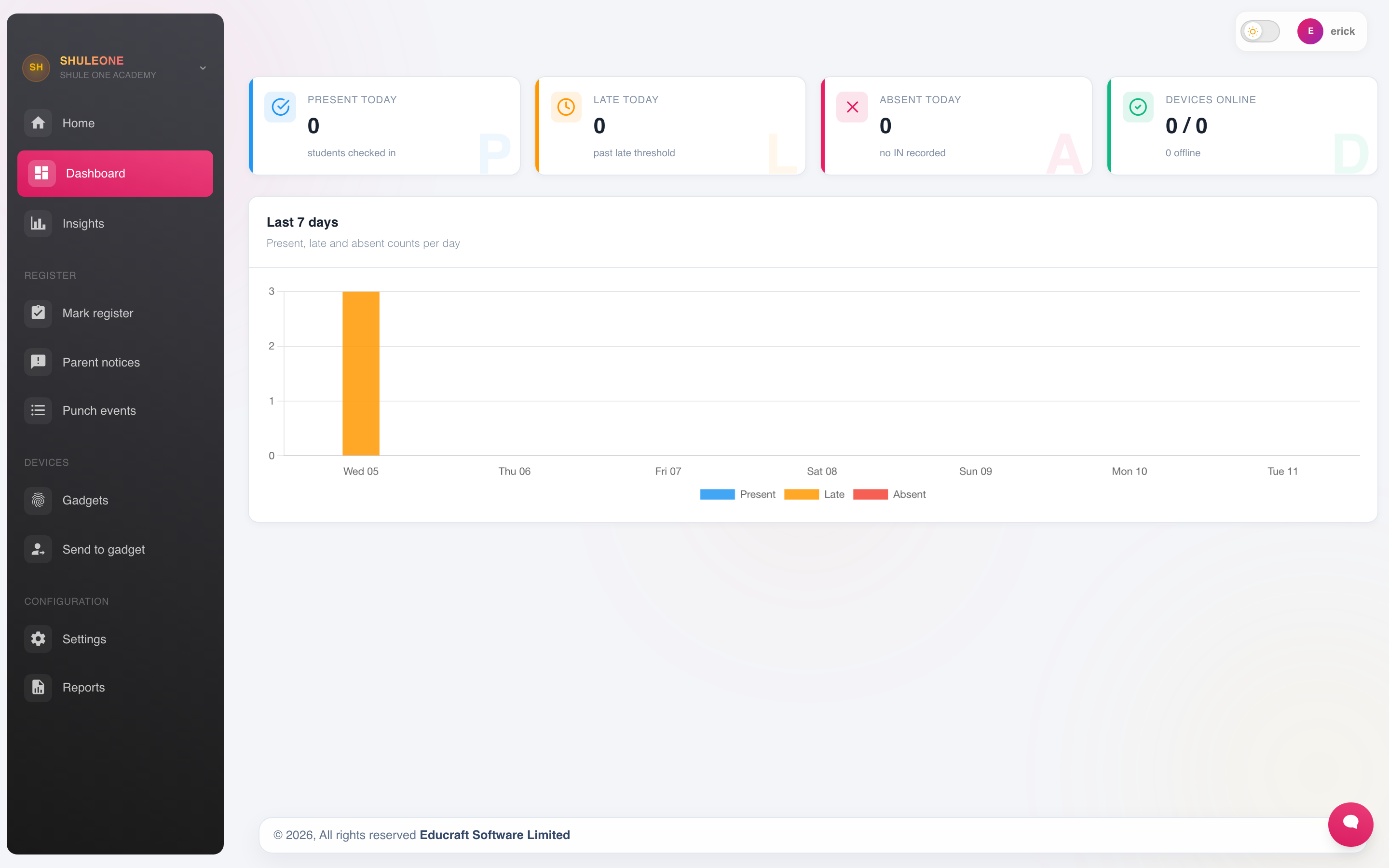
The attendance dashboard summarises present, absent and late learners.
Marking a student register
Section titled “Marking a student register”Go to Attendance → Register.
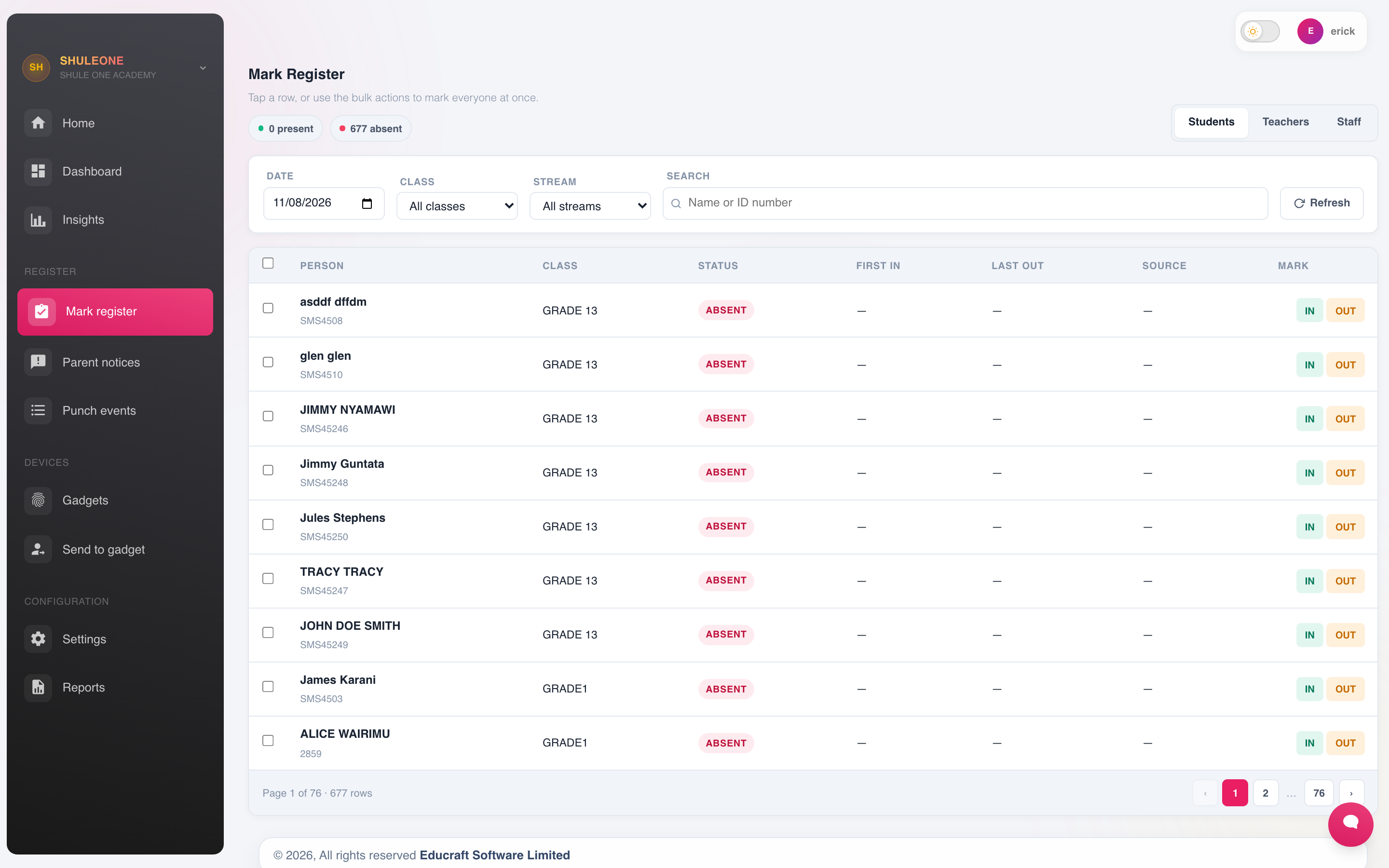
Choose the class, stream and date before marking the register.
- Choose the class and stream.
- Confirm the date. It defaults to today; you can only mark dates inside the current term.
- Mark each student Present, Absent or Late. Most registers start with everyone present, so you only mark the exceptions.
- Add a reason against an absence where you know it.
- Select Save.
Saved registers can be reopened and corrected on the same day. Later corrections are possible but are recorded as amendments, so the original stands in the audit trail.
Students view
Section titled “Students view”Attendance → Students shows attendance from the student’s side rather than the day’s: one learner’s record across the term, which is what you want when a parent queries an absence.
In the Admin app, tap Search student to add to registry and enter a name or admission number to find a learner. To inspect biometric messages for one learner, open Attendance → Others → Sent SMS Logs and use its student search.
Staff attendance
Section titled “Staff attendance”Staff are marked under Attendance → Staff and Attendance → Teachers, or captured automatically by a biometric device at the gate.
Staff attendance feeds HR — it is what leave balances and any attendance-linked payroll rules are checked against.
Absence notices
Section titled “Absence notices”Attendance → Absence Notices is the queue of explanations. A notice can come from a parent through the parent app, or be entered by the office from a phone call or a letter.
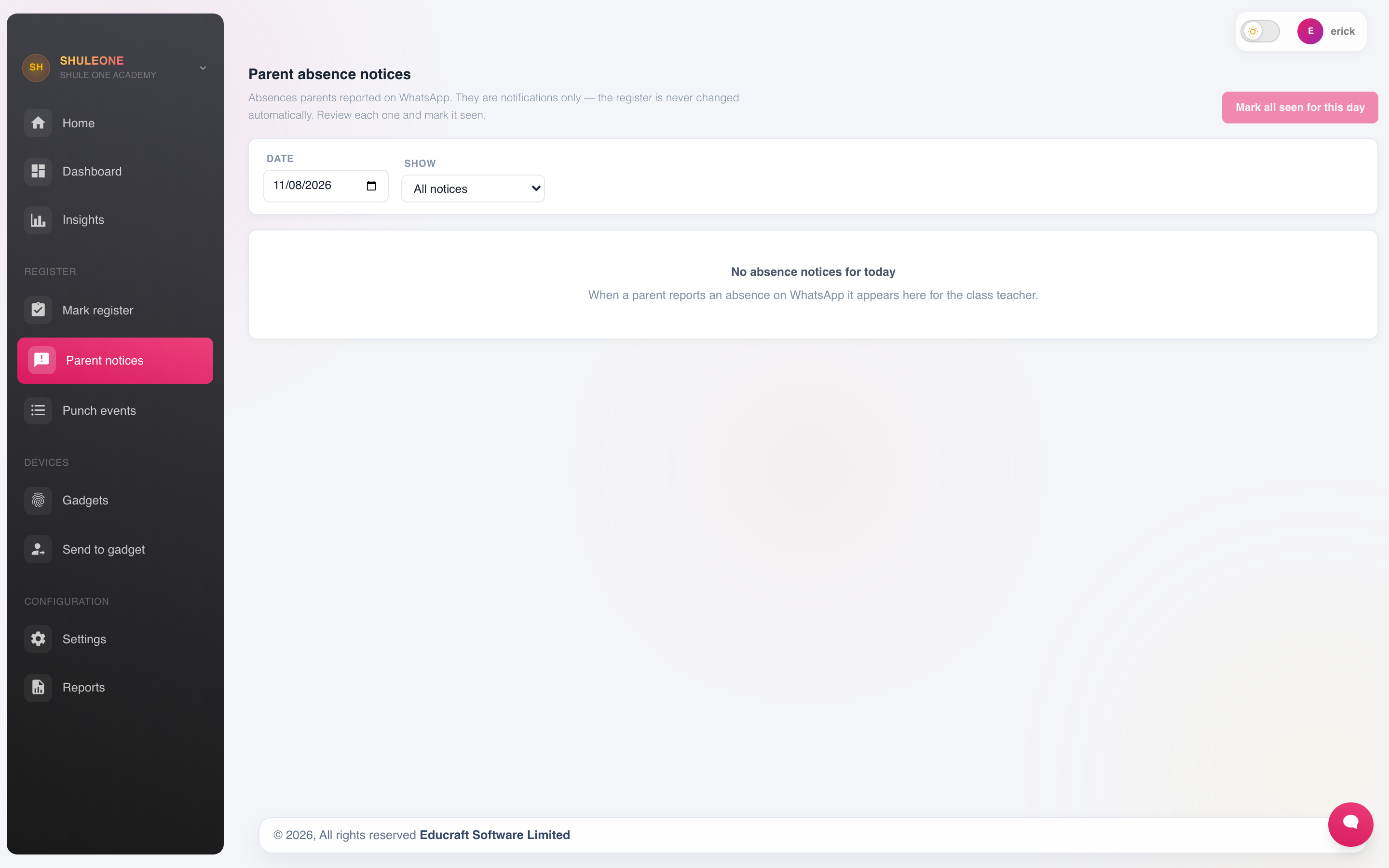
Parent-submitted absence notices waiting to be reviewed.
Working the queue means matching each notice to the absence it explains, so the attendance record shows authorised rather than absent. An absence with no notice after a few days is the one worth a phone call.
Events
Section titled “Events”Attendance → Events covers days that are not ordinary school days — trips, sports days, public holidays, exam days. Recording them stops those days counting against attendance percentages and stops the system chasing absences for a day nobody was expected.
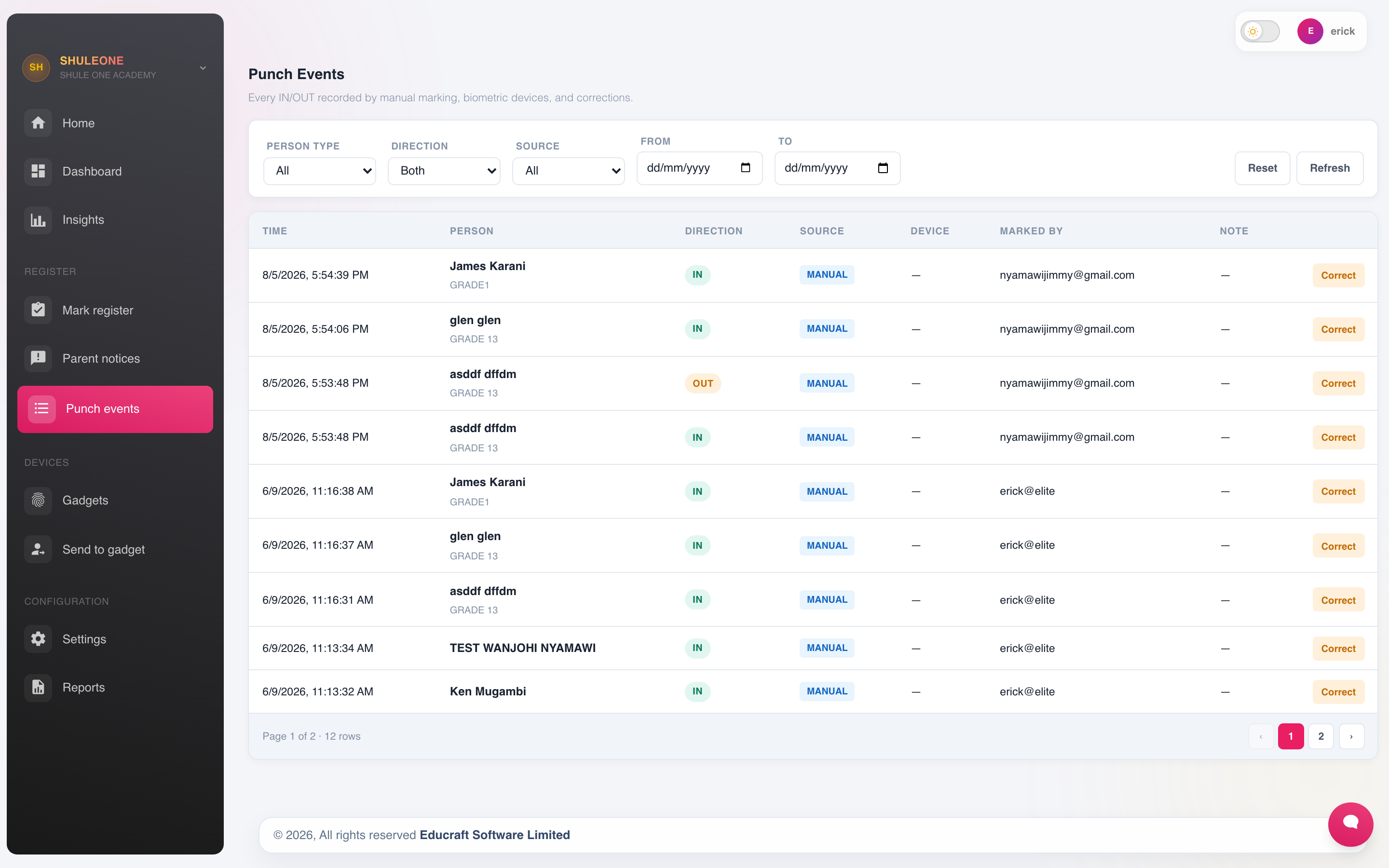
Events that affect attendance calculations.
Enter the term’s known events at the start of term.
Settings
Section titled “Settings”Attendance → Settings controls how attendance behaves:
- Which sessions are marked — once a day, morning and afternoon, or per lesson.
- The cut-off time after which an arrival counts as late.
- Whether an absence triggers an automatic SMS to the guardian, and its wording.
- Whether student biometric arrivals and departures notify parents. Disable both while investigating a gadget roster or duplicate-ID problem; re-enable them only after a live roster refresh and a test scan.
- Which staff are notified about persistent absence.
Biometric SMS reasons
Section titled “Biometric SMS reasons”Open Attendance → Settings → SMS reasons to choose what a parent is told after a student scan. ShuleOne supplies the standard arrival, fees, school-items, books, medical, discipline, lateness, midterm, closing, hospital and ceremony presets for every school. A school’s existing wording and active choice are kept.
Only one reason is active for each person type. Turn on a specific preset when every following scan should carry that explanation. For ordinary daily gate use, activate CUSTOM (ARRIVAL / DEPARTURE). It does not invent a reason: an IN scan produces the standard “arrived at school” message and an OUT scan produces the standard “left school” message.
When adding or editing another reason, Use the actual IN/OUT punch gives it the same neutral behaviour. Leave that option off when the preset’s own direction and wording must override the button reported by the biometric reader.
Absence SMS
Section titled “Absence SMS”Where automatic messaging is on, guardians of absent students receive an SMS after the register is saved.