
Leave, loans and welfare
Go to HR → Leave.
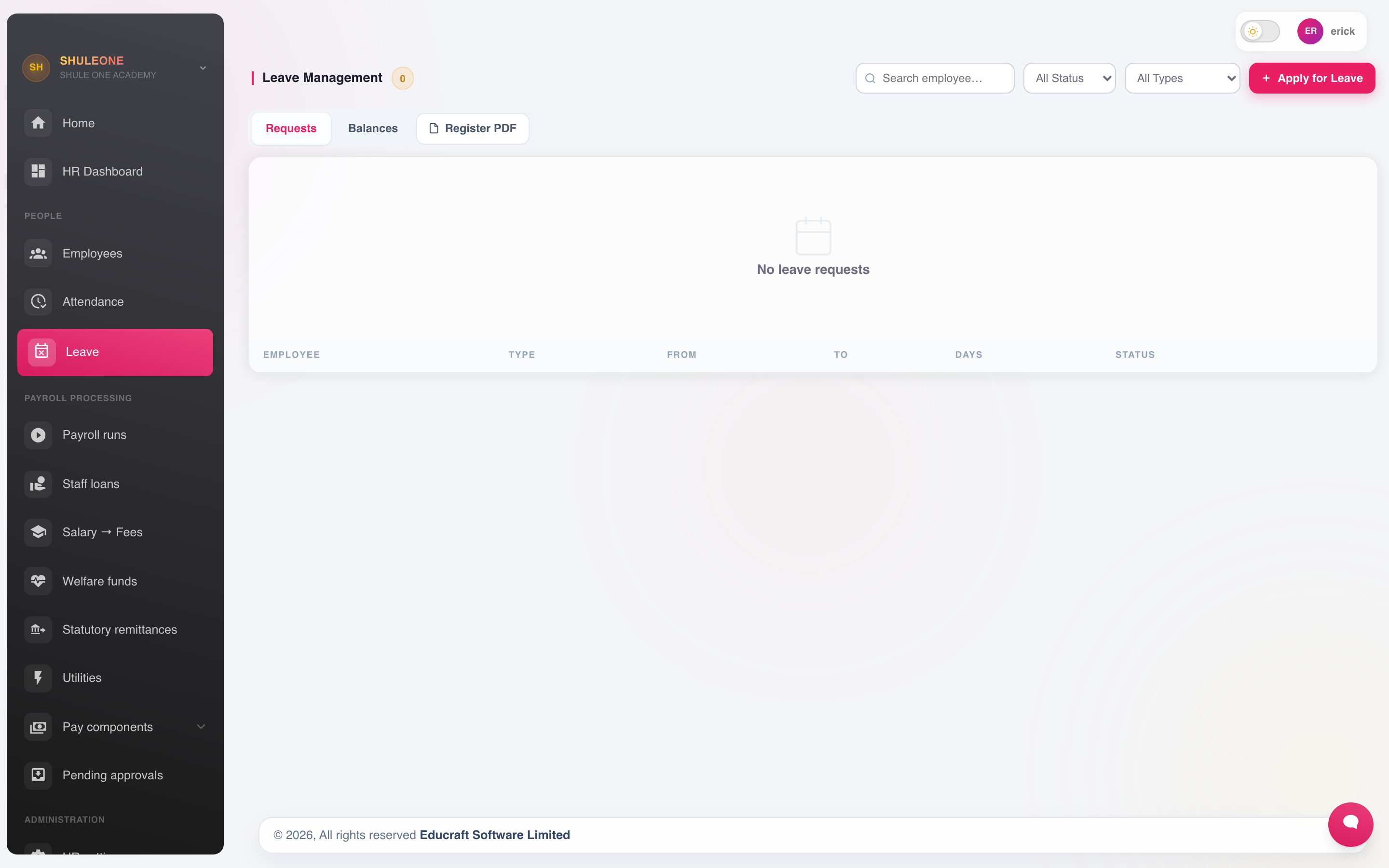
Leave requests, balances and the planner are available as separate tabs.
A member of staff applies with the leave type, dates and a reason. The application goes to their approver, who approves or declines it with a comment. Approved leave:
- Reduces the entitlement balance for that leave type.
- Shows on the leave calendar, so overlapping absences in one department are visible before they are approved rather than after.
- Feeds staff attendance, so days on approved leave are not counted as absence.
Leave types and entitlements are configured in HR → Settings. Set annual, sick, maternity, paternity and compassionate leave with their entitlements and whether unused days carry forward.
Applying from the Admin app
Section titled “Applying from the Admin app”Open HR & Payroll → Leave to check the annual balance recorded by HR and see the status of earlier requests. Select Apply for leave, choose a leave type and dates, add an optional reason, then Submit request. ShuleOne counts weekdays and sends the request to HR as Pending; the employee cannot approve it. Requests that overlap their own pending or approved leave are refused. If no balance appears, HR needs to confirm or set it up; a request can still be submitted.
For a personal view of attendance, open HR & Payroll → Attendance. Use the month arrows to move through recorded days and see clock-in, clock-out and status. Only days actually recorded by the school are counted; ask HR to correct a missing or incorrect entry.
What’s new — 6 October 2026
Section titled “What’s new — 6 October 2026”My personal loan is now a shorter amount-first workflow. In the mobile app, the first step contains only the available limit, amount and Continue. The second step contains the repayment period, estimate, terms and final application button. Previous applications are kept in My requests instead of crowding the form. ShuleOne chooses the best compatible available offer, the employee reviews all terms and data use in a popup, and the accept button stays at the bottom of that notice. The page shows an available limit instead of a credit score; the full assessment remains available as a downloadable PDF. The backend caps principal at 75% of verified average net salary.
HR → Loans manages staff loans and salary advances.
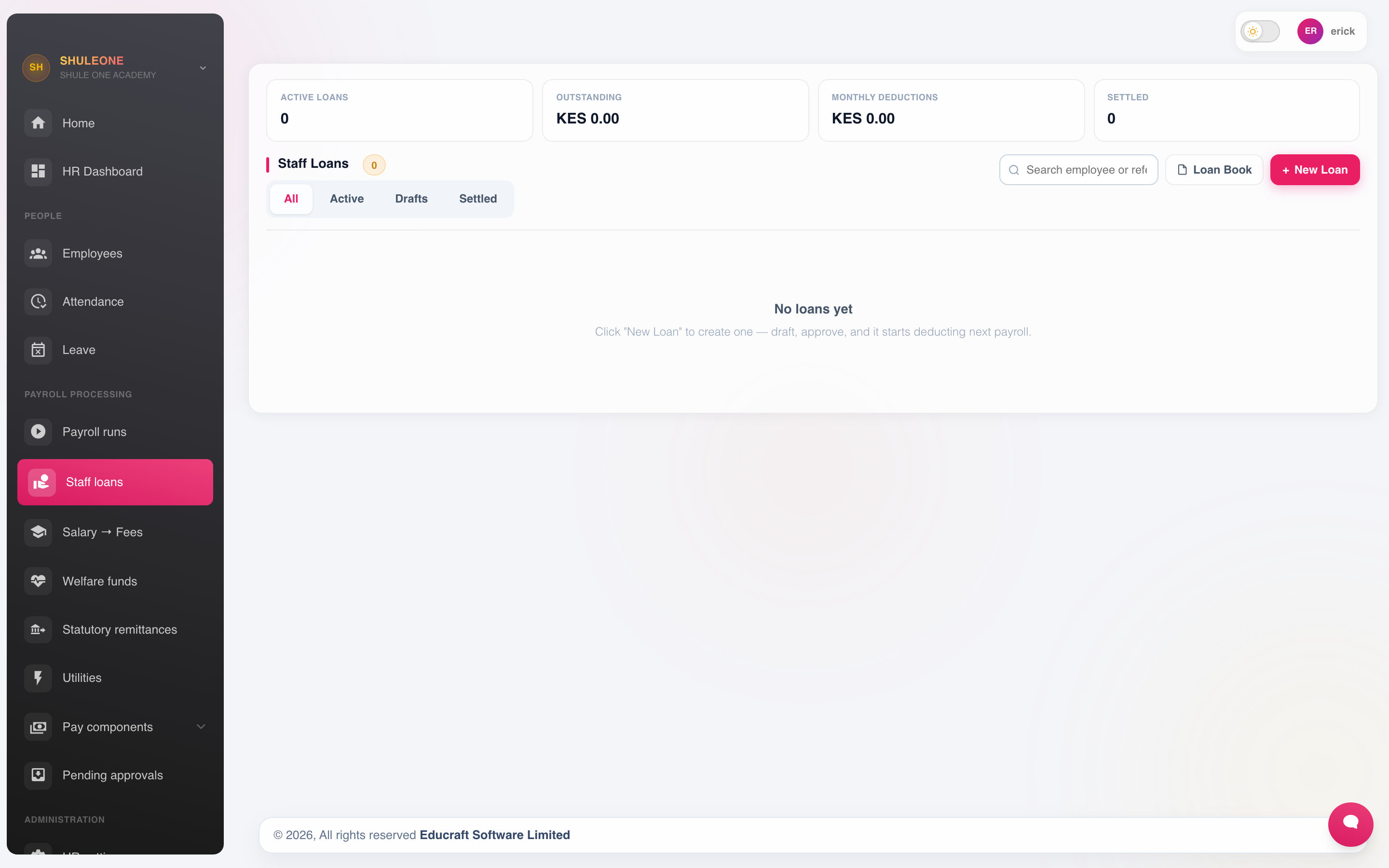
The loans screen summarises principal, repayments and outstanding balances.
Record the amount, the repayment period and the instalment. The instalment is then deducted automatically in each payroll run until the loan is cleared, and the outstanding balance is tracked on the employee’s record.
Independent employee lending is separate from a school-issued staff loan and from
Salary → Fees. An employee applies for personal use from My personal loan in the web
or management app, or sends staff loan 20000 4 agree on WhatsApp. No learner is needed.
The employee chooses M-Pesa or bank disbursement; WhatsApp uses the registered employee
M-Pesa number.
In the mobile Borrow tab, enter the amount or choose a suggested amount, then select Continue. Choose the repayment period on the review step and check the estimated payment before applying. Use the clock button to open My requests. ShuleOne shows the current available limit and automatically selects the best compatible offer. The score, risk band and factor-by-factor calculation are intentionally kept off the application page. Select View credit report on the review step to open the full OpenHTMLToPDF assessment in the app before applying. Select Save or share PDF in the viewer only if you want a copy on your phone or want to send one. After submitting, open Borrow → My requests → Request details and select View credit report to reopen the assessment saved with that application. It remains available while a request is pending and after the loan is funded; it shows the score and evidence captured when the request was submitted.
Open Terms & privacy to see the interest, total repayment, payment amount, late-payment rule and exactly how verified employment, payroll, contact and disbursement data will be used. Accept and continue saves consent for the current notice version and financing service. The app does not ask again for that version and service; an updated notice or a different service requires new acceptance. The principal cannot exceed 75% of verified average net salary and can be lower after the other affordability and eligibility checks.
The first Borrow screen checks for an existing request or outstanding loan before showing the amount form. A pending request shows its status; a funded loan shows the remaining balance and explains that another request is available after full repayment. After Send request, a progress popup stays visible while the application is sent. The confirmation screen shows the request number and review status. If the response is uncertain, use Check request status before sending again.
For ShuleOne Credit loans, the employee can also pay directly from Borrow → Your loan → Pay directly with M-Pesa. They choose an amount and can edit the M-Pesa phone number, which is prefilled with their registered number. The payment-status popup follows the prompt until M-Pesa confirms or cancels it. The app updates the balance only after the M-Pesa callback confirms the receipt and amount. Any automatically calculated late penalty is shown separately in the lender balance and cleared before the base loan. Open Borrow → My requests → the funded loan to see each confirmed payment. Select View receipt beside an M-Pesa or payroll payment to read it in the app. To keep a copy, select Save or share PDF in the viewer and choose Save to Files from the phone’s menu. Each receipt shows the amount, payment date, method, reference, borrower and loan. A pending or failed payment has no receipt. The receipt confirms that individual payment, while the current outstanding balance remains on the Borrow screen. Payroll deductions keep their agreed instalment amount. If a payment requires review, contact support with the receipt instead of paying a second time. Bank transfer is not offered as a direct repayment method at present.
The application goes to the lender. HR → Personal-loan checkoff contains the employee application without exposing it in Finance. HR approves payroll checkoff only; it does not approve credit. After lender approval, the lender pays the employee outside ShuleOne by M-Pesa or bank and records the completed transfer’s method, reference and date. ShuleOne creates the external-lender checkoff schedule only after that record is saved, for the selected period up to the product’s lender-configured maximum. The schedule uses the captured annual flat interest, total repayment and monthly instalment shown to the employee before consent. A later product-setting change does not alter the existing checkoff. Late-payment penalties are lender terms and are never added to the school’s payroll deduction. For ShuleOne Credit employee loans, ShuleOne calculates overdue charges in the lender balance after the agreed grace period; each overdue instalment is charged once.
If an employee cancels a submitted application, HR sees Cancelled with no checkoff decision to make. When the lender records a completed manual payout, ShuleOne creates the active checkoff loan using the selected term and quoted amount. The next eligible payroll calculation adds its monthly deduction to the payslip; the final deduction is limited to the remaining balance. Recalculate a prepared run if the payout was recorded after that run was calculated. Approval of the run posts the loan repayment.
Before approving a loan, check what the employee is already repaying. Several small loans running at once is the usual cause of a zero or negative net pay in a run.
Loan approval, repayment, suspension, write-off and cancellation are processed one at a time per loan. If another administrator has already completed the action, refresh the loan instead of repeating it. One approved loan has one instalment row per scheduled month and one payroll repayment per run.
When an employee with an outstanding loan leaves, settle the balance in their final pay before exiting them.
Staff fee deductions
Section titled “Staff fee deductions”HR → Fee Deductions handles staff whose children attend the school and who pay fees from salary.
Linking the deduction here connects two modules: the deduction reduces net pay in payroll, and the corresponding payment is receipted against the student’s fee account. Doing it as an ordinary deduction instead leaves the student showing as a debtor while the money has already been taken.
Salary → Fees is the correct workflow when an employee wants earnings applied to a learner’s fees. Do not use the employee personal-loan application for that purpose.
Welfare
Section titled “Welfare”HR → Welfare runs the staff welfare scheme: contributions collected through payroll, and claims paid out for bereavement, medical and other agreed causes.
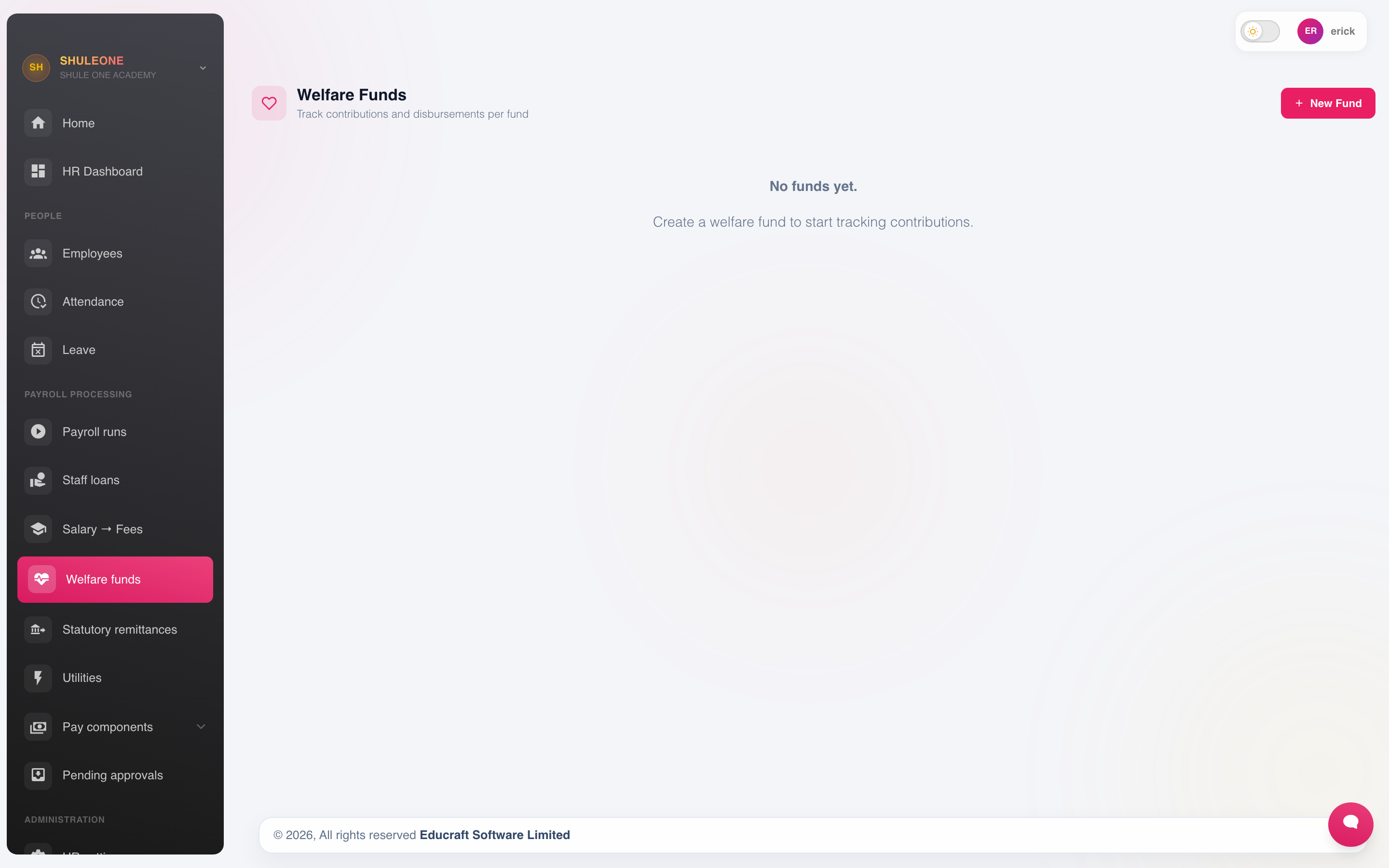
Create and maintain staff welfare funds from this screen.
Record contributions as a deduction type and claims as they are paid, so the fund’s balance is visible to the members. A welfare fund with no visible balance is a source of suspicion out of all proportion to the sums involved.
Approvals
Section titled “Approvals”HR → Pending approvals is the decision queue for directors and HR administrators. It includes new employees, employee status changes, pay-component assignments, loans, fee deductions and other HR submissions that need authorisation.
HR data-entry users see HR → My approvals instead. This read-only view contains only their own pending submissions; it does not expose another preparer’s work and does not offer Approve or Reject buttons. A submitted termination, suspension or other status change remains unchanged until a director approves it.
Approvers should work the queue rather than waiting to be asked. An unapproved payroll run on the day salaries are due is the most avoidable crisis in the module.
An approval item can only be decided once, even when two approvers act at nearly the same time. The first committed decision wins; the second approver should refresh the queue to see the completed decision.
Utilities
Section titled “Utilities”HR → Utilities holds bulk operations — applying an across-the-board increment, correcting a field on many records, recalculating a run. These are powerful and hard to undo. Read what a utility will do before running it, and run it on a small selection first where the screen allows.