
Signing in to the portal
Open portal.shuleone.co.ke.
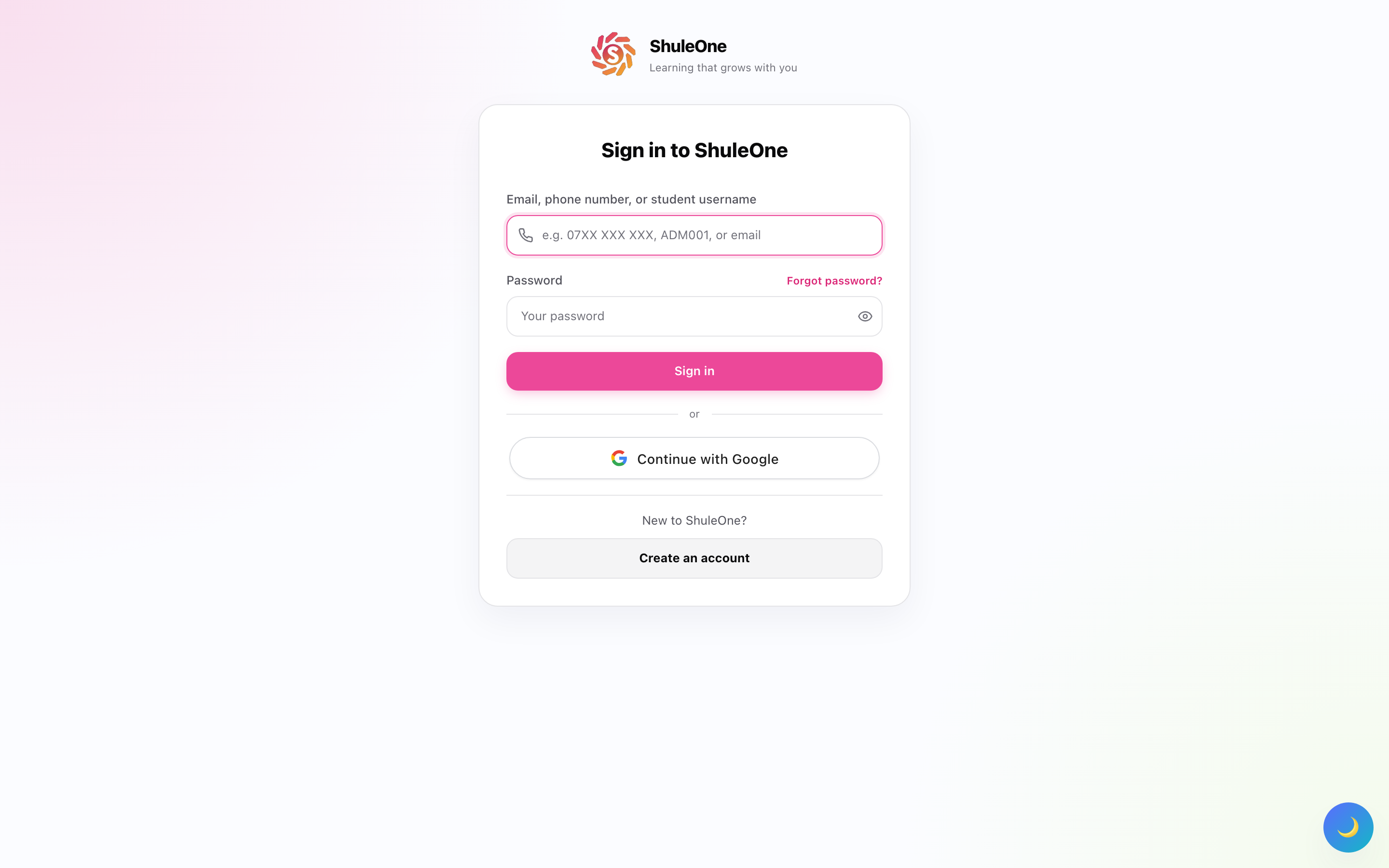
Choose your sign-in option (next web release)
Section titled “Choose your sign-in option (next web release)”- My school uses ShuleOne: parents use the phone registered with school and their password; students use school-issued login details. No new account is needed. A linked email still works.
- Learn with ShuleOne: for learning without a school-linked account. Sign in with your email/phone and password, or use Google. New families choose New here? Create account to open registration; the two forms are not shown together.
These choices guide you; they do not change account permissions. Independent registration opens the learning-interest slides before Home. Slides support phones and tablets, with scrolling available when larger text needs more room. Preferences remain editable from My profile.
Existing sign-in options
Section titled “Existing sign-in options”After independent onboarding
Section titled “After independent onboarding”Learner greetings use the first name—for example, “A little more ARYA. A lot more discovery.” This is display formatting only: full names remain in identity details and formal records.
Independent registration collects the learner name; curriculum and level are chosen once during onboarding, before interests. The catalogue distinguishes CBC, Cambridge, England/British, Montessori and general-learning choices. The curriculum catalogue may contain more topics than the learner library: a learner sees only lessons that have separately passed review and been published for the selected curriculum and level. When no matching lesson is available, the portal shows an availability message instead of substituting CBC material. Guardian settings can update the saved selection. Existing Form/adult accounts retain their previous flow.
From Grade 4, Learn includes Past papers & revision and Ask my tutor shortcuts. Past Papers remains a separate page, also available through navigation. Candidate-year Home pages offer a direct revision button. AI practice papers are practice material, not historical examination papers; availability follows your curriculum, published catalogue and access plan.
The onboarding slides move together in an overlapping horizontal transition, with smooth height changes and compact choice cards. Reduced-motion settings are respected. Short screens and enlarged text can still scroll so choices remain accessible.
Username or email and password. Use the details your school gave you. Your username may be your admission number rather than an email address.
Continue with Google. Works if the email your school has on your record is a Google account. Choose the account and you are in.
Google sign-in matches on the email address. If the school has one address for you and you sign in with a different Google account, the portal will not find you — it does not create a new account. Ask the school to correct the email on your record.
The first time
Section titled “The first time”Your school creates your account from your admission record, so you do not sign yourself up. If you have never been given details, ask your class teacher or the school office rather than trying to register.
Change the password you were given to one only you know, from your profile menu.
First-time password setup (web, awaiting deployment): if the Change your password reminder appears, select Change it now. Enter New password and Confirm new password, then select Save new password. You do not need to re-enter the shared school default. After you set your own password, later changes require your current password. See Choose your own password for the steps for students and parents.
Staying signed in
Section titled “Staying signed in”You stay signed in on your own device between sessions, so you do not have to type your password every day.
On a school or library computer, always use Log out when you finish. Closing the tab leaves your account open for whoever sits down next — including your work, your marks and your messages.
When it does not work
Section titled “When it does not work”| What happens | What to do |
|---|---|
| “Invalid credentials” | Check for a space at the end and for caps lock. Passwords are case-sensitive. |
| Google sends you back to the start | The Google address is not the one on your school record. Ask the school. |
| You sign in but there is nothing there | Your class has not been given any quests yet. Ask your teacher. |
| The portal looks wrong for your age | Your date of birth on the school record needs correcting — see tiers. |
| You have forgotten your password | Use Forgot password, or ask the school office to reset it. |
Nobody at the school or at ShuleOne needs your password. If someone asks you for it, including in a message that looks official, do not give it to them.
Using it on a phone
Section titled “Using it on a phone”There is an app: ShuleOne Connect, on Google Play and the App Store. Learners get their own version of it — quests, code, games, lessons, assignments and progress — and it can notify you when something is due. See the app guide.
Do not install ShuleOne Admin by mistake; that one is for school staff.
The portal also works fine in a phone browser without installing anything. Some activities — drawing, tracing, dragging — are easier with a touchscreen than a mouse, so a phone or tablet is often the better device for the younger tiers.
Videos use data. On a limited bundle, do the reading and the questions on data and save the videos for when you are on Wi-Fi.