
Teachers
A teacher record does three jobs at once: it is a staff record, it decides which classes and subjects the teacher can enter marks for, and it is the basis of their timetable allocation.
Go to Registration → Teachers.
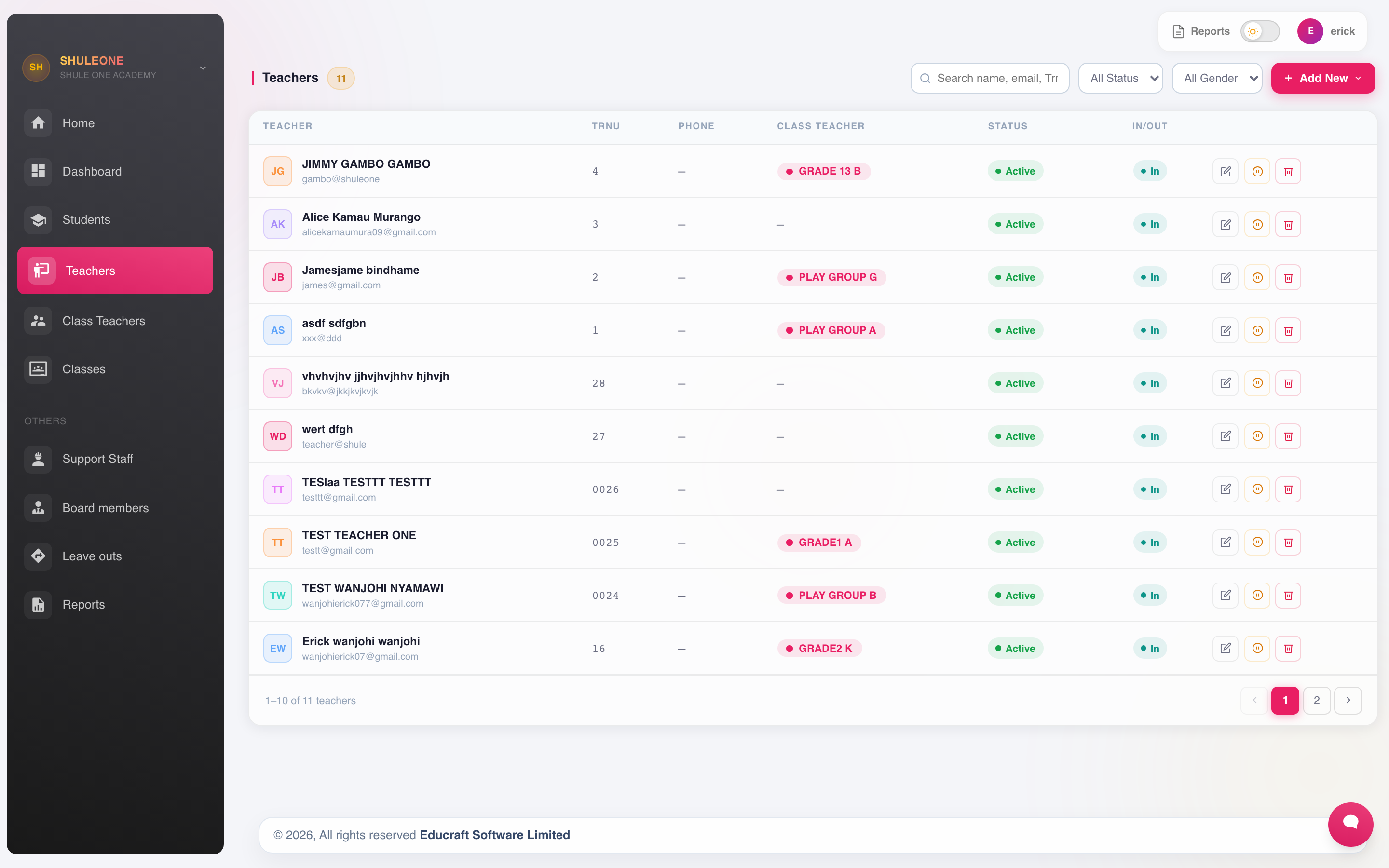
The current teacher list with staff details and allocation status.
Registering a teacher
Section titled “Registering a teacher”Registration is a short wizard rather than a single form, because the subject and class allocations depend on the personal details being saved first.
Step 1 — details. Name, TSC or staff number, gender, date of birth, telephone, email, national ID and the department they belong to. The email is what they will use to sign in, so it must be an address they actually read.
Step 2 — photograph. Upload a passport photograph. It appears on staff lists and ID cards.
Step 3 — subjects and classes. Assign the subjects the teacher takes and the classes they take them in.
This step is the one that matters day to day. It controls:
- Which marks sheets the teacher can open under My Subjects.
- Which classes appear for lesson plans and rubrics.
- What the timetable generator can allocate them to.
A teacher with no allocation signs in successfully and finds an empty workspace. If a teacher reports that they “cannot see their class”, check step 3 first.
When the wizard is saved, ShuleOne also creates a pending HR employee or links the teacher to an existing employee. It checks the full name as well as identifiers. Phone alone is never enough to link two records, and an ID match is accepted automatically only when the names are compatible.
If an existing name is the same or looks like a spelling variation, the wizard shows Possible Existing Employee. Compare the masked ID and phone endings. Select Link this employee for the same person, or Create separately for a different person and record the reason. Existing HR pay, bank, approval and employment details are preserved when linking. A candidate marked Already linked should be corrected in its existing teacher record instead of being registered again.
Importing teachers
Section titled “Importing teachers”For a large intake, open Add → Download import excel, complete one row per teacher, then use Import from excel. Do not rename the template columns.
After processing, results are separated into:
- Added — a new teacher was created.
- Linked — a compatible name plus a reliable matching identifier linked the teacher to an existing HR employee without replacing that employee’s HR details.
- Skipped — the national ID or other unique identifier already belongs to an existing person. The message names that person; internal table IDs are not shown.
- Failed — the row needs correction. Possible name or typo matches are included here because an import never chooses between people automatically.
Failed, correctable rows are placed in a new Excel workbook with a Failure Reason column. The download starts automatically and is also available from Download Excel. Skipped teachers are excluded because they are already in ShuleOne.
Select Import history to review earlier workbooks and row results. A batch marked as reversible offers Roll back. Rollback removes teacher records created by that batch and their unused portal login accounts. It restores links to pre-existing HR profiles and removes HR employees created by the same import when they are still pending, unchanged and unused. An HR employee that was later approved, edited, or used by payroll, attendance, leave, transport or another HR workflow is kept and only unlinked. The result reports how many HR employees were removed and how many were retained. If an imported portal account has since been used, rollback stops without changing the batch so the account can be reviewed safely.
Class teachers
Section titled “Class teachers”Assigning a subject teacher is not the same as assigning a class teacher. Class teachers are set under Registration → Class Teachers — see Classes and streams.
Editing and removing
Section titled “Editing and removing”Open a teacher from the list to edit them.
When a teacher leaves, deactivate rather than delete. Marks they entered, lesson plans they wrote and comments they made stay attached to their record, and deleting it leaves those orphaned. Deactivation blocks sign-in and removes them from allocation lists.
Lists and reports
Section titled “Lists and reports”Lists can be filtered by department and status, and exported as PDF or Excel.
Teachers and HR
Section titled “Teachers and HR”The teacher record here covers the academic side. Payroll, leave, loans and statutory deductions live in the HR module, against the linked employee record.
New registrations and imports create or link the HR employee in the same transaction. New HR employees remain pending until HR approves them. Keep names and identifiers accurate; national ID may be left blank when it is not known. If the HR employee already exists, linking deliberately leaves HR-managed details unchanged.
What’s new - 31 August 2026
Section titled “What’s new - 31 August 2026”Manual teacher registration now creates or links the HR employee just like teacher import. Both paths check existing names and likely spelling errors, require corroborating details before automatic linking, and stop ambiguous imports for correction. The manual wizard lets an authorised user link the right employee or create a genuinely different person with a recorded reason.